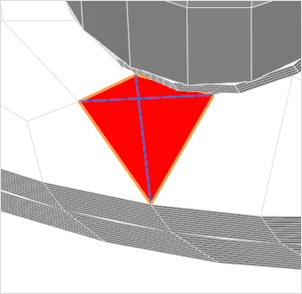
Resolve mesh quality issues
Practice the workflow for checking element quality and resolving quality problems.
 Download and extract the part files.
Open the FEM file
Open the FEM file and reset the dialog box settings.
- Choose File→Open and open exhaust/exhaust_fem.fem.
- Choose File→Preferences→User Interface and on the Dialog and Precision page, reset the dialog box memory.
Check for duplicate nodes
Detect and merge duplicate nodes in the displayed mesh.
-
Choose Home tab→Checks and Information group→Duplicate Nodes
 .
.
Check the element normal orientation
Display and adjust the normal directions of 2D elements in the mesh.
-
Choose Home tab→Checks and Information group→2D Element Normals
 .
.
-
Select the 2D mesh in the graphics window.
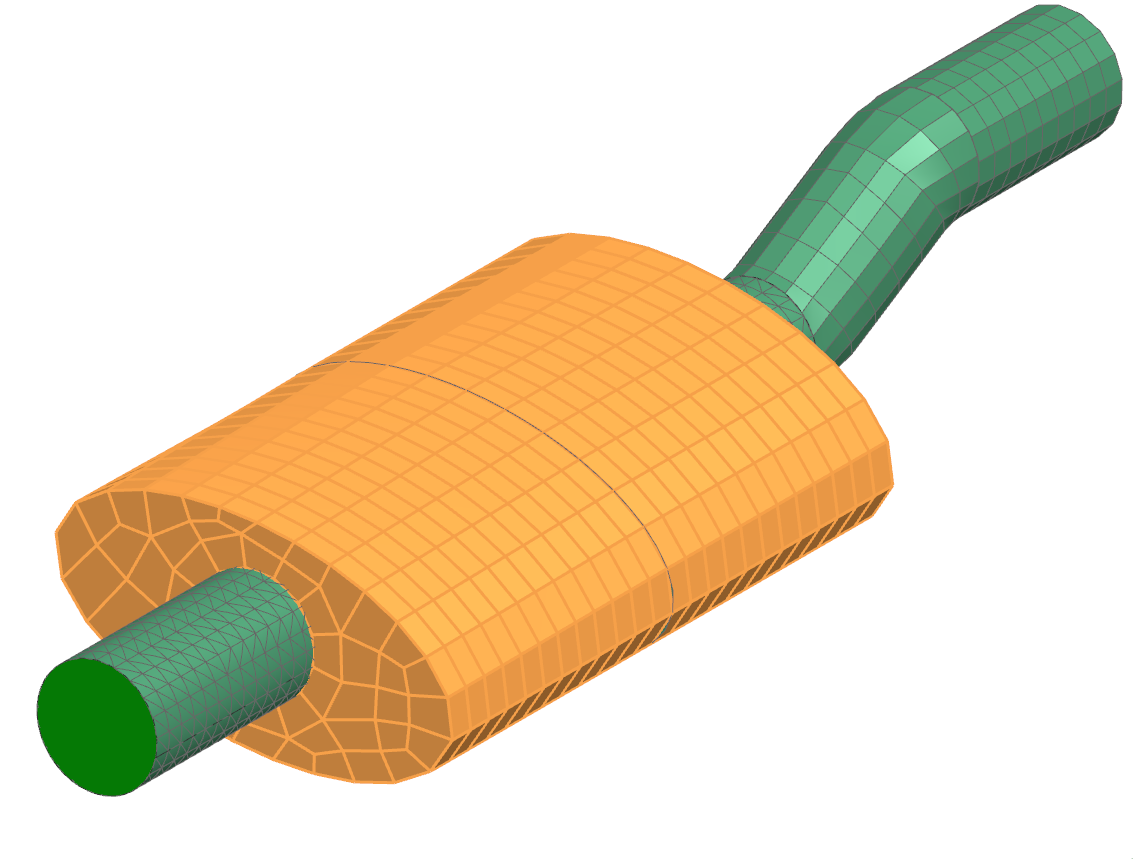
- Click Display Normals.
- Click Reverse Normals to make the normals point outward.
- Click Close.
Check elements quality
Run a quality check to identify and report failed and warning elements.
-
Choose Home tab→Checks and Information group→Element Quality
 .
.
Set up a persistent element display
Enable display of element quality results directly in the model view.
Repair the failed elements
Manually fix poor-quality elements using element splitting tools.
-
Choose Nodes and Elements tab→Elements group→Split Shell
 .
.
-
In the graphics window, select the failed element.
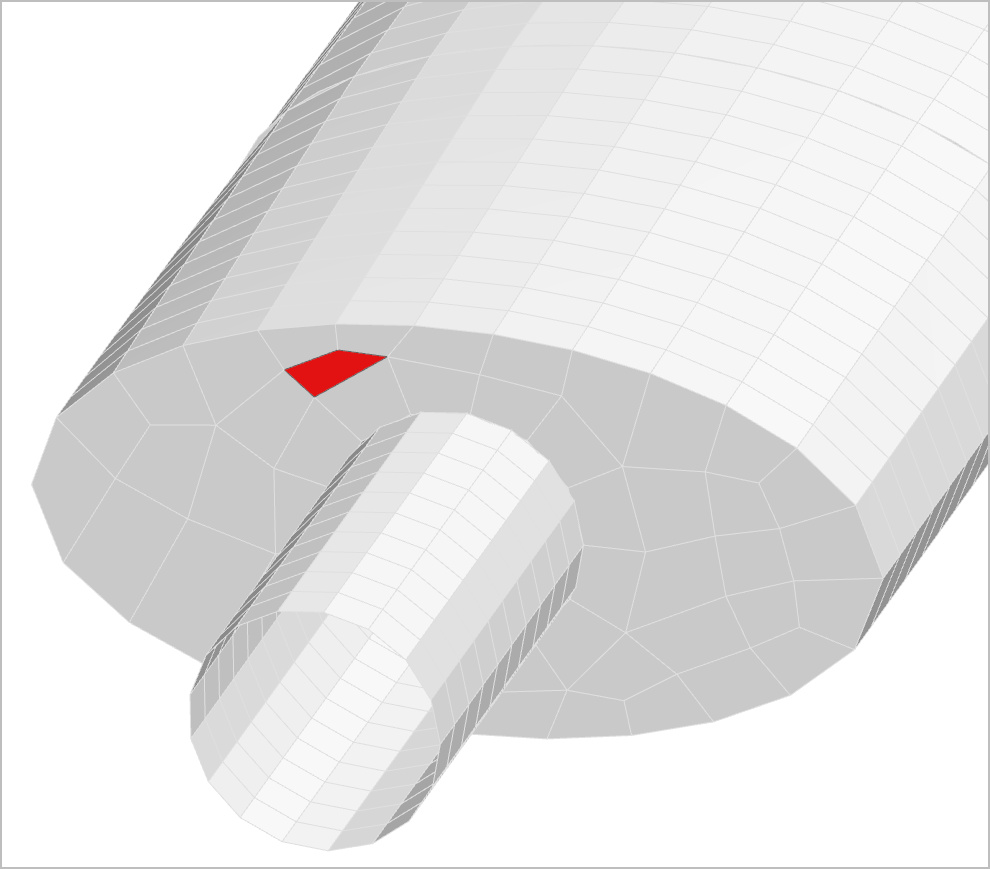
-
Click Flip Split Line if necessary.
The element should be split as shown.
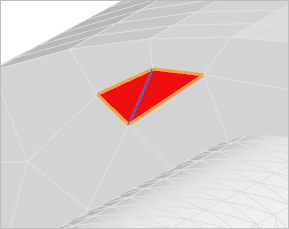
-
Rotate the model and select the failed element, as shown.
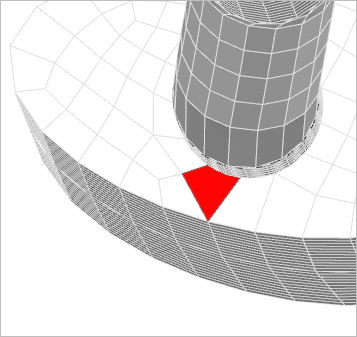
-
Click OK to finish splitting.