
Create an assembly FEM for the airplane cabin model
Practice creating an assembly FEM for an aircraft cabin model.
 Download and extract the part files.
Open the part file
Open the part file and reset the dialog box settings.
- Choose File→Open and open airplane_cabin/HVAC_in_Airplane_section_stp.prt.
- Press Ctrl+F to fit the geometry in the graphics window.
-
Choose File→Preferences→User
Interface, on the Dialog and Precision page, click
Reset Dialog Memory
 .
.
- Click OK.
Create a new assembly FEM
Because the provided FEMs are saved in the Simcenter 3D Multiphysics solver environment, you will create the assembly FEM also in the Simcenter 3D Multiphysics solver environment.
- In the Simulation Navigator, right-click the HVAC_in_Airplane_section_stp.prt node and choose New Assembly FEM.
- In the New File Name group, in the Folder box, make sure the file path points to your part file folder and click OK.
- In the Solver Environment group, from the Solver list, select one of the following solvers: Simcenter 3D Multiphysics, Simcenter 3D Electronic Systems Cooling, Simcenter 3D Thermal/Flow, and Simcenter 3D Space Systems Thermal. For this activity the Simcenter 3D Multiphysics solver is used.
- From the Analysis Type list, select Coupled Thermal-Structural and click OK.
Explore part files within the assembly FEM
Explore the part files.
- In the Simulation Navigator, under the HVAC_in_Airplane_section_stp.prt node, notice that the status for all its components is Ignored, because you did not add them to the assembly FEM.
- Right-click the doublerow.prt x 4 node and choose Unpack to separate the packed components from under a single node so that each has its own node.
- Repeat the step 2 for the passenger.prt x 24 node.
Associate a part file to existing fem file
Map existing part files to corresponding FEM files in the Simulation Navigator to associate components correctly within the assembly.
-
In the FE Model row, click Open
 .
.
-
Next to FE Model, click Open
.
Associate a part file to a new fem file
Associate part files to its Fem file.
- In the Simulation Navigator, right-click the HVAC_system.prt node and choose Map New.
- In the Templates group, select Simcenter 3D Multiphysics.
- In the New File Name group, in the Name box, type HVAC_system_fem1.fem.
- In the Folder box, make sure the file path points to your part file folder and click OK.
- In the CAD Part group, from the Part list, select HVAC_system.
- In the Solver Environment group, from the Analysis Type list, select Coupled Thermal-Structural and click OK.
Create a mesh for HVAC system
Create a HVAC system mesh.
- Switch to the (FEM) HVAC_system_fem1.fem window.
- Press Ctrl+F to fit geometry in the graphics window.
-
Choose Home tab→Mesh
group→3D Tetrahedral
 .
.
-
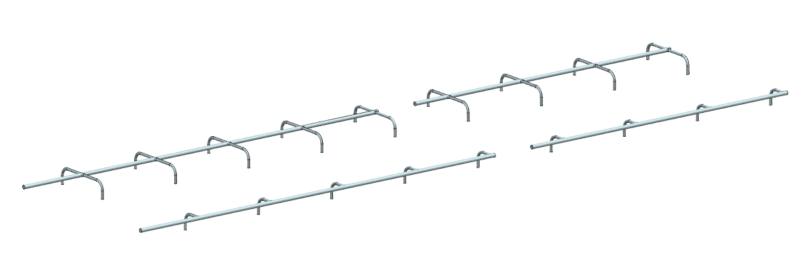
Select the shown body.
-
In the Mesh Parameters group, click Automatic
Element Size
 .
.
- Click OK.
Check for label conflicts
Identify and automatically resolve label conflicts among component FEMs in the assembly, ensuring all node labels have unique offset ranges.
-
In the Simulation Navigator, right-click the
HVAC_in_Airplane_section_stp_assyfem1.afm node and choose
Assembly Checks→Assembly Label
Manager.
In the Labels group, on the Nodes tab, in front of each component FEM, observe that the Status is set to Conflict
 , which indicates that the component FEM offset range for
its node labels overlaps with the offset range of other component FEMs in
the assembly FEM.
, which indicates that the component FEM offset range for
its node labels overlaps with the offset range of other component FEMs in
the assembly FEM. -
In the Automatic Label Resolution group, click
Automatically Resolve.
The Status in front of each component FEM is changed to Valid
 , which indicates that no label in this component FEM
conflicts with other component labels.
, which indicates that no label in this component FEM
conflicts with other component labels.