
Fields, expressions and plugins
This topic explains how to define boundary condition inputs in Simcenter 3D using fields, expressions, and plugin functions. These tools allow you to model complex, time- and space-dependent behavior efficiently.
This lesson may include hands-on exercises. Review the Discussion section for background information or click the button to proceed to the practical section.

Discussion
You can define boundary conditions using:
- Fields.
- Expressions.
- Plugin functions.
The following diagram shows how fields, expressions, and plugins interact within the Simcenter 3D thermal workflow.
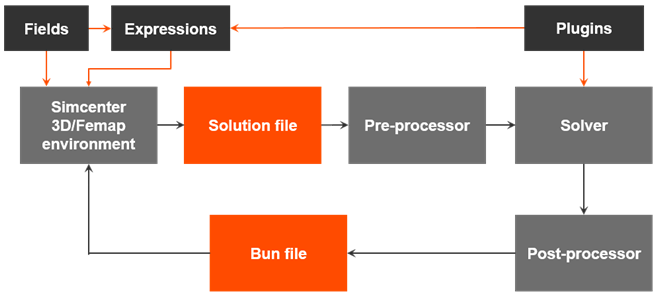
These methods allow boundary condition magnitudes to vary with:
- Spatial independent domains such as Cartesian, cylindrical, spherical, or parametric coordinates.
- Non-spatial independent domains such as time, temperature, or frequency.
- Combined independent domains including spatial and non-spatial variables such as space and time together.
- What is a field?
- Fields represent functional relationships. They
define how a dependent domain varies with an independent domain. Use a field
to define boundary conditions that vary:
- With a variable, for example, temperature.
- Spatially.
- With a combination of an independent variable and spatial location.
Example:Formula field50 000 W/m² heat-flux pulse from time = 0 to time = 1.0 s:
Table fieldif (time<=1.0[sec]) then 500.0[W/m²] else 0.0[W/m²]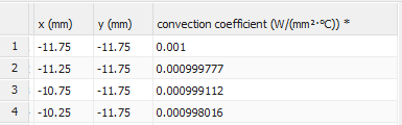
You can create fields either from the context of a specific application or directly from the Simulation Navigator. If you create a field from the context of a specific application, the dependent domain is predefined.
- What is an expression?
- An Expression is a mathematical relationship that
defines how boundary conditions, material properties, and physical
properties vary with spatial and non-spatial variables.
The formula for an expression can be:
- A real numerical value, where the value of the expression is constant.
- A functional relationship, where the value of the expression can vary.
Example: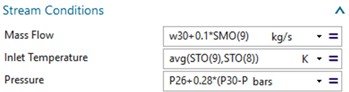
You can create expressions either:
- From the context of a specific application.
- In the Expressions dialog box.
- Auto-generated expressions
- The CAE expression system automatically creates expressions for many
commonly used variables. In most cases, the name of the auto-generated
expression is identical to the variable name itself.Example:The software automatically generates the expression:
temperature. To use temperature in another expression, simply enter:temperature. In this case,temperatureis treated as an expression name, not as a string constant, so quotation marks are not required. - Lookup functions in expressions
- Expressions can access model data using lookup functions. The following
table lists the examples of lookup functions that are commonly used in
formulas for CAE expressions.
In the table, curve name, field name, point name, and variable name are text string names of curves, fields, points, and variables. Because they are string constants, they must be enclosed in quotation marks.
Example:Function Description CONDVAL("condition parameter name",time)Returns the value for a locked expression that the software creates for a condition parameter at the specified time in the active condition sequence. FD(“field name”,argument1,......)Returns the value for a field. TEMP(“point name”)Returns the temperature of the solid at the input point. UG_VAR(“variable name”)Returns the current value for a variable. - Thermal-flow functions
- Use the thermal-flow functions in expressions for the thermal solver to
evaluate thermal-flow properties, at run time, for each element in the
boundary condition selection.Example:
Properties Examples Total temperature ABS2REL(v1,v2,v3,v4,i,v5)returns the relative temperature of a fluid.Fluid properties CONDFL(v1,i,v2)returns the thermal conductivity of a fluid.Void properties VA(i1,i2)returns the convecting area of a void - Choosing between expressions and formula fields
- The following table compares the capabilities of formula fields and
expressions.
Functionality Formula field Expression Spatial variables coordinate systems Absolute or local Absolute only Number of non-spatial variables One Unlimited Dependent domain Scalar or vector Scalar only Evaluating the formula/expression Pre-solve During solve You can:
- Use fields for spatial variation.
- Use expressions for parametric and time-dependent behavior.
- Using fields in expressions
- You can use a Field in an
Expression as:
- Basic operations:
fd("field name",optional_argument1,optional_argument2,.....) - Embedded mathematical operations:
fd(“Table field(1)",time + 0.2) - Composite operations:
fd(“Table field(1)“, fd(“Table field(2)“),fd(“Table field(3)“)) - Vector-valued functions
- Fields with complex dependent domains
- Basic operations:
- What is a plugin function?
- A plugin function is a user-written extension that adds custom behavior to
the Simcenter 3D thermal solver. It allows you to implement correlations, material models,
or physics not available in built-in expressions.
Plugin functions are typically written as external libraries in C or C++ and loaded by the solver at runtime. Once loaded, they can be referenced directly in the simulation in the same way as standard expressions.
Plugin functions allow you to:
- Implement advanced convection and heat-transfer correlations.
- Model custom material behavior.
- Include proprietary engineering methods without exposing intellectual property.
- Access solver-computed quantities during the analysis.
- Update correlations dynamically at every solver iteration.
- How plugin functions work
- Plugin functions provide direct access to solver runtime data through a full
C++ interface. During the solution process, the solver evaluates the plugin
repeatedly and supplies the current simulation state as input. The solver
calls the plugin function for each element or boundary location where the
associated condition is applied. This allows the plugin to compute localized
quantities such as heat-transfer coefficients, heat pickup, or custom source
terms using current solution values.
Because the plugin is evaluated during the solve, the returned values can continuously adapt to the evolving simulation conditions.
- Predefined API methods
- You define plugin functions using API methods that are supported by Simcenter 3D and by the thermal solver. You can find:
- A list of API methods in the Thermal Solver API Manual
- Simcenter 3D methods
- Thermal solver methods
- A description of the API methods in the C++ header files located in the [installation_path]\ugstructures\evalplugin\src folder
- Examples of .cpp and .cmd files in the plugin_examples\thermal_solver folder in the tmg patch.
Set UGII_BASE_DIR environment variable to point to Simcenter 3D installation directory.
- A list of API methods in the Thermal Solver API Manual
Hands-on material
To gain experience with the topics discussed here, complete the following:
