
Learn thermal plugin basics
Learn how to compile the plugin and use it in Simcenter 3D.
 Download the files from the installation directory under
THERMALFLOW\tmgsolver\plugin_examples.
Download the files from the installation directory under
THERMALFLOW\tmgsolver\plugin_examples.Introduction
A thermal plugin is a collection of user-defined functions compiled into a .dll file and referenced within a simulation. These functions can include heat transfer, windage, pumping, or any other custom correlations and relationships relevant to your modeled physics.
For example, consider a function that computes a heat transfer coefficient based on mass flow, flow area, and characteristic length: HTC(M,A,L), where mass flow, flow area, and characteristic length are externally supplied arguments.
In this workshop, you will:
- Open a sample plugin in Visual Studio.
- Compile the plugin into a .dll.
- Open a model that references the plugin.
- Modify the code to output debug messages.
- Inspect unit handling.
- Review header files to understand available solver data.
Open the Visual Studio project and compile
Set the required environment variable, open the Visual Studio project, and compile the sample thermal plugin into a .dll file.
-
Make sure that you compile the Release version of
the plugin in the drop down in the top border.
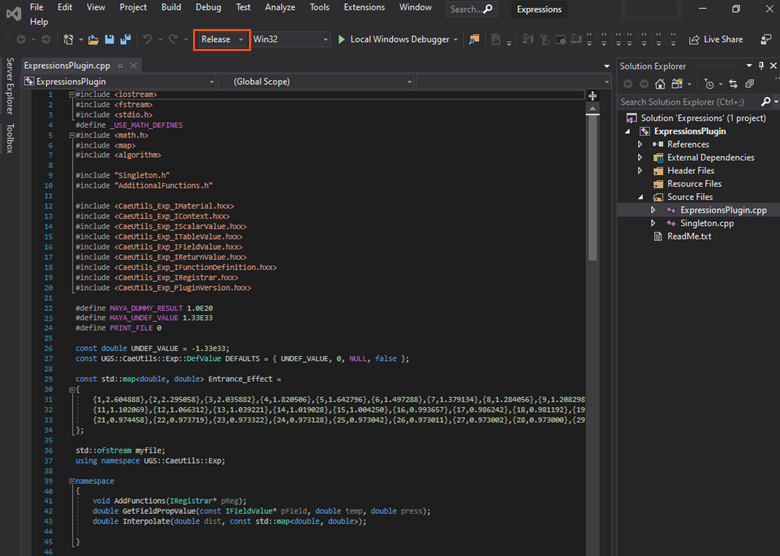
-
Select to compile the code to .dll.
You should see a message similar to the one shown below, indicating the full path of the compiled .dll file. This path will be used when configuring the customer default in Simcenter 3D.

Load the thermal plugin in Simcenter 3D
Load the thermal plugin.
- Open Simcenter 3D.
- Choose .
- Click Simulation, expand Pre/Post, and click Expressions.
- On the Plugin tab, select the Use Custom Plugin check box.
- Type the path to ExpressionsPlugin.dll that you retrieved from your Visual Studio output.
- Click Ok to exit the dialog box.
- Exit Simcenter 3D and restart it to load the connection to the .dll.
Load the sample model and solve
Load the sample model and solve.
-
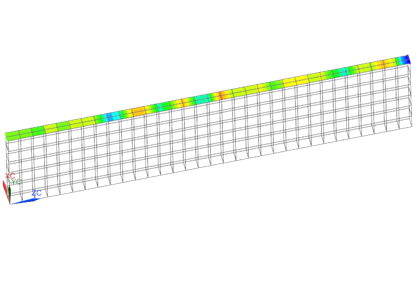
Display convection coefficients.
Write out messages to better debug the plugin
It is good practice to verify that your thermal plugin is returning the expected values. To assist with this validation, you can print the variables used within the function to confirm they contain reasonable values. This will be demonstrated in the next step.
-
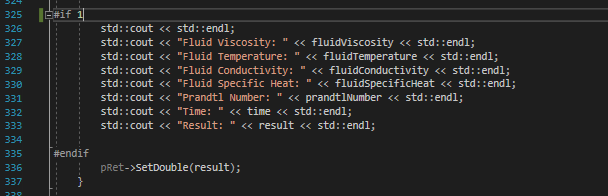
Scroll to line 325 under HTCCustom, and replace #if 0 with #if 1.
This activates the printouts in the solution monitor, as shown in lines 326 to 333.
Re-load the sample model and solve
-
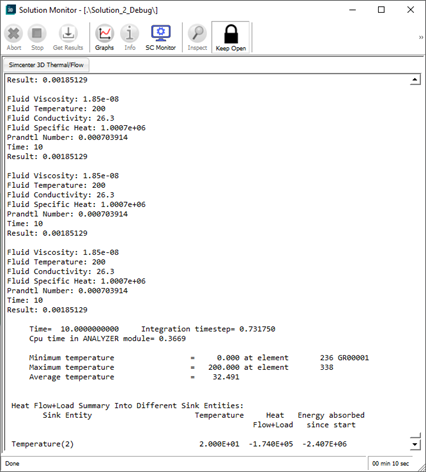
Inspect some debug messages in the log file as shown below.
Check units
-
Observe line 342. This sets the units for meas,
which is then used in line 345 when defining the function.
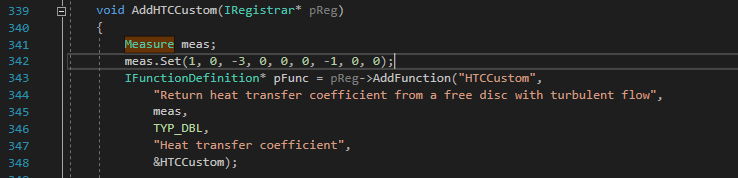
In the
meas.Setfields, each number represents the exponent of a fundamental unit in the following order: Mass, Length, Time, Temperature, Charge, Angle, DeltaT, Intensity, Amount of Substance. The values shown correspond to [m/s3∆T] which is equivalent to [W/m2C].In Simcenter 3D, Temperature (T) and Temperature Difference (ΔT) are treated as distinct units. Therefore, it is important to define the exponent for ΔT correctly to ensure proper unit handling within the function.
Explore header files
-
Inspect lines 209 to 217 of
ExpressionsPlugin.cpp.
The block of code checks whether fluid pressure exist. If fluid pressure exists, the magnitude is assigned to
fluidPressure, and if it doesn’t, a message is produced to the solution monitor.
-
The
GetFluidPressure()function can be found in theCaeUtils_Exp_IContext.hxxheader file found in External Dependencies.
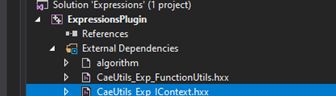
-
Thermal property utility functions can be found under
CaeUtils_Exp_IMaterial.hxxas shown.
-
Inspect line 109 in
ExpressionsPlugin.cpp.Here, the functionpGetDistanceis initialized. This initialization is required because the function is available in the thermal solver environment, but not in Simcenter 3D. A complete list of additional functions that are available only in the thermal solver can be found inAdditionalFunctions.h, located under theHeader Filesfolder.
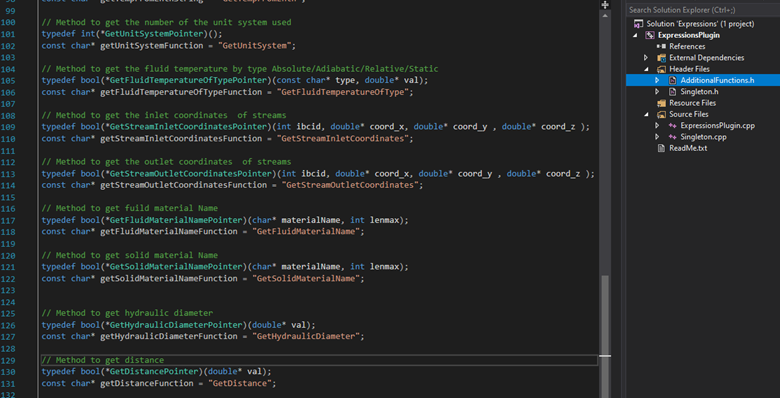
Additional notes
- The sample plugin is updated with each thermal solver patch release and is located in the installation directory: THERMALFLOW\tmgsolver\plugin_examples\thermal_solver\ExpressionsVS2019\ExpressionsPlugin.
- If you prefer to compile the plugin using a script rather than Visual Studio, a .cmd file is available in: THERMALFLOW\tmgsolver\plugin_examples\thermal_solver\ExpressionsShell