
Model radiation on 3D components
Model radiative heat transfer on 3D components and compare full radiation solution with the simplified approach and evaluate solve time trade-offs.
 Download and extract the part files.
Introduction
Radiative heat transfer can significantly influence component temperatures in gas turbine engines, particularly where convection is weak or components with large temperature differences have a direct line of sight.
Radiation is typically important in regions such as:
- The exhaust assembly, where hot diffuser walls radiate to cooler outer casings
- The turbine inlet, where components are exposed to combustion gases
When deciding how to model radiation, consider:
- Can you represent components with 2D elements?
- Can you apply cyclic symmetry?
- Can you divide the model into multiple enclosures to reduce solve time?
- Can you accept reduced accuracy to achieve significantly faster solve times?
This tutorial compares two radiation modeling approaches:
- Full enclosure radiation with periodic radiation enabled.
- Simplified radiation using thermal couplings and precomputed gray-body view factors.
Load and inspect the model
Inspect components, identify radiating regions, and review boundary conditions.
-
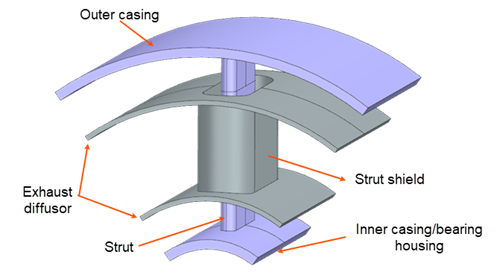
Inspect the geometry and identify the major components of the 1/5 sector
cyclically symmetric model.
-
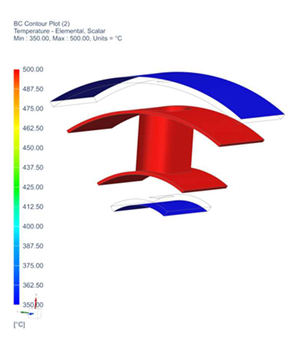
Select the temperature constraints, right-click the selection, and select
Plot Contour to visualize the applied
temperatures.
Explore the radiation enclosure
Explore the defined radiation enclosure that uses the Monte Carlo view factor calculation method.
-
Notice that:
- The enclosure includes the inside casing surfaces, outside diffuser
surfaces, the strut, and the inside of the strut shield.
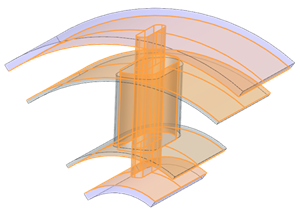
34 surfaces are included.
- The Monte Carlo method is selected.
- Number of Rays is set to
2000.
You can increase the ray count if required until the results converge to the required accuracy.
- The Include Radiative Environment option is cleared.
- The enclosure includes the inside casing surfaces, outside diffuser
surfaces, the strut, and the inside of the strut shield.
-
Click OK.
This enclosure provides the most accurate radiation solution because all participating surfaces can exchange radiation within a single enclosure, allowing the solver to account for all visibility and shadowing effects.
To reduce solve time, the model could instead be divided into multiple radiation enclosures.
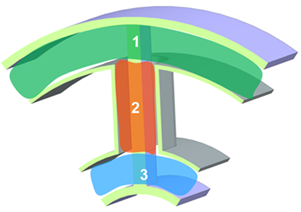
However, this approximation prevents surfaces in different enclosures from exchanging radiation. For example, surfaces in enclosure 1 may physically see surfaces in enclosures 2 and 3, but these interactions are ignored. As a result, the solver performs fewer visibility and shadowing calculations, reducing computational cost but decreasing solution accuracy.
Explore Cyclic Symmetry
Explore periodic radiation in a cyclic symmetry model.
-
Notice that:
- Source and target regions define the cyclic faces.
Source Region Target Region 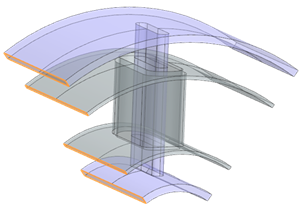
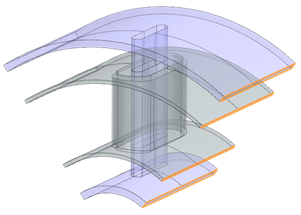
- The Dynamic coordinate system is selected.
- The number of calculated segments is 5.
- Two solid bodies are assigned to Stage 1.
- Enable Radiative Thermal Rotational
Periodicity is selected.
When this option is enabled, the solver replicates the model around the complete annulus and computes radiation exchange between all cyclic sectors.
Although this produces the most realistic solution, it substantially increases the time required to compute view factors.
Common methods for reducing solve time include:
- Using the GPU Computed View Factors method.
- Subdividing solid bodies and applying swept meshes to reduce the number of surface elements.
- Reducing the number of heat flow reports, as they require additional iterations.
- Running the thermal solver in parallel.
- Using radiation patches. You can define them either in Advanced Parameters or in the solver options under Radiation. Note that these methods behave differently.
This tutorial intentionally uses the full configuration to generate accurate view factors that will later be reused in a simplified model.
- Source and target regions define the cyclic faces.
Explore Heat Map reports
Explore the Heat Map reports applied to several regions of interest for view factor calculations.
-
Under the heat_maps folder, inspect the created
reports.
These reports define groups used to calculate heat flow and view factors between important regions.
Name Selection outer_case 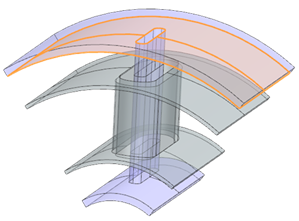
outer_diff 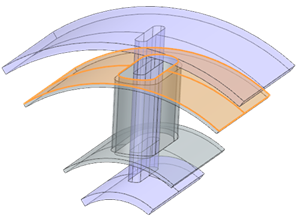
outer_strut 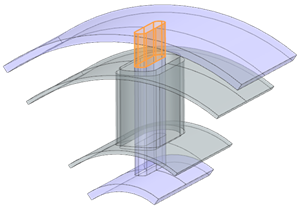
inner_case 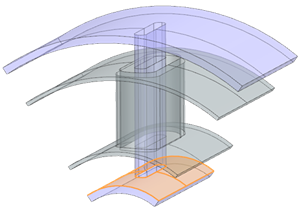
inner_diff 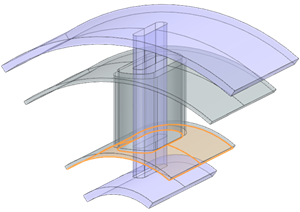
inner_strut 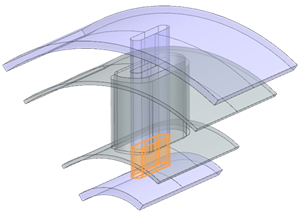
strut_shield 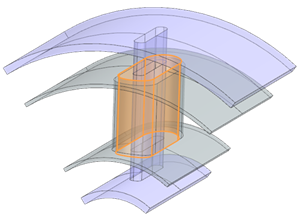
mid_strut 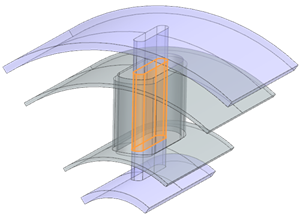
Inspect the view factor results
A full radiation enclosure solution requires hours to solve. Instead, use the supplied results.
Build the simplified radiation model
Replace the enclosure radiation with gray-body radiation thermal couplings.
-
Choose
 to represent radiative exchange.
-
In the Primary Region group, select the shown
faces.
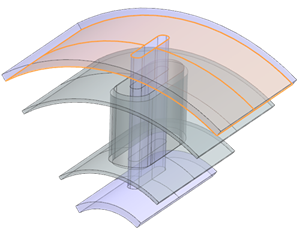
-
In the Secondary Region group, select the shown
faces.
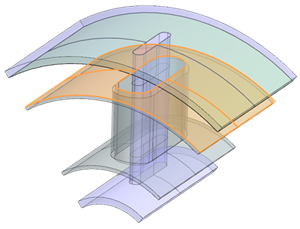
-
Create six additional radiation couplings using the dominant gray-body view
factors.
Primary Region Secondary Region Gray Body View Factor 0.433/5 0.221/5 2.274/5
3.506/5
0.514/5
0.845/5 Note:The emissivity of the mesh collector is used in the radiation calculation along with the grey body view factor to calculate radiative heat flow.
Create Result Probes
Create a Result Probe to calculate the average nodal temperature of the strut region most affected by radiation.
-
Choose
 to extract the averaged nodal temperature of
the strut region most affected by radiation.
to extract the averaged nodal temperature of
the strut region most affected by radiation.
-
Set the following:
- Formula = temp_nodal
- Load Case = All
- Iteration Selection = All
- Selection Type = Nodes
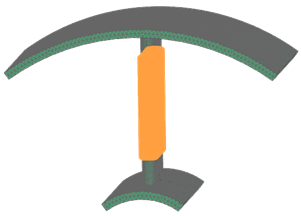
- Select the strut region which is most affected by radiation.
- Select the Combine Across Entities check box.
- Combined Value = Average
- Unit = °C
- Output Options = List
- Clear the Create Output check box
Compare results
Create and overlay graphs for two solutions.
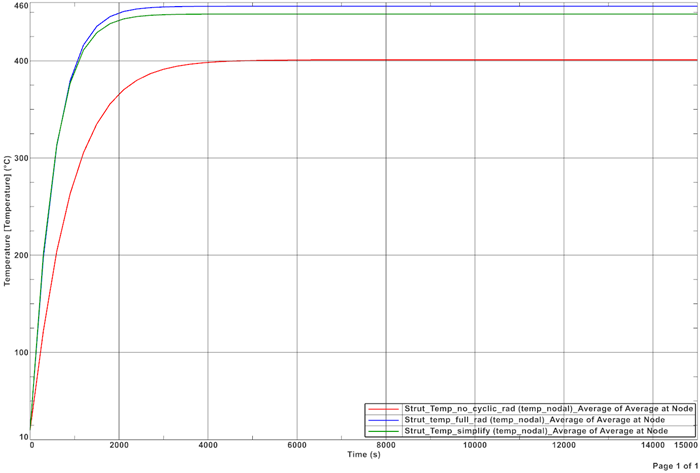
From these curves, the following conclusions are:
- The simplified radiation model predicts an average temperature within approximately 6 °C of the full radiation model at steady-state conditions.
- The close agreement between the full radiation model and the simplified model validates the use of gray body view factors and radiative conductances in the simplified approach.
Additional Notes
- Avoid excessive heat map reports to reduce solve time.
- Review solve times for two solutions.