
Map the heat distribution of a solar panel
Practice to create a mapping solution on the target structural model, mapping the temperature results for a specific time step, from a source thermal model, and run a structural analysis.
 Download and extract the part files.
Open the thermal Simulation file
Open the Simulation file and reset the dialog box settings.
Display the thermal results
Display the temperatures at 5000 seconds, which you will be mapped onto the structural model later.
- Click the (Simulation) panel_s_thermal.sim tabbed window.
- In the Simulation Navigator, under the Thermal solution node, double-click the Results node.
- In the Post Processing Navigator, expand the Thermal→Increment 18, 5000 sec nodes and double-click the Temperature - Nodal node.
-
Expand the Post View 1→panel_f_thermal.fem→2D Elements nodes and hide Black Side Panel Collector.
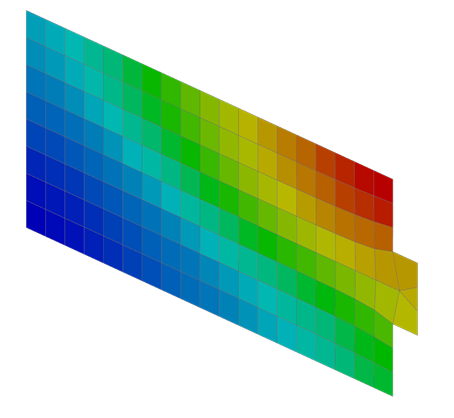
Create the mapping solution
Create a mapping solution on the structural Simulation file, which you will open first. The mapping solution will point to the thermal solution results.
Solve the mapping solution
Solve the mapping solution you just created on the structural model.
- In the Simulation Navigator, right-click the Solution 1 node and choose Solve.
- In the Solve dialog box, click OK.
- Wait for the mapping solve to end, before proceeding.
- In the Analysis Job Monitor dialog box click Cancel.
- Close the Information window.
Display mapped thermal results
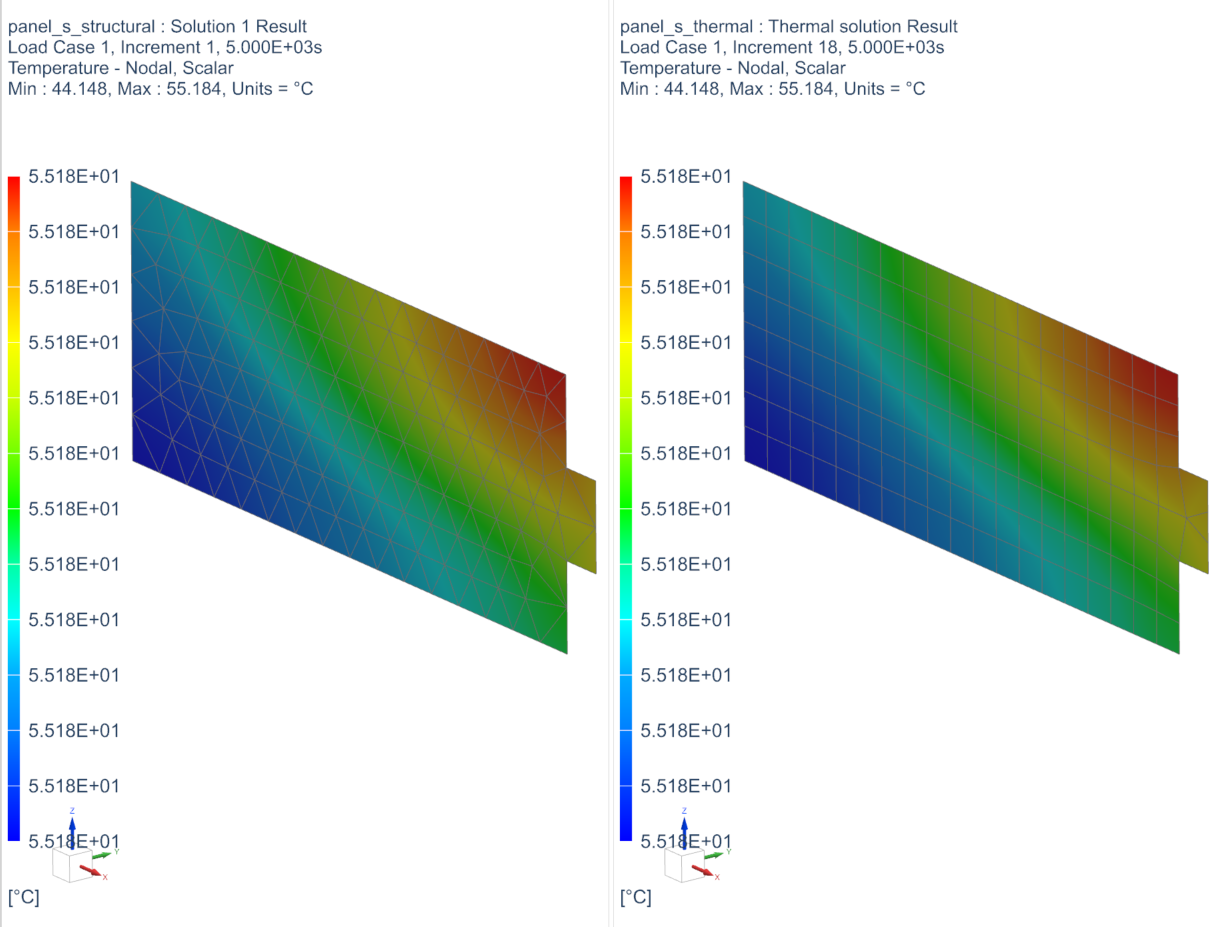
Display the mapped thermal results on the structural panel simulation file at time 5000 sec.
-
Right-click the (Simulation) panel_s_structural.sim tabbed window and choose Layout→2 Tabbed Groups
 .
.
-
Choose Results tab→View Layout group→Synchronize Views
 .
.
-
In the View Settings dialog box, click
OK.
-
Choose Results tab→Context group→Return to Home
 .
.
Constrain the panel
Apply a fixed constraint at one of the sides of the satellite panel.
- Click the (Simulation) panel_s_structural.sim tabbed window.
- In the Simulation Navigator, double-click the Mapping Nastran node.
- Expand the Subcase1→Loads→Temperature Set – Temperature1 nodes.
- Notice the Temperature1 load, which was created by the mapping process.
-
Choose Home tab→Loads and Conditions group→Constraint Type list→Fixed Constraint
 .
.
- On the Top Border bar, from the Type Filter list, select Polygon Edge.
-
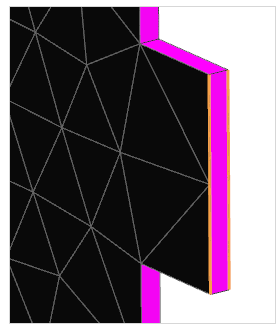
Select the following two polygon edges on the model.
-
Click OK.
Solve the structural solution
Solve the structural model with the temperature preload.
- In the Simulation Navigator, right-click the Mapping Nastran node and choose Solve.
- Click OK.
- Wait for the solve to end, before proceeding.
- In the Review Results dialog box, click No.
- In the Analysis Job Monitor dialog box, click Cancel.
- Close the Information window.
Display the structural results
Animate displacement results to compare the deformation between top and bottom sides.
-
In the Post Processing Navigator, double-click the Structural node→Displacement Nodal node.
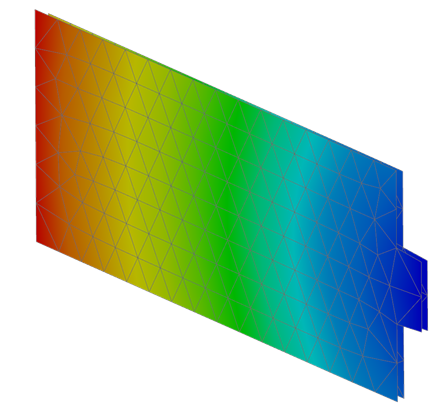
The average displacement is approximately 0.110 mm.