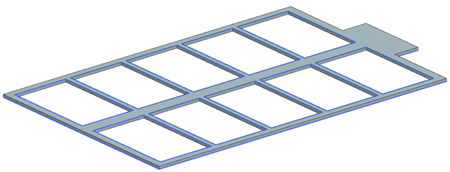
Create a simple model using a sketch profile
Create a new part and a simple structure for solar panels on a spacecraft by extruding the sketch.
Create a part file
Create a part file.
-
Choose File tab→New
 .
.
- Create a new part file using the Model template and name the file solar_panel.prt.
- Click OK.
Define a sketch profile
Define a sketch profile.
-
Choose Home tab→Construction
group→Sketch
 .
.
-
Choose Home tab→Curve
group→Line
 .
.
-
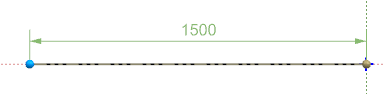
Click the graphics window to fix the line.
-
In the Angle box, specify 90
degrees and press Enter.
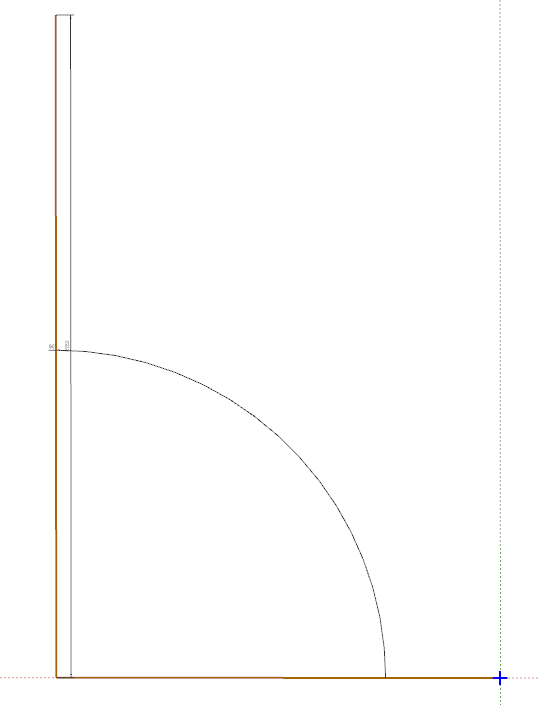
To view the whole profile, right-click in the graphics window and choose Fit. -
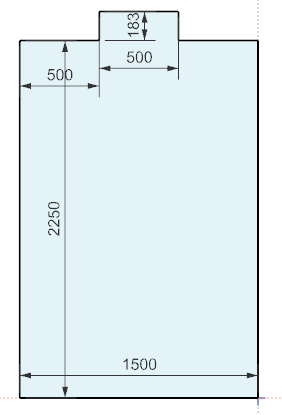
Using either method, define the remaining profile lines as shown in the
following image.
- To use your mouse, make sure to uncheck the lock for both the Size and Angle boxes to freely click and drag a new line.
- To use the Line dialog box, specify the Size and Angle values of the next line, and click the end of the last line.
-
Choose Home tab→Sketch
group→Finish
 .
.
Extrude the sketch
Extrude the sketch to create the base of the solar panel model.
-
Choose Home tab→Base
group→Extrude
 .
Notice that the sketch is already selected.
.
Notice that the sketch is already selected. -
Click OK.
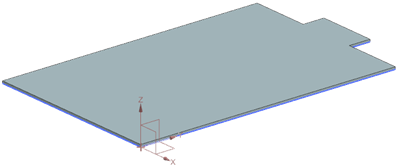
Create a sketch on existing sketch plane
Create a sketch on existing sketch plane.
-
Choose Home tab→Construction group→Sketch
.
-
Select the face of the extruded solar panel.
Move your mouse toward the corner to have the coordinate system set as shown on the image.
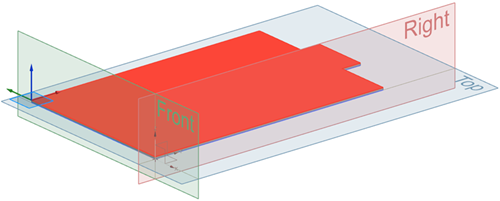
-
Choose Home tab→Curve group→Rectangle by Three Points
 .
.
-
Click within the rectangle's outline. Make sure that the shape is set as shown on the image.
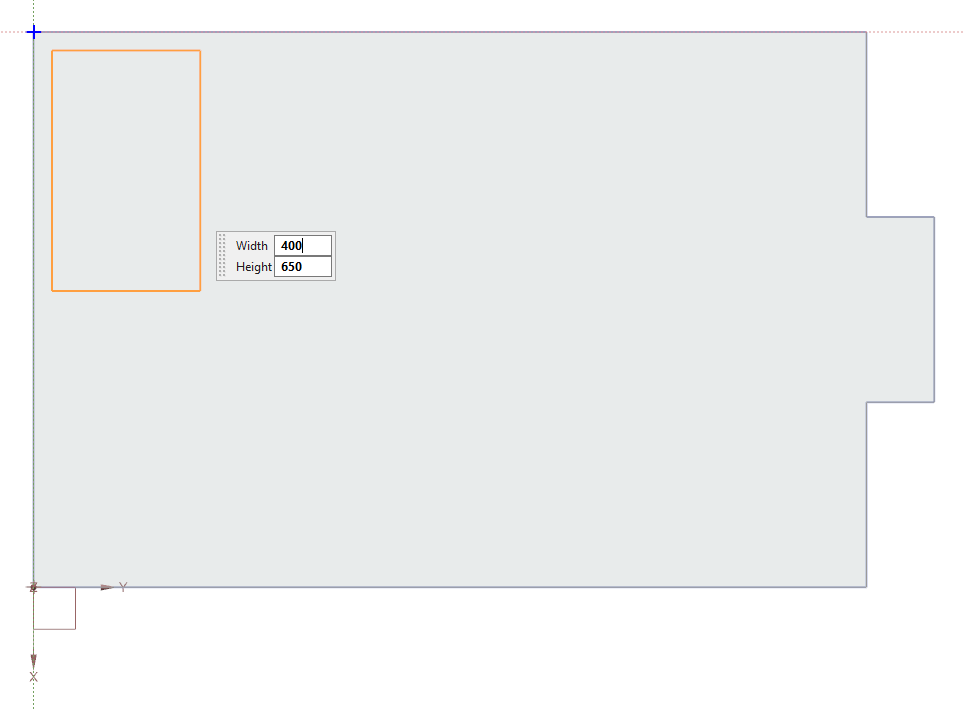
-
Choose Home tab→Sketch group→Finish
Create a pattern of rectangular features on the solar panel base
Create a pattern of rectangular features on the solar panel base.
-
Choose Home tab→Base
group→Pattern Feature
 .
Notice that the sketch is already selected.
.
Notice that the sketch is already selected. -
Click OK.
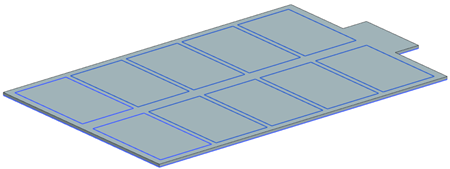
Extrude using Boolean operations
Extrude using Boolean operations.
-
Choose Home tab→Base
group→Extrude
-
Select the curve of each rectangle.
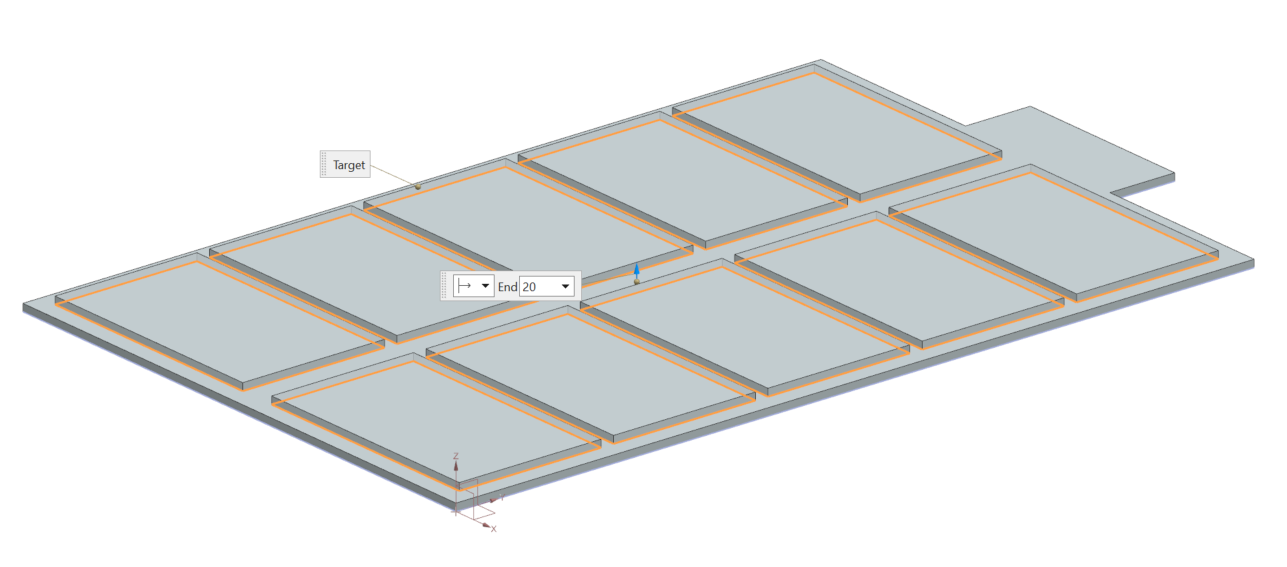
40 curves are selected. -
Click OK.