
Creating midsurfaces before meshing
Practice the workflow for creating midsurfaces using various midsurfacing strategies, and then generate a 2D mesh.
 Download and extract the part files.
Open the FEM file
Open the FEM file and reset the dialog box settings.
- Choose File→Open and open midsurface/P009_midsurf_cap_fem1.fem.
- Choose File→Preferences→User Interface and on the Dialog and Precision page, reset the dialog box memory.
- Click OK.
Display the idealized part
Generate a 2D mesh on the part. Before you do this, you must generate a midsurface on the solid part.
Midsurface the outer walls
Midsurfaces are defined in the idealized part. You will use thickness to select face pairs to define the midsurface. In this part, the outer walls are about 2.5 mm thick, the lateral ribs are about 1.5 mm thick, and the central rib is about 4 mm thick.
-
Choose Home tab→Geometry
Preparation group→Midsurface by Face
Pairs
 .
.
-
In the graphics window, select one of the outer faces.
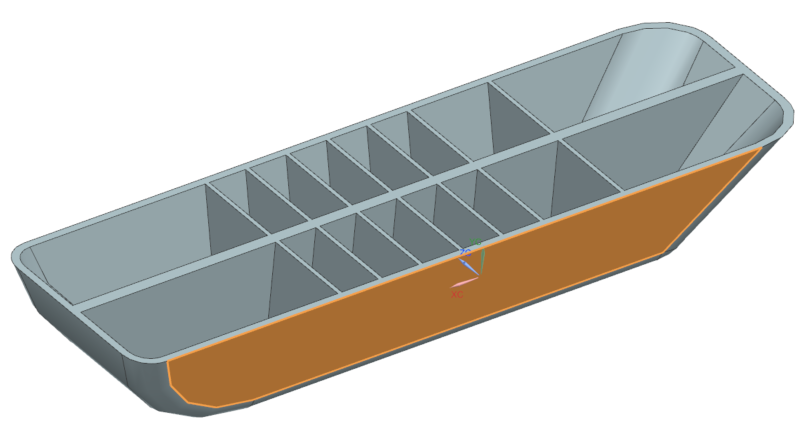
14 tangent outer faces are selected.
Midsurface the thin ribs
Set the face pairing strategy to Thickness to have the software automatically pair faces according to their thickness.
-
In the Thickness box, enter 3
mm and press Enter.
By specifying a search distance of 3 mm, the software pairs faces separated by 3 mm or less. However, faces that are already paired are excluded from the search.The thin ribs are now midsurfaced.
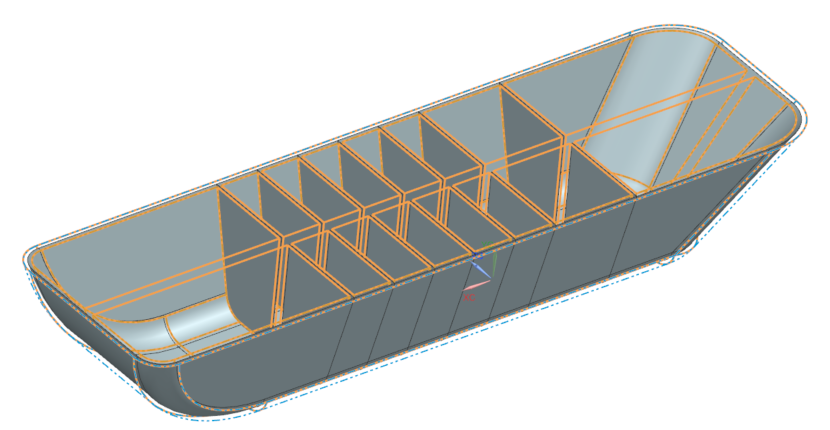
Leave the Midsurface by Face Pairs dialog box open for the next step.
Midsurface the center rib
Increase the thickness value to create a face pair for the center rib.
Leave the Midsurface by Face Pairs dialog box open for the next step.
Midsurface the part automatically
Create midsurfaces automatically for this part. The manual method is required for parts that are too complex for this software to midsurface automatically. However, the current part is not too complex. To do so, you must first delete the current face pairs. Begin by selecting all face pairs that you have created.
Mesh the model
Mesh the model.
-
Choose Home tab→Mesh
group→2D Mesh
 .
.