Write a plugin function and use it in a solve

Practice defining a heat transfer coefficient using a plugin function in a convection to environment boundary condition. You can write a plugin function or use the provided plugin.cpp source file.

Download and extract the part files.

Define the plugin expressions

Practice defining a heat transfer coefficient using the plugin function in the convection to environment boundary condition. You can write a plugin function to use in a thermal analysis or open the plugin.cpp source file that was created in the load_plugin_function/source folder.

The plugin function defines the expression of a heat transfer correlation for natural convection over a flat plate, h, as follows:

Where:
  • is the Prandtl number.
  • is the Grashof number.
  • is the Rayleigh number.
  • is the fluid conductivity.
  • is the plate length.
  • is the fluid viscosity.
  • is the fluid specific heat.
  • is the fluid density.

(Optional) Write a plugin function

  1. Include the header files in the source file. Every plugin function must contain a header file inclusion directive, which contains definitions for the API methods.
    #include <CaeUtils_Exp_IMaterial.hxx>
    #include <CaeUtils_Exp_IContext.hxx>
    #include <CaeUtils_Exp_IScalarValue.hxx>
    #include <CaeUtils_Exp_ITableValue.hxx>
    #include <CaeUtils_Exp_IFieldValue.hxx>
    #include <CaeUtils_Exp_IReturnValue.hxx>
    #include <CaeUtils_Exp_IFunctionDefinition.hxx>
    #include <CaeUtils_Exp_IRegistrar.hxx>
  2. Define default values for function arguments.
    const double UNDEF_VALUE = -1.33e33;
    const UGS::CaeUtils::Exp::DefValue DEFAULTS = {UNDEF_VALUE, 0, NULL, false};
  3. Initialize your plugin function. Simcenter 3D calls the Initialize_Versioned function and the thermal solver calls the Initialize function to load the plugin functions. You can write the AddFunctions function to list all your plugin functions, as shown:
    void AddFunctions(IRegistrar* pReg)
    {
        AddHTC(pReg);
    }
     
    extern "C" __declspec(dllexport) void Initialize(UGS::CaeUtils::Exp::IRegistrar* pReg)
    {
        AddFunctions(pReg);
    }
     
    extern "C" __declspec(dllexport) void Initialize_Versioned(UGS::CaeUtils::Exp::IRegistrar* pReg, int nVersionNumber)
    {
        AddFunctions(pReg);
        nVersionNumber = 110001;
    }
  4. Define the HTC() plugin function that computes a heat transfer coefficient, h, as described in the define the plugin expressions section.
    // Heat transfer coefficient correlation
        void HTC(const IContext* pContext, const ArgData* pArgs, IReturnValue* pRet)
    {
       double result = 0.1;
     
       // Input arguments
     
       // Plate length
       double L = pArgs->m_doubleArgs[0];
     
       // Ambient temperature    
       double Tf = 298.15;
     
       // Temperature of the surface
       double surfaceTemperature = 0.0;
       bool Result = pContext->GetTemperature(&surfaceTemperature);
       if (!Result)
       {
          pRet->SetDouble(result);
          // pRet->SetErrorMsg("The surface material temperature is not defined while calling HTC plugin function.");
          return;
       }
       double Ts = surfaceTemperature;
     
       // Thermal conductivity
       double fluidConductivity = 0.0259;
     
       // Dynamic viscosity
       double fluidViscosity = 1.840E-5;
     
       // Density
       double fluidDensity = 1.186;
     
       // Specific heat
       double fluidSpecificHeat = 1005;
     
       // Thermal Expansion
       double beta = 4.005E-3;
     
       // Gravity - It needs to be in solution units. In our case it is [mm/s^2]
       double grav = 9810;
     
       // HTC correlation
       // Prandtl Number
       double Pr = fluidViscosity * fluidSpecificHeat / fluidConductivity;
     
       // Grashof number
       double grashof = std::abs(grav * beta * (Ts - Tf) * L * L * L / ((fluidViscosity * fluidViscosity) / (fluidDensity * fluidDensity)));
     
       // Rayleigh number
       double rayleigh = grashof * Pr;
     
       // Expression
       result = 0.45 * std::pow(rayleigh, 0.8) * fluidConductivity / (10000 * L);
     
       pRet->SetDouble(result);
    }
  5. Register your HTC() plugin function.
    void AddHTC(IRegistrar * pReg)
    {
       Measure meas;
       meas.Set(1, 0, -3, 0, 0, 0, -1, 0, 0);
       IFunctionDefinition* pFunc = pReg->AddFunction("HTC",
          "Return heat transfer coefficient",
          meas,
          TYP_DBL,
          "Heat transfer coefficient",
          &HTC);
     
       pFunc->AddDependency(DEP_TIME);
     
     
       // Plate length
       Measure measL;
       measL.Set(0, 1, 0, 0, 0, 0, 0, 0, 0); // Length
       pFunc->AddArg("L", "Plate length", TYP_DBL, measL);
     
    }

    Add your plugin function to the source code. Use AddFunctions, which is described in step 3, to add your plugin function to the structure of the source code.

    void AddFunctions(IRegistrar* pReg)
    {
        AddHTC(pReg);
    }

(Optional) Compile the plugin function

If you have a Windows compiler installed, compile the source code for your plugin function using the build_windows.cmd script.

  1. Make sure that the script is located in the same working directory as your source file.
  2. Locate the sample compilation script in the [installation_path]\nxcae_extras\tmg\plugin_examples\thermal_solver\ExpressionsShell folder.
  3. Open the build_windows.cmd script in any text editor, and edit the script to specify the correct compiler and the name of the plugin function. For example, in the following script, the correct compiler is intel64 vs2017 and the name of the plugin function is plugin.cpp.
    @echo off
     
    set ComSpec=%SystemRoot%\system32\cmd.exe
     
    if exist "C:\Program Files (x86)\IntelSWTools\compilers_and_libraries\windows\bin\ia32" (
        call "C:\Program Files (x86)\IntelSWTools\compilers_and_libraries\windows\bin\ifortvars.bat" intel64 vs2017
        goto cprograms
    )
     
     
    :cprograms
     
    cl /FoUserFunctions.obj /c plugin.cpp /TP /GR /nologo /I%UGII_BASE_DIR%\ugstructures\evalplugin\src /W3 /EHsc /O2 /MT /I.
     
    link /nologo /LIBPATH:%UGII_BASE_DIR%\nxbin\ /MANIFEST /dll /out:user_plugin.dll UserFunctions.obj
     
    PAUSE
  4. Double-click the build_windows.cmd file.
    The user_plugin.dll file is created in the working directory.

    The user_plugin.dll file is included with this activity in the load_plugin_function folder, so you do not need to compile your source .cpp file.

Load the user_plugin.dll file in Simcenter 3D

  1. Choose File tab→UtilitiesCustomer Defaults.
  2. Choose SimulationPre/PostExpressions.
  3. In the Plugin tab, select the Use Custom Plugin check box.
  4. In the Custom Plugin box, type the full path for the user_plugin.dll file.
    For example: D:\load_plugin_function\user_plugin.dll.
  5. Click OK twice.
  6. Restart your Simcenter 3D session.

Create a convection to environment constraint on a CPU

Use the plugin function to define the convection coefficient over a flat plate by choosing the user plugin as the function for the convection coefficient.

  1. In the Simulation Navigator, expand the Simulation Object Container, Constraint Container, and Load Container nodes and explore the predefined boundary conditions.
  2. Choose Home tab→Loads and Conditions group→Constraint Type list→Convection to Environment .
  3. In the Name group, in the box, type cpu to environment.
  4. In the graphics window, select the top surface of the CPU.
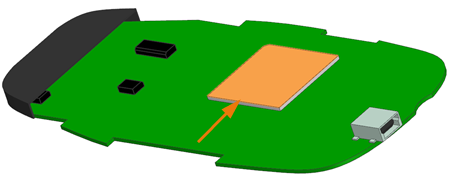
  5. In the Magnitude - Top group, in the Convection Coefficient box, click , and from the list, choose Function.
  6. From the Or Choose a Category list, select user_plugin.
  7. Explore the information on the bottom of the dialog box, which indicates that the function requires a plate length value and returns the heat transfer coefficient value.
  8. Click OK.
  9. In the Plate Length box, type 23.5 mm.
  10. Click OK and Apply.

Create a convection to environment constraint on a chip

Write a function for the convection coefficient that uses the plugin function.

  1. In the Simulation Navigator, hide Constraint Container.
  2. In the graphics window, select the top surface of the chip as displayed.
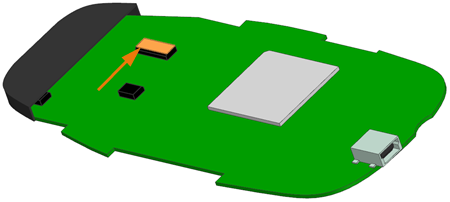
  3. In the Magnitude - Top group, in the Convection Coefficient box, type HTC(10[mm]) W/mm2·°C.
    The value in the parenthesis indicates the chip length and its unit used by the plugin HTC function to calculate the heat transfer coefficient.
  4. Click OK.

Solve the model

Solve the model.

  1. In the Simulation Navigator, right-click the Solution 1 node and choose Solve.
  2. Click OK.
  3. Wait for the solve to end, before proceeding.
  4. In the Review Results dialog box, click No.
  5. Close the Information window.
  6. In the Analysis Job Monitor dialog box, click Cancel.

Post process the results

Display temperature results.

  1. In the Simulation Navigator, expand the Solution 1 node and double-click the Results node.
  2. In the Post Processing Navigator, expand the Thermal node and double-click the Temperature - Nodal node.
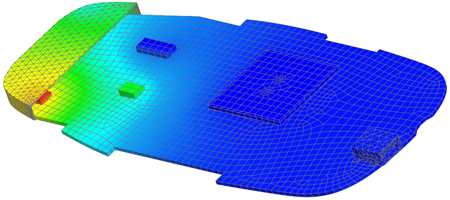
    Notice that the temperatures of the CPU and the chip are lower than the two other chips, which do not have a convection to environment constraint defined in the model.
You have completed this lab.