
Selecting objects
Practice selecting objects using different methods such as QuickPick, creating groups, and a selection recipe.
 Download and extract the part files.
Open the Simulation file
Open the Simulation file and reset the dialog box settings.
- Choose File→Open and open capacitor/capacitor_inquiry_sim.sim.
- Choose File→Preferences→User Interface and on the Dialog and Precision page, reset the dialog box memory.
- Click OK.
Select faces using QuickPick
Select faces using QuickPick.
-
Move the mouse over the face of the model.
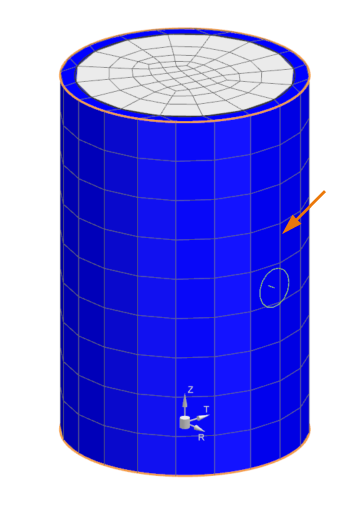
-
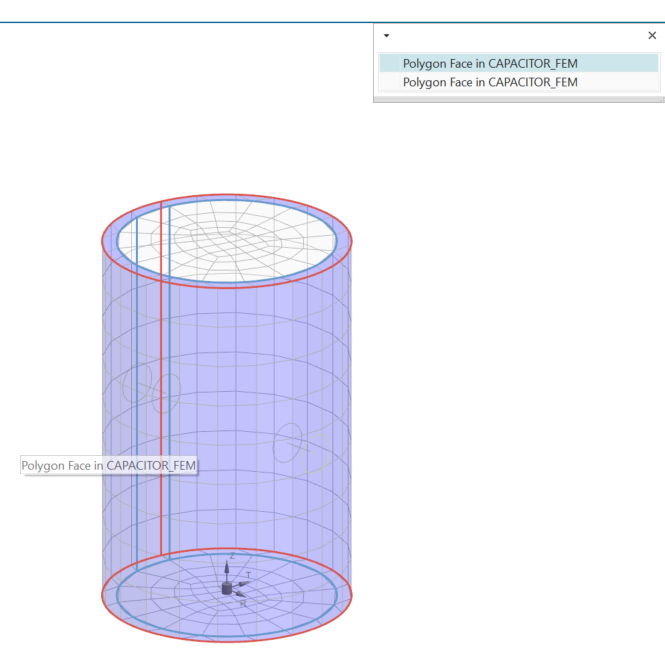
Move the cursor over each item in the QuickPick
list, and notice which entities are highlighted in the graphics
window.
Create the Bounding Volume selection recipe
Create a selection recipe that will enable you to select all faces within a defined area.
-
Choose Home tab→Visibility
group→Show and Hide
 .
.
-
In the Show and Hide dialog box, under
CAE Entities, next to
Meshes, click
 to display the meshed body.
Use the selection recipe to specify a boundary condition
Use a selection recipe to identify where the free convection will be applied.
-
Choose Home tab→Loads and
Conditions group→Constraint Type
list→Convection to Environment
 .
.
-
In the Region group, click Select
Object
 .
.
Examine internal elements
Expose or examine internal elements and know their nodes and element numbers.
-
Select half the elements of the capacitor.
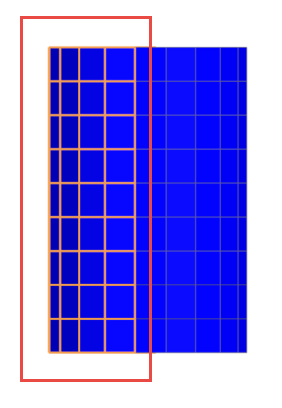
-
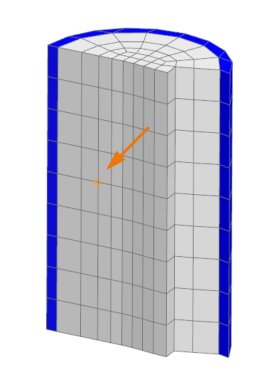
Choose Home tab→Visibility
group→Show Only
 to display internal elements.
-
Choose Home tab→Checks and
Information group→Node/Element
 to display the information about the selected
node.
to display the information about the selected
node.
-
Select the shown node or any node.
-
Click OK.
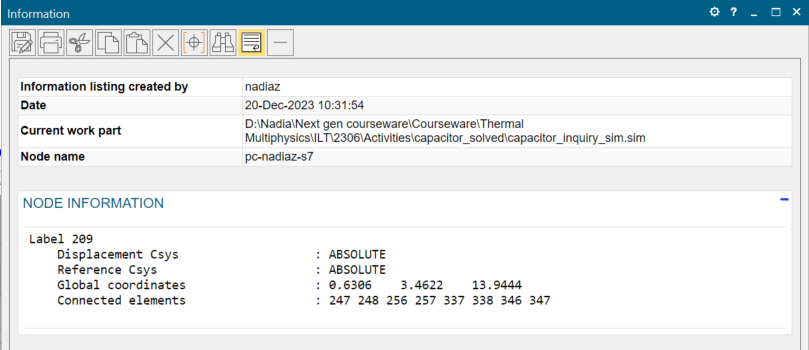
The Information window displays the node number, its coordinates, and the connected elements. Remember the number of connected elements. The numbers that are displayed may be different.
Create a group with specific elements
Use the manual group creation method to create a new group of specific elements.
- In the Simulation Navigator, right-click the Groups node and select New Group.
- In the Element Labels subgroup, type any connected element label, for example 247.
-
Click Select
 .
.
- In the Name and Label group, next to Name, type element-247.
- Click OK.
- In the Simulation Navigator, under the Group node, right-click 1-element-247 and select Show Only.
-
Choose Home tab→Visibility
group→Show Adjacent
 .
.
- Select the displayed element.
- Click OK.
- In the Simulation Navigator, right-click the Groups node and select New Group to create a group of adjacent elements.
- In the Top border bar, set the Type Filter to Element.
- Select all displayed elements.
- Next to Name, type adjacent elements.
- Click OK.
Solve the model
Solve the model.
Inquire temperatures on groups of elements
Display the temperature on specific elements.
-
Choose Results tab→Tools
group→Identify Results
 .
.
-
Click Apply Group
.
Notice the temperature on the element.