
Model a Peltier cooler
Practice modeling the Peltier cooler of an electronic component. You will compare the temperature distribution with and without a Peltier cooler.
 Download and extract the part files.
Open the model Simulation file
Open the Simulation file and reset the dialog box settings.
- Choose File→Open and open peltier_cooler/mc_02_sim1.sim.
- Choose File→Preferences→User Interface and on the Dialog and Precision page, reset the dialog box memory.
- Click OK.
View the temperature distribution on the component without the Peltier cooler
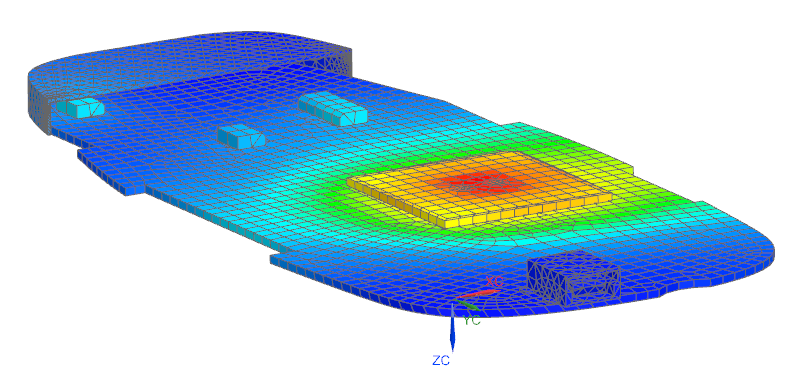
Observe the temperature of the chip without a Peltier cooler from the results of the existing Thermal solution.
- In the Simulation Navigator, expand the Solution 1→Results nodes and double-click the Thermal node.
-
Expand the Thermal node and double-click the
Temperature - Elemental node.
Create a new thermal solution
Create a new solution that will contain the results of the thermal simulation with the Peltier cooler.
-
Choose Results tab→Return to
Home
 .
.
Add the Peltier cooler components to the model
Add and mesh two new components to define a Peltier cooler in the next step.
-
In the Idealized Part window, select the two
surfaces above the CPU.
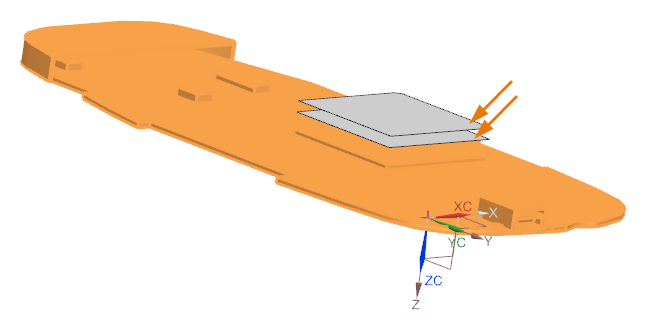
14 bodies are selected. -
Choose Home tab→Mesh
group→2D Mesh
 .
.
-
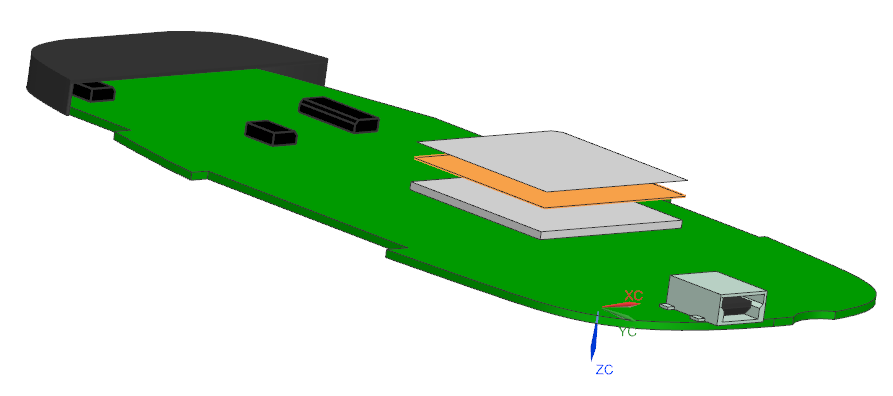
Select the highlighted surface.
-
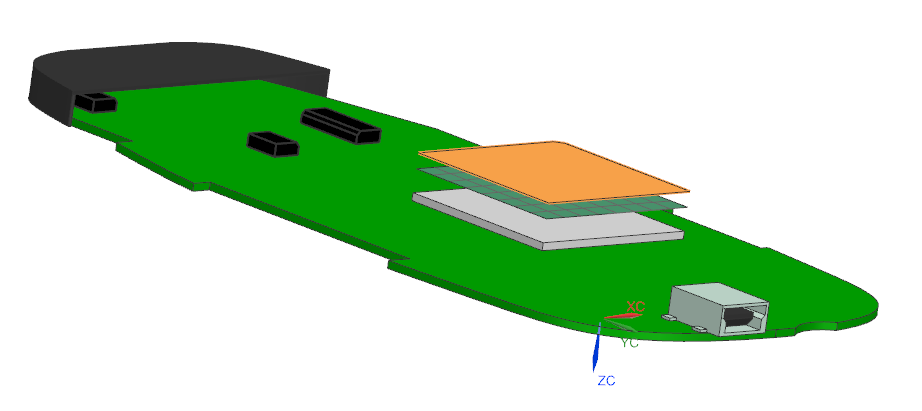
Select the highlighted surface.
Define the Peltier cooler
Use the two new components to define a Peltier Cooler simulation object.
-
Choose Home tab→Loads and
Conditions group→Simulation Object
Type list→Thermal Devices
 .
.
-
Select the shown plate as the cold plate region.
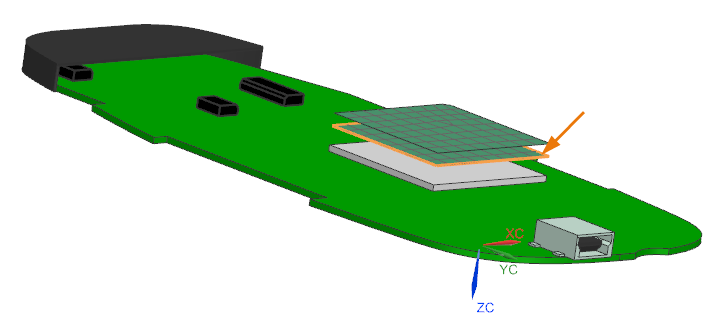
-
In the Hot Plate Region group, click
Select Object
 .
.
-
Select the shown plate, as a hot plate region.
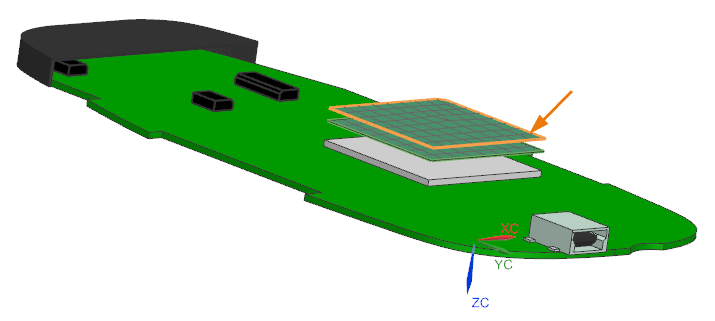
Apply and define the thermal boundary conditions
Create a thermal coupling between the cold plate of the Peltier cooler and the CPU top surface, and you will modify the convection to environment constraint of the CPU by applying it to the hot plate of the Peltier cooler.
- In the Simulation Navigator, under the mc_02_fem1.fem node, hide 2D Collectors.
- Hide Simulation Object Container.
-
Choose Home tab→Loads and
Conditions group→Simulation Object
Type list→Thermal Coupling
 .
.
-
Select the highlighted top surface of the CPU.
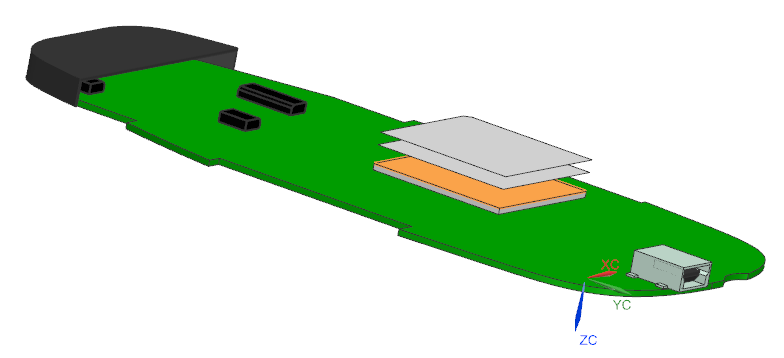
-
In the Secondary Region group, click
Select Object
.
-
Select the highlighted cold plate of the Peltier cooler.
- In the Magnitude group, from the Type list, select Heat Transfer Coefficient.
- In the Coefficient box, type 200 W/(mm2·C).
- Click OK.
- Modify the CPU convection to environment constraint by applying it to the hot plate of the Peltier cooler.
- In the Simulation Navigator, hide Simulation Object Container.
- Expand the Constraint Container node, right-click the CPU top convection to environment constraint and choose Edit.
- Press shift on your keyboard and click the top surface of the CPU to deselect it. In the Region group, the number of Select Object must now be zero.
- Select the displayed hot plate of the Peltier cooler.
- Click OK.
Apply and define the thermal boundary conditions
Create a thermal coupling between the cold plate of the Peltier cooler and the CPU top surface, and you will modify the convection to environment constraint of the CPU by applying it to the hot plate of the Peltier cooler.
- In the Simulation Navigator, under the mc_02_fem1.fem node, hide 2D Collectors.
- Hide Simulation Object Container.
-
Choose Home tab→Loads and
Conditions group→Simulation Object
Type list→Thermal Coupling
.
-
Select the highlighted top surface of the CPU.
-
In the Secondary Region group, click
Select Object
.
-
Select the highlighted cold plate of the Peltier cooler.
- In the Magnitude group, from the Type list, select Heat Transfer Coefficient.
- In the Coefficient box, type 200 W/(mm2·C).
- Click OK.
Modify the CPU convection to environment constraint
Modify the CPU convection to environment constraint by applying it to the hot plate of the Peltier cooler.
-
Select the displayed hot plate of the Peltier cooler.
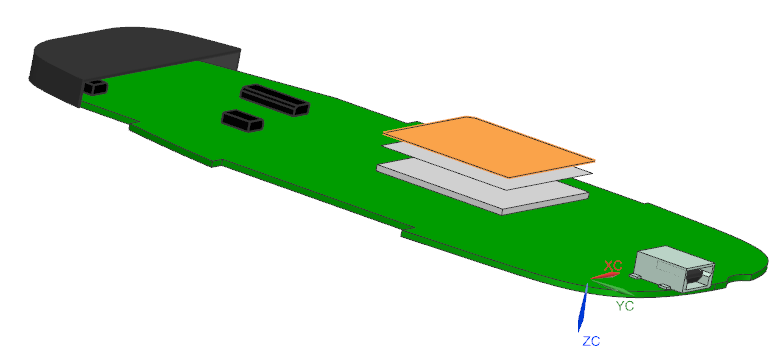
Solve the solution
- Right-click the Solution 2 node and choose Solve.
- Click OK.
- Wait for the solve to end, before proceeding.
- In the Review Results dialog box, click No.
- Close the Information window.
- In the Analysis Job Monitor dialog box, click Cancel.
Review the results
Display and compare the temperature distribution on the CPU with and without the Peltier cooler.
-
Choose Results tab→View
Layout group→Side by Side
 .
You have a two-view layout to compare the results with and without the Peltier cooler.
.
You have a two-view layout to compare the results with and without the Peltier cooler. -
Choose Results tab→View
Layout group→View Synchronize
 .
.
-
Select the two viewports in the graphics window, and in the
Viewport Settings dialog box, choose OK
 .
You have synchronized the view operations for the two viewports of the graphics window.
.
You have synchronized the view operations for the two viewports of the graphics window. -
Right-click in the graphics window, and choose View→Orient View→Bottom
 .
.
-
Choose Results tab→Post View
group→Edit Post View
 .
.
-
Click OK.
You set the same maximum and minimum values for the two temperature scales from the results obtained without the Peltier cooler.
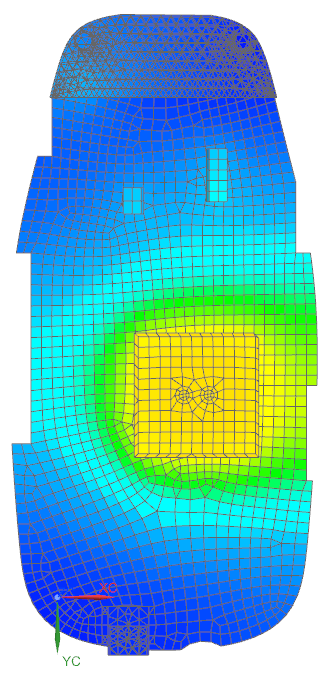
Figure 1. Temperature distribution with the Peltier cooler 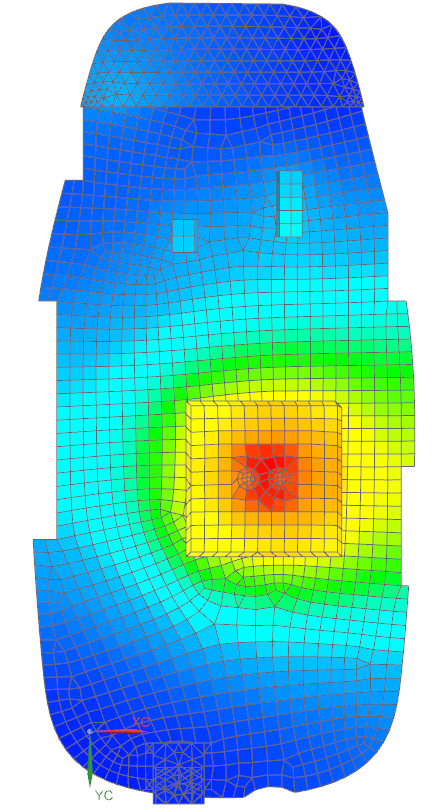
Figure 2. Temperature distribution without the Peltier cooler You can observe that with the Peltier cooler, the temperature of the CPU is colder, and the temperature distribution is uniform on the top surface for the CPU.