
Import a PCA model from ECAD
Practice to import a PCA model from ECAD using PCB Exchange.
 Download and extract the part files.
Set the environment variable
Set an environment variable to use the basic PCB Exchange application.
- Click on the Start button or press the Windows key on your keyboard.
- In the search bar, type Environment Variables and select Edit environment variables for your account from the search results.
- In the Environment Variables dialog box, under User Variables for student, click New.
- In the Variable name box, type UGII_PCBX_VARIANT.
- In the Variable value box, type Modeler.
- Restart Simcenter 3D.
Create a new model and start PCB Exchange
Create a new model, start the PCB Exchange application, and reset the dialog box settings.
- Choose File→New and create a new part file in the asm_pcb folder using the Blank template.
-
Choose Application tab→Design
group→More list→PCB
Exchange
 .
.
- Choose File→Preferences→User Interface and on the Dialog and Precision page, reset the dialog box memory.
Set general PCB Exchange preferences
Get familiar with the options available in the PCB Exchange Preferences dialog box. CAD files contain the component locations, layouts, and heights. When importing an ECAD file, you can choose to import the components as parts in the PC assembly or features in the board file. In this example, you will import them as separate parts.
-
Choose Home tab→Data Exchange
group→Preferences
 .
.
Set the board, component, hole, and area properties
Modify the settings for the board, holes, and components, such as the board color and thickness, the default hole diameter, and the component part creation folder, which you set to the root folder where you are working.
Import an ECAD model
Import an ECAD model in an empty part file to which the board is imported as the root assembly.
-
Choose Home tab→Data Exchange
group→Import ECAD Model
 .
.
- In the ECAD Model group, in the Board File box, click Browse and select the asm_pcb\pcbdemo.brd file.
- In the Import Options group, verify that the Only Use Existing Components check box is cleared.
- Click OK.
- Close the Information window.
-
On the Resource bar, click the Assembly Navigator
 .
.
-
In the Assembly Navigator, select one part check
boxes to display all the component parts in the graphics window.
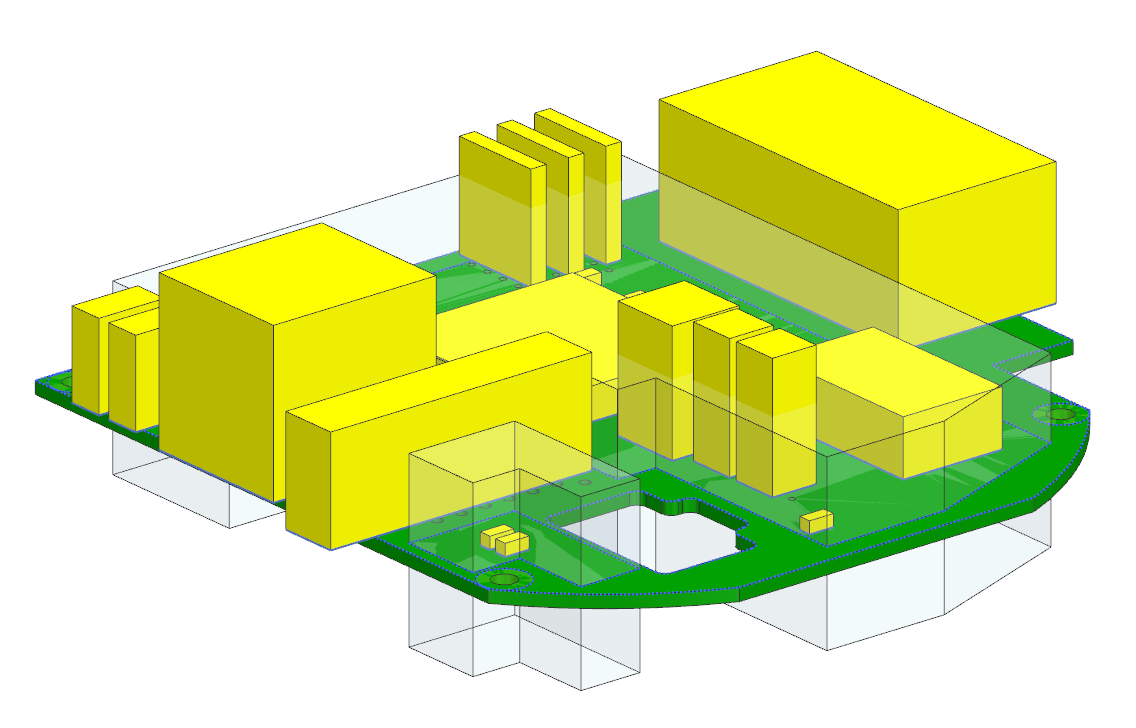
Explore the imported model
Familiarize yourself with the imported model using the PCB Design Navigator and learn how to modify it.
-
In the Assembly Navigator
, observe how the assembly components have a
part name corresponding to the electrical package name.
-
On the Resource bar, click the PCB Design Navigator
 .
Notice that the components are listed by their reference designators in the Component panel.
.
Notice that the components are listed by their reference designators in the Component panel.
Validate the PCA
-
Choose Home tab→Data Exchange
group→Validate PCA
 .
The information window displays that the assembly is valid.
.
The information window displays that the assembly is valid. -
On the Resource bar, in the Web Browser
 tab, explore the PC
Assembly Information.
tab, explore the PC
Assembly Information.
Import the detailed assembly
Create a new assembly file, in which you will import the same ECAD model you imported before, this time specifying a parts folder to locate the detailed components. You will also filter out mounting holes. First, you need to close all imported component parts, because the software does not support multiple loaded parts with the same name.
-
Choose Application tab→Design
group→More list→PCB
Exchange
.
-
Choose File→Assembly Load
Options
 .
.
-
Choose Home tab→Data Exchange
group→Import ECAD Model
.
-
In the Import Options group, select the
Use Entity Filter check box and click
Filter List
 .
.
-
On the Resource bar, click the Assembly Navigator
.
-
In the Assembly Navigator, select one part check
boxes to display all component parts in the graphics window.
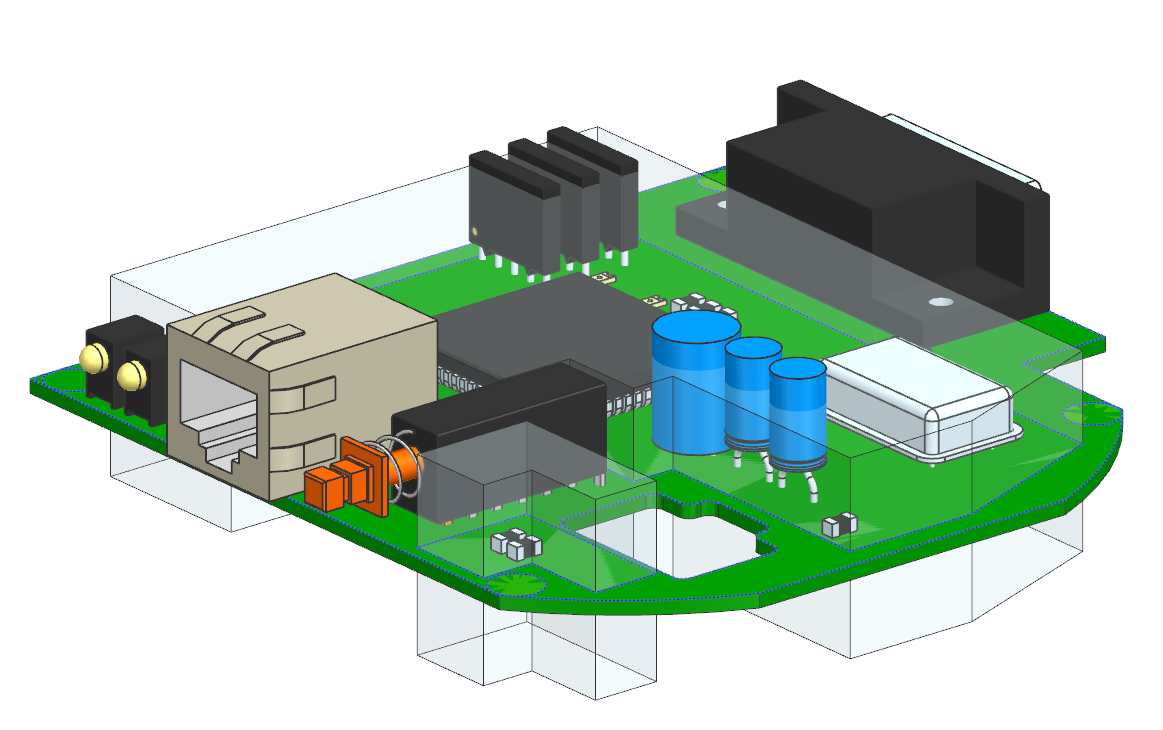
This time, PCB Exchange found the existing part files in the library and used them to create the assembly. The mounting holes are not present in the board.
Validate the detailed PCA
-
Choose Home tab→Data Exchange
group→Validate PCA
.
The information window displays that the assembly is valid.
-
On the Resource bar, in the Web Browser
, explore the PC
Assembly Information.
Notice that there are 22 warnings and some components are shown in red in the report.