
Define thermal boundary conditions
Practice defining thermal boundary conditions on a drone mold. You will specify thermal simulation objects, initial conditions, and constraints.
 Download and extract the part files.
Open the Simulation file
Open the model Simulation file and reset the dialog box settings.
- Choose File→Open and open mold/drone_mold_sim.sim.
-
Choose
File→Preferences→User
Interface, on the Dialog and
Precision page, click Reset Dialog
Memory
 .
.
- Click OK.
Define report requests
Set up temperature report requests over the drone region.
-
Choose Home tab→Loads and
Conditions group→Simulation Object
Type→Report
 .
.
-
In the Simulation Navigator, under
Simulation Object Container node, click
 next to the
Report(1) node to hide it.
next to the
Report(1) node to hide it.
Define initial conditions
Create initial temperature conditions for the drone and mold.
-
Choose Home tab→Loads and
Conditions group→Constraint
Type→Initial Conditions
 .
.
- In the Region group, select the Group Reference check box and select drone::drone_mold_fem from the list.
- In the Initial Temperature group, set Temperature to 210 °C.
- Click Apply.
- In the Region group, select the Group Reference check box and select mold::drone_mold_fem from the list.
- Set Temperature to 90 °C.
- Click OK.
- In the Simulation Navigator, hide the Constraints Container node.
Define convection to environment constraints
Create convection constraints between mold surfaces and environment.
-
Choose Home tab→Loads and
Conditions group→Constraint
Type→Convection to Environment
 .
.
-
Select the polygon face on the mold bottom.
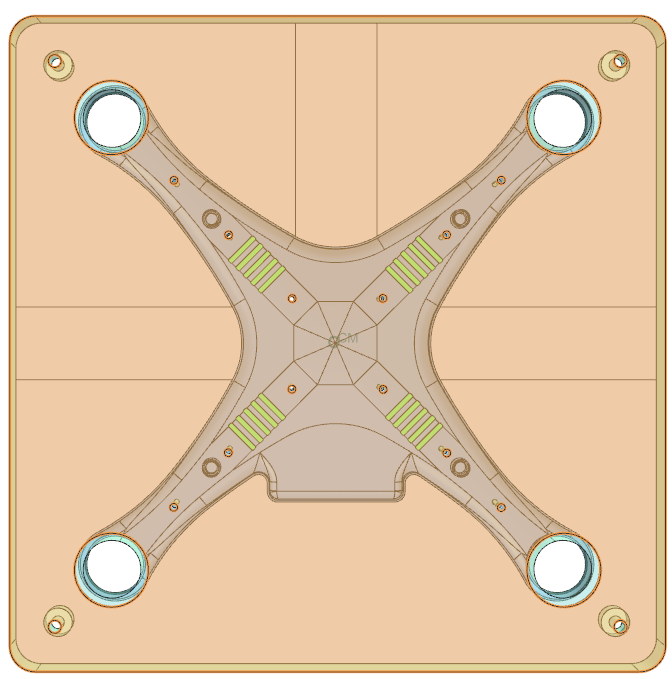
-
Select 8 polygon faces on the mold perimeter.
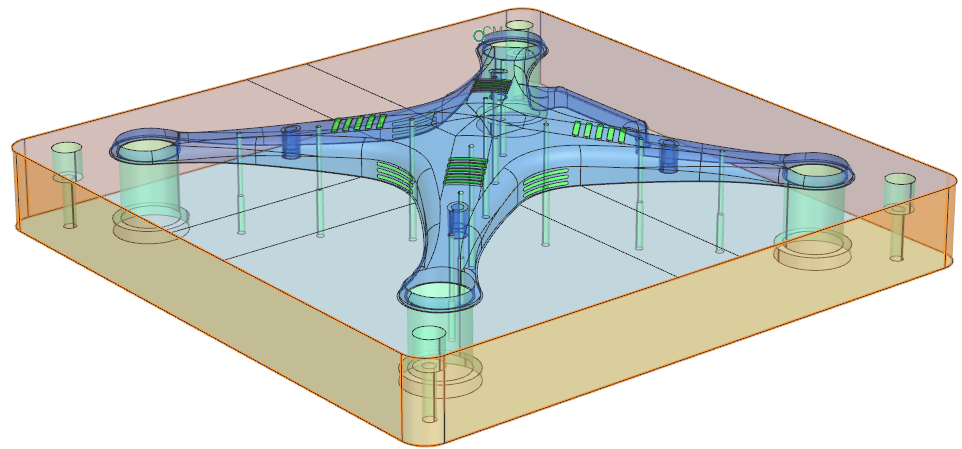
Add the boundary condition
Add all defined boundary conditions to the active solution.
Solve the thermal model
Solve the model and monitor solution status.
- In the Simulation Navigator, right-click the Solution 1 and choose Solve.
- Click OK.
- Wait for the simulation to complete; status shows Complete in Analysis Job Monitor.
- In the Review Results dialog box, click No.
- Close the Information window.
- Click Cancel in the Analysis Job Monitor dialog box.
Display the thermal analysis results
Load and review temperature results and summary reports.
- In the Post Processing Navigator, under Solution 1, right-click Thermal node and choose Load.
- Expand Thermal → Increment 11, 10.00s nodes.
-
Double-click Temperature - Nodal.
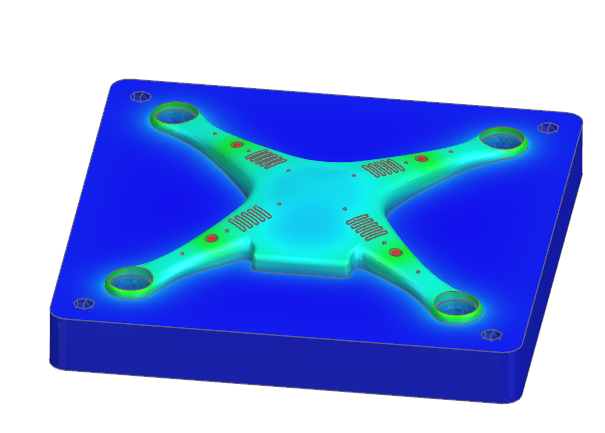
- Browse to the solution directory and open drone_mold_sim-Solution_1.GroupReport.html to view the temperature summary table.