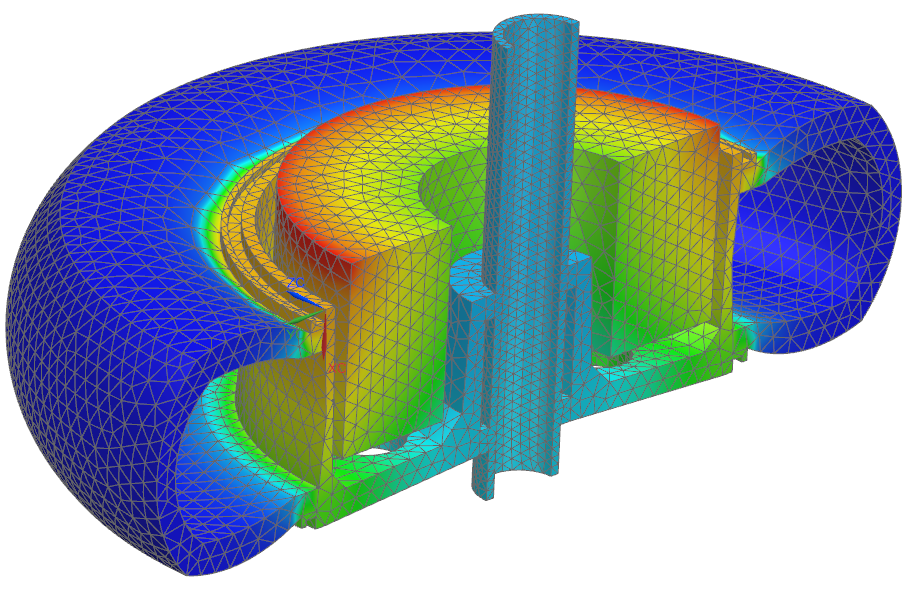
Simulation process in Simcenter 3D Pre/Post
Practice setting up and solving a model using Simcenter 3D Pre/Post.
 Download and extract the part files.
Open the model Simulation file
Open the model Simulation file and reset the dialog box settings.
-
Choose File→Preferences→User Interface and on the Dialog and Precision page, reset the dialog box memory.
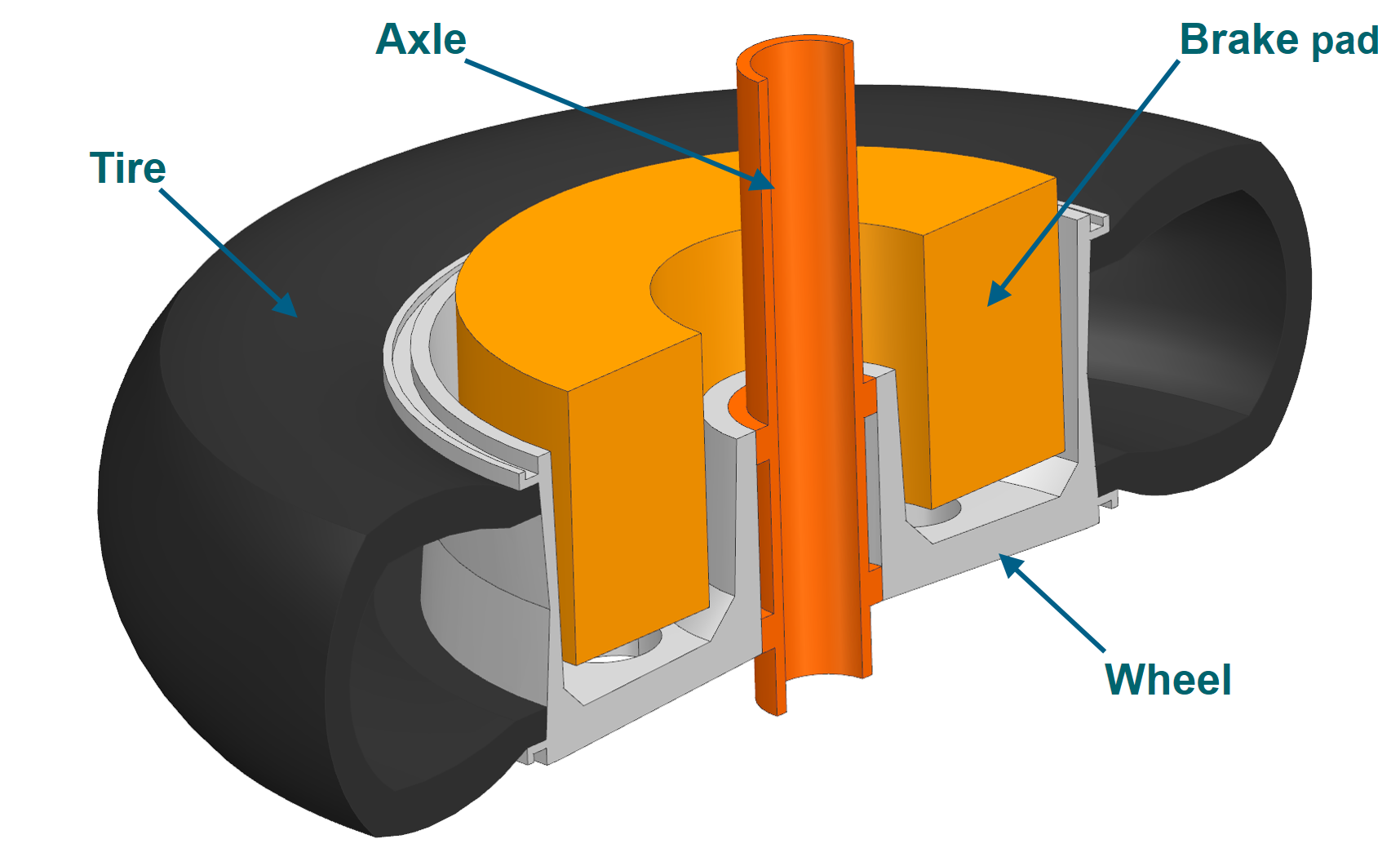
The brake assembly includes four components.
Mesh the brake pad
With the FEM file as the work part, create a 3D mesh on the brake pad part.
- In the Simulation Navigator, right-click the brake_assembly_x_t_fem1.fem node and choose Make Work Part.
- Explore the meshes that have been created for the axle, tire, and the wheel.
-
Choose Home tab→Mesh group→3D Tetrahedral
 .
.
- In the graphics window, select the brake pad.
- In the Mesh Parameters group, in the Element Size box, type 20 mm.
-
In the Destination Collector group, click New Collector
 to create a destination collector for 3D mesh.
- In the Properties group, from the Material list, select the Ceramic Compound.
- In the Name box, type brake_pad_collector.
- Click OK for all dialog boxes.
-
In the Simulation Navigator, under the brake_assembly_x_t_fem1.fem node, click
 to hide 3D Collectors.
Create a solution
- In the Simulation Navigator, right-click brake_assembly_x_t_sim1.sim and choose Make Work Part.
-
Choose Home tab→Solution group→Solution
 .
.
- From the Solver list, select the appropriate solver. For this example, the Simcenter 3D Thermal/Flow is selected.
- Click Create Solution.
- In the Solution group, in the Name box, type Steady.
- Click OK.
Apply boundary conditions
-
Choose Home tab → Loads and Conditions group→Load Type→Thermal Loads.

-
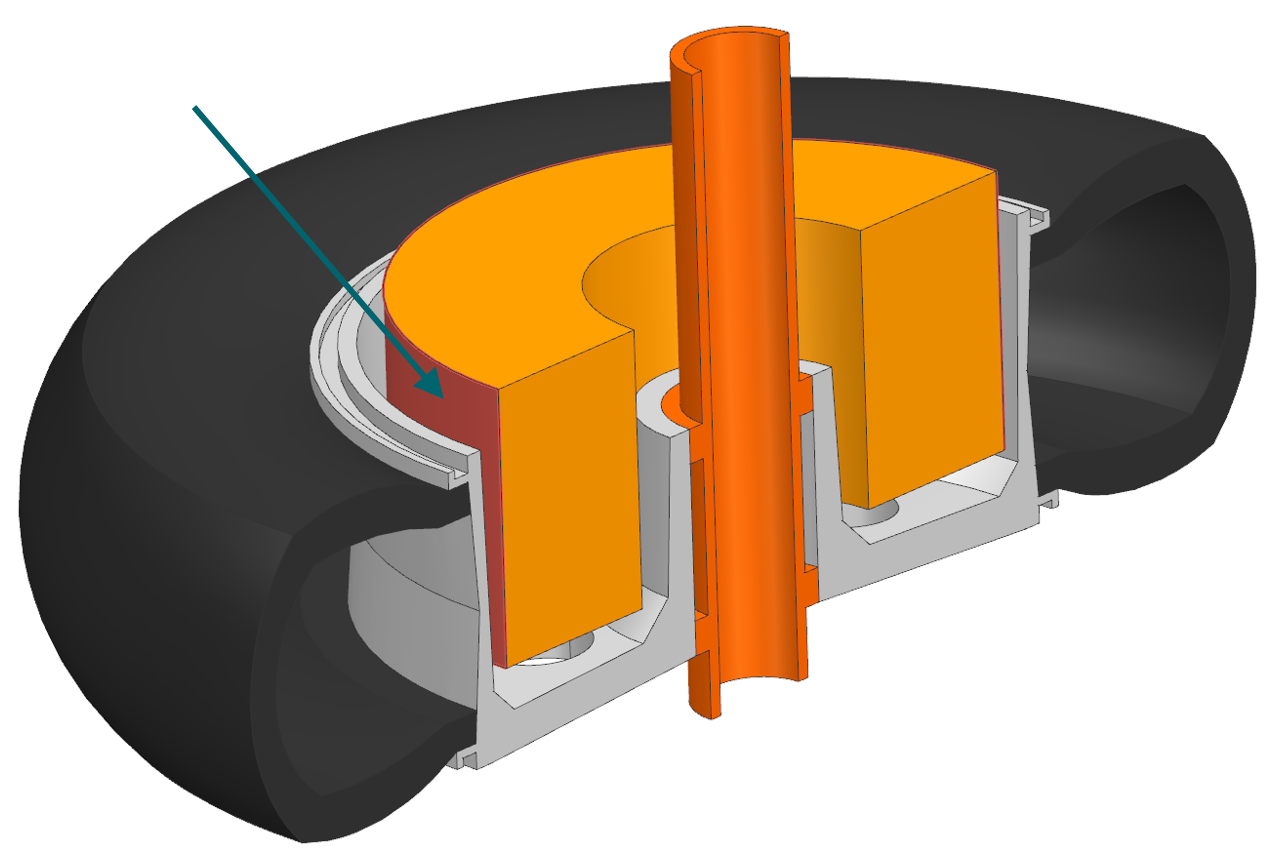
In the graphics window, select the shown face.
Solve the model
Display results
- In the Post Processing Navigator, double-click the Thermal node to load results.
- Expand the Thermal node to see all result types.
-
Double-click Temperature – Nodal to display nodal temperature results.