Record journals to automate repetitive tasks in Simcenter 3D

Learn how to record, replay, and modify NX Designcenter Open journals to automate repetitive tasks in Simcenter 3D. You will record a Python journal that creates a thermal load, then modify it to read PCB component power dissipation values from a CSV file and automatically create multiple thermal loads.

Download and extract the part files.

Create FEM and Simulation files

Create a thermal model of the PCB and define CAE groups for the components to which thermal loads will be applied.
  1. From the journals folder, open pcb_prt.prt.
  2. Create a FEM file using the Simcenter 3D Space Systems Thermal environment.
  3. Mesh the PCB and its components using 2D Mesh with the following settings.
    Option Components PCB
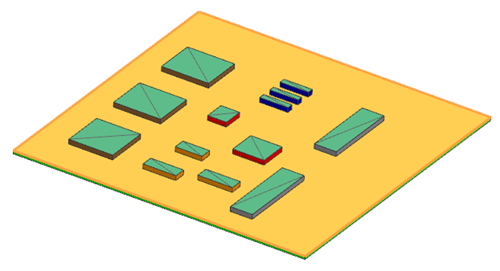
    Selection 3D view of a PCB model showing the selected electronic components. 3D view of a PCB model showing the selected board.
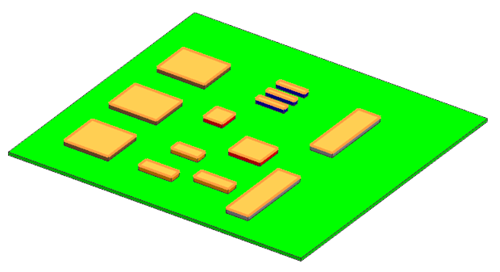
    Element size 25 mm 5 mm
    Mesh collector Null Shell Thin Shell, 1 mm thickness
    Material - User-defined PCB material with the following properties:
    • Density = 1000 kg/m3
    • Thermal conductivity = 10 W/mK
    • Specific heat = 800 J/kgK
  4. Create a Simulation file and a thermal solution.
  5. Create a CAE group for each PCB component listed in PCB_dissipation.csv.

    The journal uses these groups to identify the geometry to which thermal loads are applied.
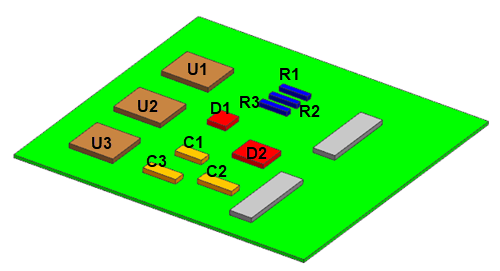
    3D view of a PCB model with the labeled electronic components.

Record the journal

Record a Python journal that creates a thermal load, then replay it to verify that the recorded commands reproduce the operation.
  1. Activate the Developer tab.
  2. Set Python as the preferred language by choosing File > Preferences > User Interface > Tools > Journal.

    You can also configure this setting under File > Utilities > Customer Defaults > User Interface > Journal. Restart Simcenter 3D for the change to take effect.

  3. On the Developer tab, start recording the journal.
  4. Save the journal as journal.py.
  5. Create a thermal load on the component U1 by selecting the U1 group and specifying a Heat Load of 0.22 W.
  6. Stop recording the journal.
  7. Open the journal file in a text editor and examine the generated Python code.
  8. In the Simulation Navigator, delete the thermal load created during recording.
  9. Replay journal.py using the journal playback command on the Developer tab.

(Optional) Create a custom command to run the journal

Add a command to the ribbon to run the journal without opening the journal playback dialog.
  1. Right-click the ribbon and choose Customize.
  2. In the Categories group, select New Item.
  3. Add a new ribbon tab named My Commands and click OK.
  4. Drag New User Command from Items onto the My Commands tab.
  5. Right-click Use Command, select Edit Action, and browse to the recorded journal.

(Optional) Modify a journal to create heat loads from a CSV file

Modify the recorded journal to read component power dissipation values from a CSV file and automatically create a thermal load for each component.
You will replace the fixed component selection and heat load value in the recorded journal with values read from PCB_dissipation.csv.
Note:
Python uses indentation to define code blocks. When modifying the journal, make sure to preserve the indentation shown in the examples. All commands that create a thermal load must be indented inside the for loop so they execute for each component.

Alternatively, you can use the provided journal_csv_heat_loads.py in the journals folder.

  1. From the journals folder, open the PCB_dissipation.csv file and examine the data.
    Each row identifies a PCB component group and its corresponding power dissipation.

    The journal uses the Groups and Power (W) columns. The remaining columns are not required for this exercise.

  2. Open journal.py in a text editor.
  3. At the beginning of the recorded journal, locate the NX Designcenter Open imports:
    
    import math
    import NXOpen
    import NXOpen.CAE
    import NXOpen.Fields
  4. Add the following imports:
    
    import csv
    import os
    import sys

    The csv module reads the CSV file, os locates the file, and sys supports the existing journal entry point.

  5. Before def main(args):, define the CSV file location:
    
    CSV_PATH = os.path.join(
        os.path.dirname(os.path.abspath(__file__)),
        "PCB_dissipation.csv"
    )

    This assumes that the CSV file is stored in the same folder as the journal.

    Alternatively, specify the complete path to the CSV file using forward slashes:

    CSV_PATH = "C:/PCB_dissipation.csv"
  6. Locate the commands that initialize the heat flow unit and create the fixed heat load value:
    
    unit1 = workSimPart.UnitCollection.FindObject("HeatFlow_Metric2")
    expression1 = workSimPart.Expressions.CreateSystemExpressionWithUnits("0.22", unit1)
    fieldManager1 = workSimPart.FindObject("FieldManager")
    scalarFieldWrapper1 = fieldManager1.CreateScalarFieldWrapperWithExpression(expression1)

    Keep the unit1 and fieldManager1 initialization commands. Delete the expression1 and scalarFieldWrapper1 commands, which are no longer needed.

  7. Locate the commands that initialize the thermal load builder and remove these commands from their original location. They will be recreated inside the CSV loop so that a new load builder is used for each component.
    
    simBCBuilder1 = simSimulation1.CreateBcBuilderForLoadDescriptor("Heat Load", "Thermal Load(1)", 1)
    propertyTable1 = simBCBuilder1.PropertyTable
    setManager1 = simBCBuilder1.TargetSetManager
    
    theSession.DeleteUndoMark(markId2, None)
        
        markId3 = theSession.SetUndoMark(NXOpen.Session.MarkVisibility.Invisible, "Thermal Loads")
        
        caeGroup1 = workSimPart.CaeGroups.FindObject("U1")
        setManager1.SetTargetSetGroup(0, NXOpen.CAE.CaeSetGroupFilterType.GeomFace, caeGroup1)
        
        scalarFieldWrapper2 = propertyTable1.GetScalarFieldWrapperPropertyValue("Heat Load")
        
        expression2 = workSimPart.Expressions.CreateSystemExpressionWithUnits("0.22", unit1)
        
        scalarFieldWrapper3 = fieldManager1.CreateScalarFieldWrapperWithExpression(expression2)
        
        propertyTable1.SetScalarFieldWrapperPropertyValue("Heat Load", scalarFieldWrapper3)
        
        field1 = scalarFieldWrapper3.GetField()
        
        propertyTable1.SetTablePropertyWithoutValue("Heat Load Override")
        
        propertyTable1.SetScalarFieldWrapperPropertyValue("Heat Load Override", NXOpen.Fields.ScalarFieldWrapper.Null)
        
        propertyValue1 = []
        propertyTable1.SetTextPropertyValue("description", propertyValue1)
        
        simBCBuilder1.DestinationFolder = NXOpen.CAE.SimLbcFolder.Null
        
        simBC1 = simBCBuilder1.CommitAddBc()
        
        simBCBuilder1.Destroy()
        
        theSession.DeleteUndoMark(markId3, None)
        
        theSession.SetUndoMarkName(markId1, "Thermal Loads")

    The load builder must be created separately for each component, so these commands will be moved inside the CSV loop.

  8. After fieldManager1, add:
    
    with open(CSV_PATH, "r", newline="", encoding="utf-8-sig") as csv_file:
        reader = csv.DictReader(csv_file)
    
        for row in reader:
            group_name = row["Groups"].strip()
            power = float(row["Power (W)"])

    The for loop reads each CSV row and assigns the component group name and power dissipation value to group_name and power, respectively.

  9. To create multiple loads, place the thermal load creation commands inside the for loop.
    
                simBCBuilder1 = simSimulation1.CreateBcBuilderForLoadDescriptor(
                    "Heat Load", "Thermal Load_" + group_name, 1)
    
                try:
                    propertyTable1 = simBCBuilder1.PropertyTable
    
                    setManager1 = simBCBuilder1.TargetSetManager
    
                    theSession.SetUndoMarkName(markId1, "Thermal Loads Dialog")
    
                    markId3 = theSession.SetUndoMark(
                        NXOpen.Session.MarkVisibility.Invisible, "Thermal Loads")
    
                    caeGroup1 = workSimPart.CaeGroups.FindObject(group_name)
                    setManager1.SetTargetSetGroup(
                        0, NXOpen.CAE.CaeSetGroupFilterType.GeomFace, caeGroup1)
    
                    scalarFieldWrapper2 = propertyTable1.GetScalarFieldWrapperPropertyValue("Heat Load")
    
                    expression2 = workSimPart.Expressions.CreateSystemExpressionWithUnits(
                        str(power), unit1)
    
                    scalarFieldWrapper3 = fieldManager1.CreateScalarFieldWrapperWithExpression(expression2)
    
                    propertyTable1.SetScalarFieldWrapperPropertyValue("Heat Load", scalarFieldWrapper3)
    
                    field1 = scalarFieldWrapper3.GetField()
    
                    propertyTable1.SetTablePropertyWithoutValue("Heat Load Override")
    
                    propertyTable1.SetScalarFieldWrapperPropertyValue(
                        "Heat Load Override", NXOpen.Fields.ScalarFieldWrapper.Null)
    
                    propertyValue1 = []
                    propertyTable1.SetTextPropertyValue("description", propertyValue1)
    
                    simBCBuilder1.DestinationFolder = NXOpen.CAE.SimLbcFolder.Null
    
                    simBC1 = simBCBuilder1.CommitAddBc()
    
                    theSession.DeleteUndoMark(markId3, None)
    
                finally:
                    simBCBuilder1.Destroy()

    The journal should now follow this structure:

    
    with open(CSV_PATH, "r", newline="", encoding="utf-8-sig") as csv_file:
        reader = csv.DictReader(csv_file)
    
        for row in reader:
            group_name = row["Groups"].strip()
            power = float(row["Power (W)"])
    
            simBCBuilder1 = simSimulation1.CreateBcBuilderForLoadDescriptor(
                "Heat Load", "Thermal Load_" + group_name, 1)
    
            # Remaining thermal load commands
  10. Save the file.

Run the modified journal

Run the modified journal or the provided journal_csv_heat_loads.py and verify that the thermal loads are created using the power dissipation values from the CSV file.

  1. In the Simulation Navigator, delete the thermal load created during the recording exercise to avoid duplicate loads.
  2. Replay the modified journal or journal_csv_heat_loads.py using the journal playback command on the Developer tab.
    If you created the optional custom command, you can instead assign the chosen journal to that button and click it.
  3. In the Simulation Navigator, review the created thermal loads.
  4. Verify that each thermal load is assigned to the correct CAE group and uses the power value specified in PCB_dissipation.csv.