
Automate repetitive tasks with Simcenter 3D journals
Learn how to record, replay, and modify journals to automate repetitive tasks in Simcenter 3D. Use recorded journals as a starting point for creating scripts that repeat operations, vary input parameters, and process structured external data.
What is a journal?
A journal is a rapid automation tool that records actions performed during a Simcenter 3D session as NX Designcenter Open API code.
You can:
- Record actions performed during a Simcenter 3D session in a journal file.
- Replay the journal to reproduce the recorded actions using the same part file and the context.
- Modify the generated journal to automate repetitive operations.
NX Designcenter Open provides programmatic access to the Simcenter 3D data model, including geometry, finite element models, loads, and boundary conditions.
From recording to automation
Recording a journal is the starting point for automation.

For example, you can record the creation of one thermal load. The generated journal contains the NX Designcenter Open calls and parameter values required to create that load.
You can then modify the journal to replace fixed values, such as the selected component and dissipation, with variables. By adding a loop, the same operation can be repeated for many components.
Journals are designed to be enhanced with programming constructs and user-interface components after recording.
When to use journals
Journals are useful when:
- The same operation must be performed many times.
- The same operation must be applied to many objects.
- Input values are available in a CSV file or another structured data source.
- Input values change between cases.
- Several modeling operations can be combined into one automated workflow.
Record a journal
Journals can be recorded in several supported programming languages. The NX Designcenter Open common API supports multiple language bindings, including Python.
Before recording a journal, set the journal language using one of the following:
To record a journal:
- Enable the Developer tab on the Ribbon bar.
- Click Record.
Green circle indicators identify commands supported by NX Designcenter Open that can be recorded in a journal.
- Select a folder and specify a filename for the journal.
- Perform the operations that you want to automate.
- Click Stop Recording.
- Click Edit, or open the journal in a text editor to
review the generated script.Tip:Record only the actions required for the operation. View manipulation, zooming, and other unnecessary actions can also be captured in the journal.
Replay a journal
Replay the journal to reproduce the recorded operations.
For interpreted journal languages, such as Python, you can run the journal directly using the Play command. Select the journal in the Journal Manager, specify arguments if required, and run it.
Before running a journal, restore the model to the state it was in before recording. For example, if the journal creates a feature, delete the feature before running the journal.
Understand the generated journal
When you record a journal, Simcenter 3D converts your actions into NX Designcenter Open code. When you replay the journal, this code performs the same operations again.
For example, a journal that creates a thermal load can contain:
- The selected component or group.
- The dissipation value.
- The load settings.
For many operations, these settings are stored in a
Builder. The journal sets the Builder properties and
calls Commit() to create or update the object.
The following diagram illustrates how a recorded operation creates an object.
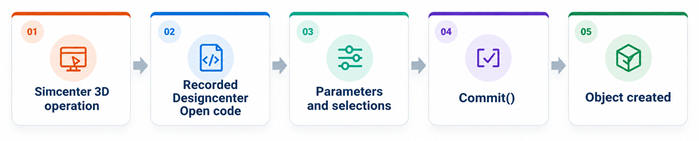
You can review this generated code to identify which values must change when the operation is repeated.
Modify a recorded journal
Group = U1
Dissipation = 0.22 WGroup = input group
Dissipation = input valueYou can then add a loop to repeat the same operation with different values.
The values can be defined directly in the script or read from an external file, such as a CSV file.
Automate operations using external data
You can extend a journal to read structured input data and repeat the recorded operation for multiple objects.
For example, instead of manually creating a thermal load for every PCB component, store the component information in a CSV file:
| Group | Dissipation |
|---|---|
| U1 | 0.22 W |
| U2 | 0.35 W |
| U3 | 0.18 W |
The journal can read each row and use the values to perform the corresponding NX Designcenter Open operation.
This converts a journal that creates one thermal load into a script that can create loads for many components automatically.