
Post process transient results
Practice managing model results using a results probe and graphs.
 Download and extract the part files.
Open the Simulation file
Open the part file and reset the dialog box settings.
- Choose File→Open and open circuit/circuit_sim1.sim.
- Choose File→Preferences→User Interface.
-
On the Dialog and Precision page, click
Reset Dialog Memory
 .
.
- Click OK.
Visualize the nodal temperature results
Load and explore temperature results.
- In the Post Processing Navigator, right-click the Thermal-Flow node and choose Load.
- Expand the Thermal-Flow→Increment 14, 60.00s nodes and double-click the Temperature-Nodal node.
- Under the Viewports node, expand the Post View 1→asm_pcb1_x_t_fem1.fem→2D Elements→CPU collector nodes and hide CPU mesh.
-
Choose Results tab→Display
group→Edge Style
list→Feature
 to hide the mesh in the post
view.
to hide the mesh in the post
view.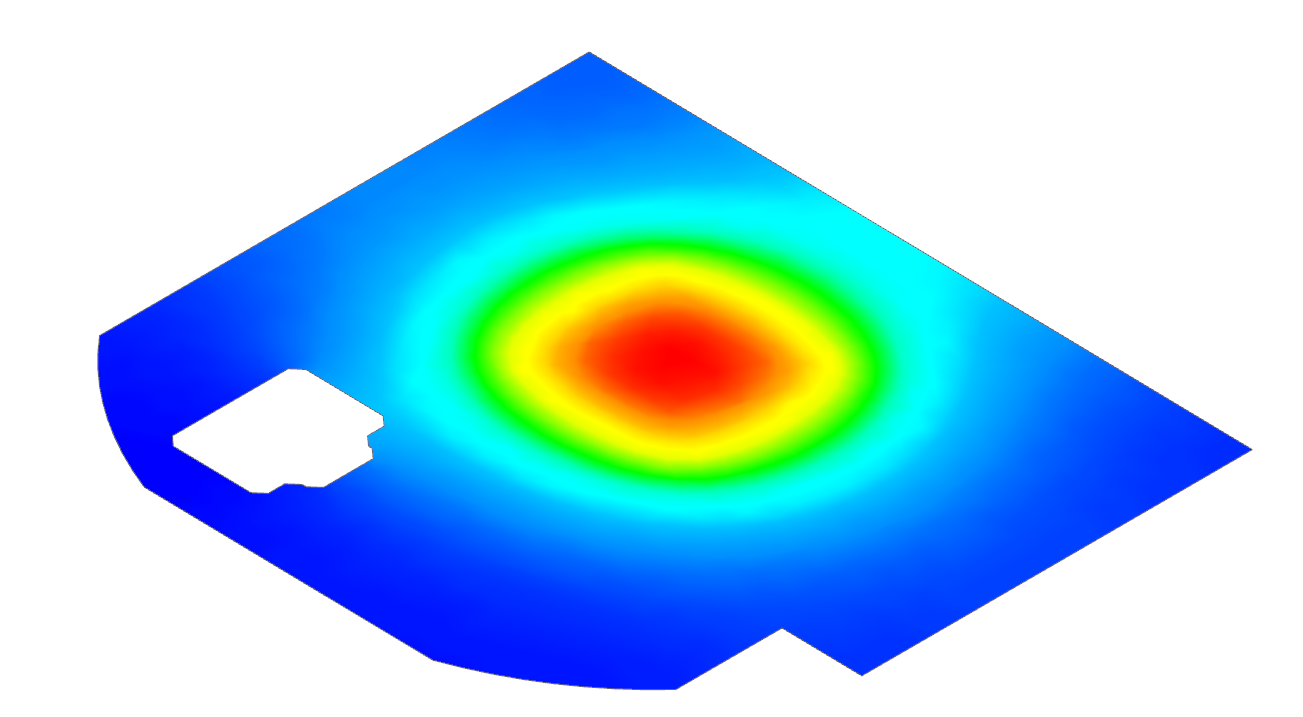
Display the tags for maximum and minimum values
Show annotations for max and min temperature locations and values.
- Under the Post View 1 node, show Annotations.
- Observe the location and value of the maximum and minimum nodal temperature.
Identify results from the model
Select nodes to view their temperature and explore dialog options.
-
Choose Results tab→Tools
group→Identify Results
 .
.
-
Explore the options in the dialog box.

-
Choose Results tab→Context
group→Return to Model
 .
.
Create the result variable for the nodal temperature
Define a temperature result variable averaged over nodes.
-
Choose Results
tab→Manipulation group→Result
Variables
 .
.
Create a result probe representing the average nodal temperature of the CPU
Create a result probe for the CPU temperature averaged over selected faces.
-
Choose Results tab→Manipulation group→Result Probe
 .
.
-
Click Select Object (0)
 .
.
-
In the graphics window, select the CPU top face.
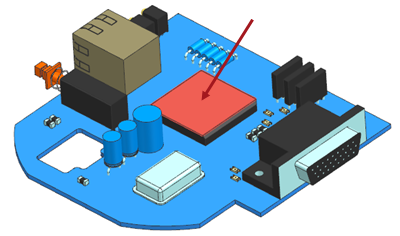
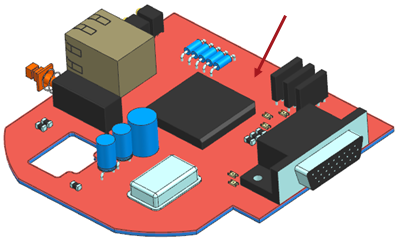
Create a result probe representing the average nodal temperature of the PCB
Create a result probe for the PCB temperature averaged over selected faces.
-
In the graphics window, select the PCB top face.
Create a result probe to evaluate the temperature difference between the CPU and the PCB
Define a result probe for the temperature difference over time.
Plot the temperature difference versus time
Plot a graph of the temperature difference over time.
-
Click Create a New Window to Plot
 to plot the graph in a separate
window.
to plot the graph in a separate
window.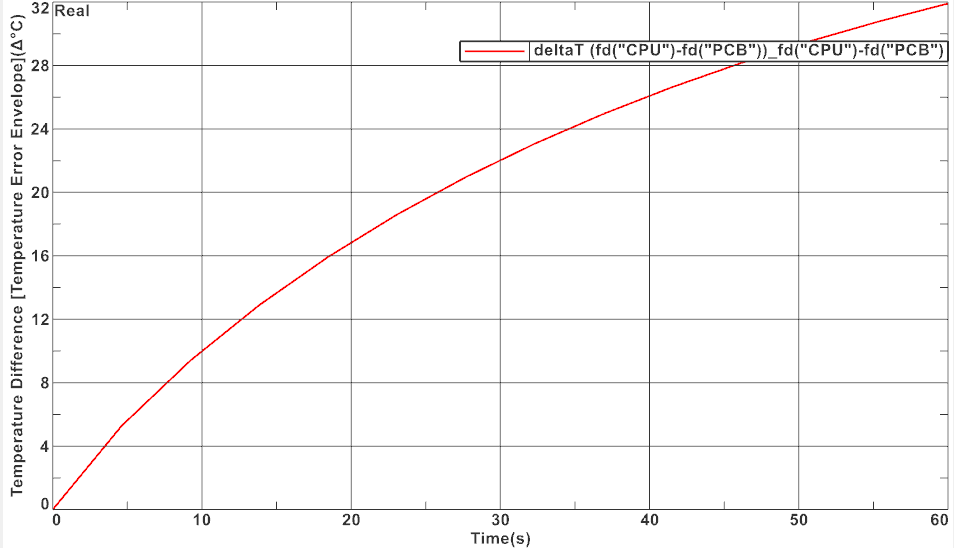
Edit the graph
Modify graph display options and title.
- In the graph window, expand Toolbar.
-
From the Complex Option drop-down list, click
Show and Hide
 .
.
- In the Title row, click Show.
- Click Close to close the Show and Hide dialog box.
- Double-click the title on the graph to modify it.
- In the Text group, click User Defined.
- Modify the text to Temperature difference between the CPU and the PCB.
-
Click OK.
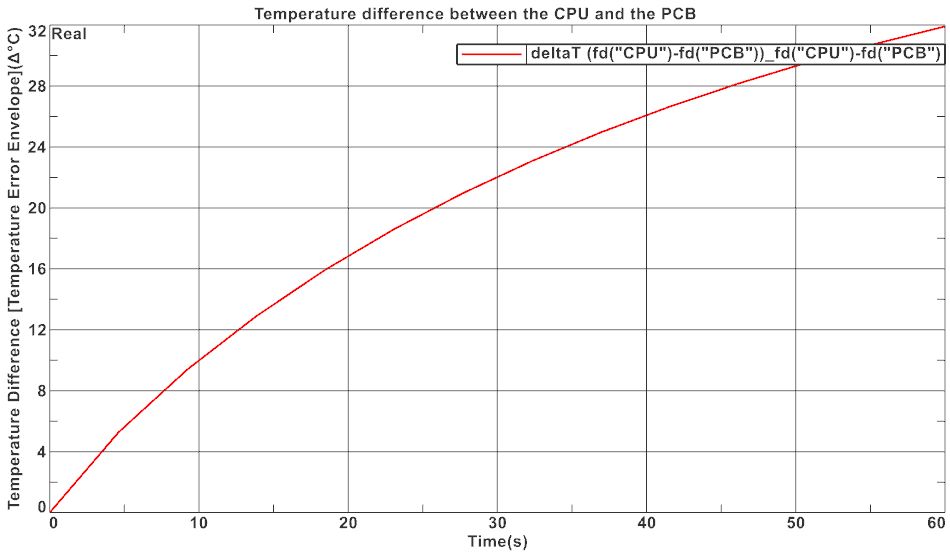
- Explore the other options that you can modify by double-clicking the options on the graph.