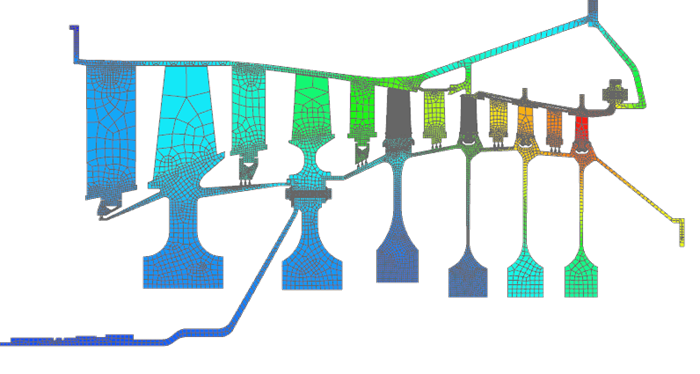
Configure thermal solver settings

Learn how to configure thermal solver settings, modify time stepping options, evaluate accuracy versus solve time, run coupled thermal-structural solutions, post-process cyclic symmetry results, and control output settings.

Download and extract the part files.

Introduction

Setting parameters for the thermal solver and understanding behavior is crucial to understanding when producing any kind of usable results from simulation.

In this tutorial, you will:

  • Modify time stepping options.
  • Evaluate the impact on solution accuracy and solve time.
  • Understand solver communication frequency and results output settings.
  • Post-process cyclic symmetric geometries.
  • Run a combined transient and steady-state analysis.

Load the thermal plugin

Enable the ExpressionsPlugin.dll if not already active. The predefined boundary conditions in the model use heat transfer coefficient (HTC) correlations implemented through custom expressions. These correlations require the plugin to evaluate correctly during the simulation.

  1. Choose File > Utilities > Customer Defaults.
  2. Click Simulation, expand Pre/Post, and scroll to Expressions.
  3. On the Plugin tab, select the Use Custom Plugin check box and in Custom Plugin, type the full path to the ExpressionsPlugin.dll file, as plugin\ExpressionsPlugin.dll.
  4. Click OK, exit Simcenter 3D, and restart the application to activate the plugin.

Define assembly load options

Configure search folders to load a model whose part and FEM files are stored in multiple directories.

  1. On the Home tab, click Assembly Load Options .
  2. From the Load list, select From Search Folders.
  3. In the Add Folder to Search box, browse to the thermal_settings folder.
  4. Append \... to the end of the path so it appears as thermal_settings\....
    Adding \... allows the software to search the selected folder and all its subfolders. However, this option is not recommended for complex or deeply nested directory structures, as it may significantly increase search time.
  5. Click Add to include the path in the search list.
  6. Remove any existing paths that are no longer needed.
  7. Click OK.

Inspect solver and time step settings

Review thermal solution controls and time step definitions.

  1. Choose FileOpen and open thermal_settings\ASSY\GT1_sim.sim.
  2. In the Simulation Navigator, right-click Thermal_Baseline and choose Edit to verify that only the thermal solver is active.
  3. Expand Thermal_Baseline > Steps, right-click Time0.0 and select Edit.
  4. Click Time Step Definition and observe the following:
    • End time of 0 s, which is the initial step in the solve where initial temperatures are applied.
    • The time step option set to Automatic for the thermal solver with some associated time stepping options. This is the default thermal time step option applied to each time in the solution. This could also be set to 1 increment as in the structural solution if desired, since this is the initial step at 0[s] in the analysis.
  5. Inspect the Time Step Definition for Time200.0.
    The Thermal Control is set to 2 increments.
  6. Inspect the time step settings for Time700.0 and
    Note that the Output Flag is set to All Times to ensure that all solver time increments are written to the results file, allowing you to observe how temperature evolves when the time stepping options are modified.
  7. Solve the solution by right-clicking the Thermal_Baseline node and selecting Solve.
  8. In the Post Processing Navigator, expand Thermal > Time700.0 > Increment 11,700.00s and double-click Temperature - Nodal.


  9. Choose Results > Tools > Create Graph .
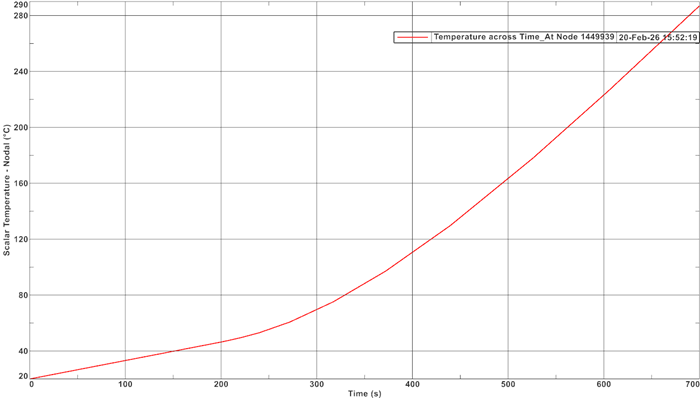
  10. Select Across Iterations, set Method to By Node ID, and in the Nodal Label box, type 1449939.

    This generates a temperature graph at the selected node, which will be used in the next steps to compare results from solutions with modified time stepping.


  11. Open the GT1_sim-Thermal_Baseline.log file and note the total solve time reported at the end of the file.

Modify time step options and compare results

Evaluate solution accuracy and solve time sensitivity to time stepping controls. Time step size affects both convergence and accuracy. If too few time steps are used, the solution may not converge or may miss important transient behavior, such as temperature spikes. A proper balance between time step size and convergence tolerance is required to obtain accurate and stable results.

  1. In the Simulation Navigator, right-click Thermal Baseline and select Clone.
  2. Rename the solution to Thermal_Refine.
  3. Clone the solution again, and rename it as Thermal_Coarse.
  4. In Thermal Refine, edit Time700.0 and set Temperature Error Tolerance to 0.5 Δ°C.
    This is a much finer tolerance and allows you to quantify the error introduced by the previous time stepping settings.

    In practice, the tolerance should be selected based on company or industry standards, or by performing sensitivity studies with progressively finer tolerances to determine an acceptable level of error.

  5. In Thermal Coarse, edit Time700.0 and change Thermal Control to Number of Increments and set it to 2.
    This test demonstrates how much solve time can be saved by reducing the number of time steps and shows how sensitive the thermal results are to the chosen time step size.
  6. Solve both solutions.
  7. Create graphs of nodal temperature for Node 1449939 for both sets of results.
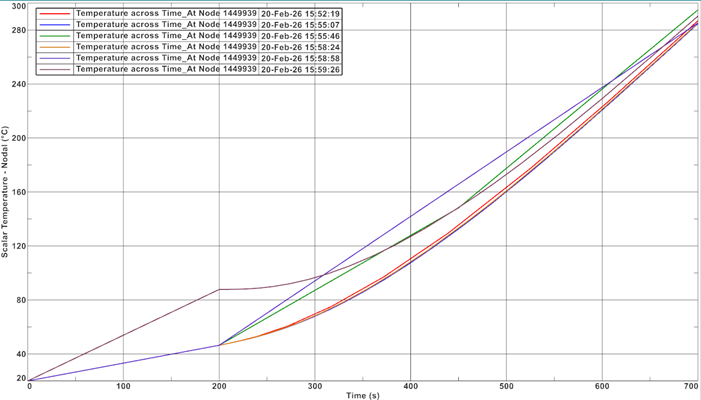
  8. In the Post Processing Navigator, for each solution under the Graph node, right-click Temperature across Time and select Overlay to overlay three graphs on the same window to compare accuracy.
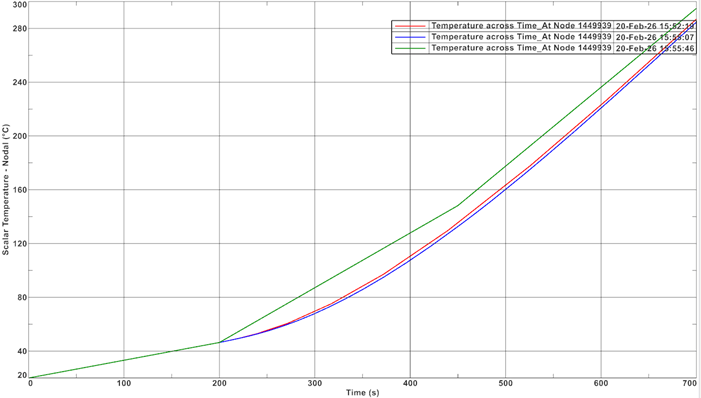

    Observe that the temperatures at 700[s] for the Automatic time stepping models differ by approximately 2 °C, while the very coarse time step approach results in an error of about 10 °C.

  9. Compare solve times using each solution’s .log file.
    Case Thermal solve time
    Thermal_Baseline 2m 16s
    Thermal_Refine 2m 59s
    Thermal_Coarse 1m 38s
  10. Assume that a transient accuracy of 0.5 °C is required at this location. To meet this accuracy requirement while minimizing solve time, we will adjust the automatic time stepping tolerance accordingly To do this, clone Thermal_Refine, rename to Thermal_Refine_Mod, and set Temperature Error Tolerance to 1 Δ°C.
  11. Solve the solution, compare results and solve times.
    The temperature error is about 0.5 Δ°C, and the solve time compared to Thermal_Refine has been reduced by about 20%.

Run a coupled thermal-structural solution

Activate structural coupling and review coupled solution parameters.

  1. Clone Thermal_Refine_Mod and rename appropriately.
  2. Edit the solution and on the General tab, select the Solve Structural check box.
  3. On the Solution Control tab, in the Coupled Control group, next to Coupled Solution Parameters click .
  4. Ensure that Pass Thermal Boundary Condition Pressures to Structural Solver is selected.
    These settings are configured to allow the thermal–structural solution to run efficiently. In this setup, the structural time steps control the coupling between the thermal and structural solvers. Since only one structural step is defined at each time, there are only three coupling points, which significantly reduces solve time.

    If Structural Time Step option were changed to Thermal Time Step, the structural solver would execute at every thermal time increment, increasing computational cost.

    Passing structural results to the thermal solver is only necessary when thermal boundary conditions depend on structural quantities. Similarly, iterative coupling is rarely required and is typically used only when strong two-way dependencies exist between thermal and structural behavior.

  5. Solve the coupled solution and observe increased solve time.
    It is generally good practice to run each solver independently first to verify correct behavior before combining them into a coupled analysis.

Modify results output options

Control solver output times and reduce result file size.

  1. Clone Thermal_Refine_Mod and rename to Reduced_Outputs.
  2. Edit Time700.0 and set Output Flag to Solution Step End Time.
    In this case, only one output result will be written at time = 700[s] for this step.

    While this is not typically recommended, it can be useful when very fine time steps are used and results at intermediate solver integration points are not required.

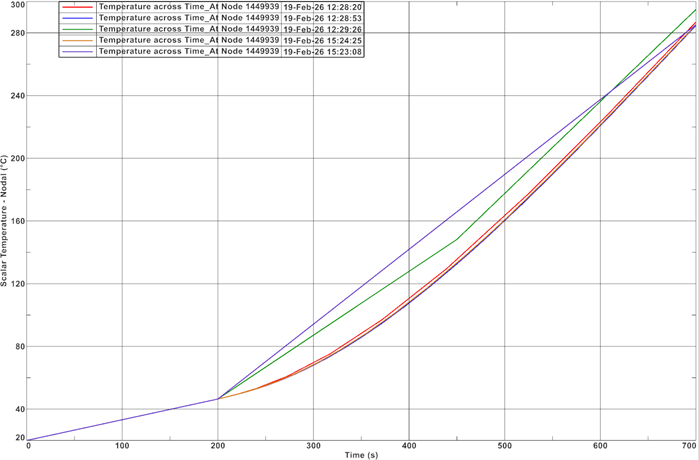
  3. Solve and overlay the nodal temperature at node 1449939 for all thermal solutions to compare results.
    Notice the Reduced_Output curve is straight, and the endpoint aligns with the Thermal_Refine_Mod solution.
Create a combined steady-state and transient run

In some cases, it is useful to combine steady-state and transient analyses. For example, you may want to begin from a steady-state full-power condition and then simulate a transient shutdown. Modify one step of the transient solution to run as steady state and observe how this change affects the results.

  1. Clone Thermal_Refine_Mod and rename appropriately.
  2. Edit Time200.0 and change Solution Type to Steady State.
  3. Solve and compare results to previous transient-only solutions.

Additional notes

  • Review additional advanced parameters in the advanced parameters catalogue.
  • Refer to the thermal solver reference manual for detailed documentation.