
Create thermal coupling boundary conditions
Practice defining thermal coupling boundary conditions between different bodies in a model.
 Download and extract the part files.
Open the Simulation file
Open the model Simulation file and reset the dialog box settings.
-
Click OK.
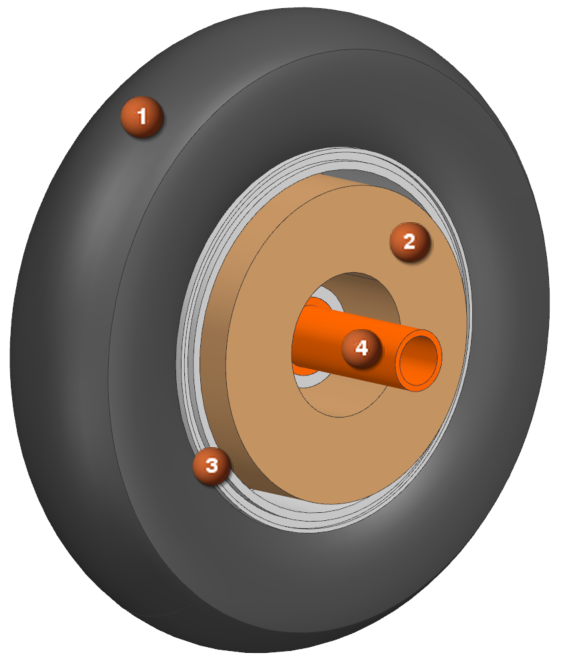
The brake assembly includes four components: tire (1), brake pad (2), wheel (3), and axle (4).
Create thermal coupling between a wheel and tire
Define thermal coupling between wheel and tire with specified heat transfer coefficient.
-
Choose Home tab→Loads and
Conditions group→Simulation Object
Type list→Thermal Coupling
 .
.
-
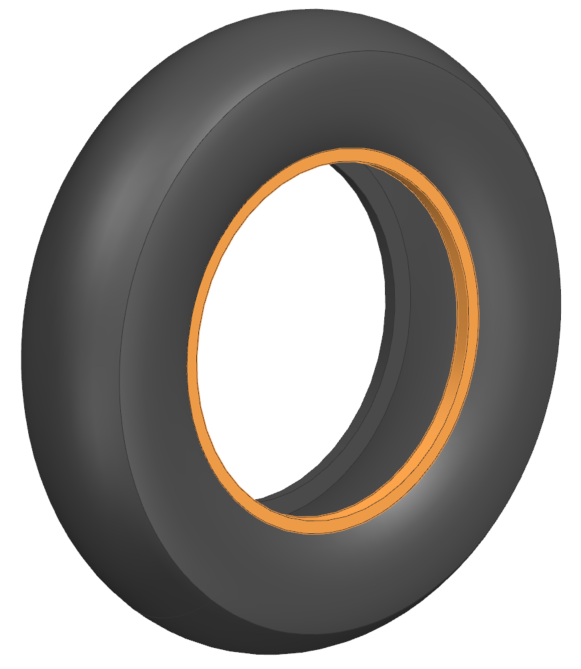
In the graphics window, select 2 polygon faces as shown.
-
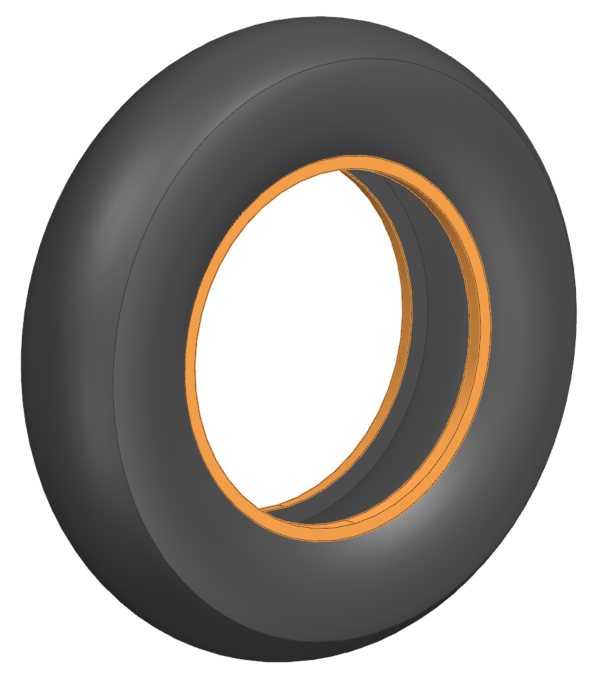
Rotate 180 degrees, and select 2 faces on the other side.
-
In the Secondary Region group, click
Select Object
 .
.
-
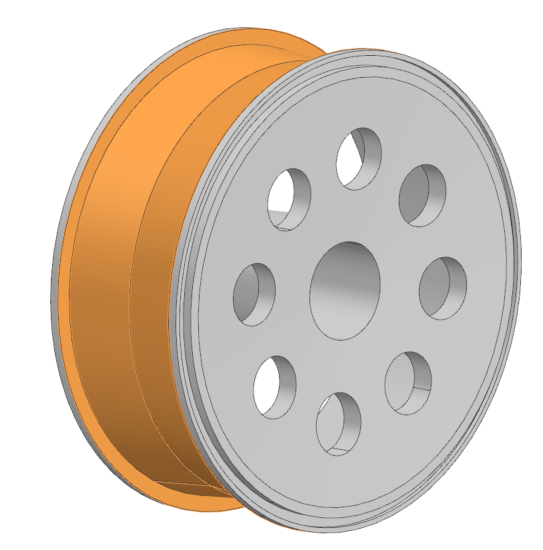
Select 4 outer surfaces of the wheel in contact with the tire.
Create thermal coupling between a brake pad and wheel
Model steady state heat conduction between brake pad and wheel with a 20000 W/m²·K heat transfer coefficient.
-
Select the wheel inner surface.
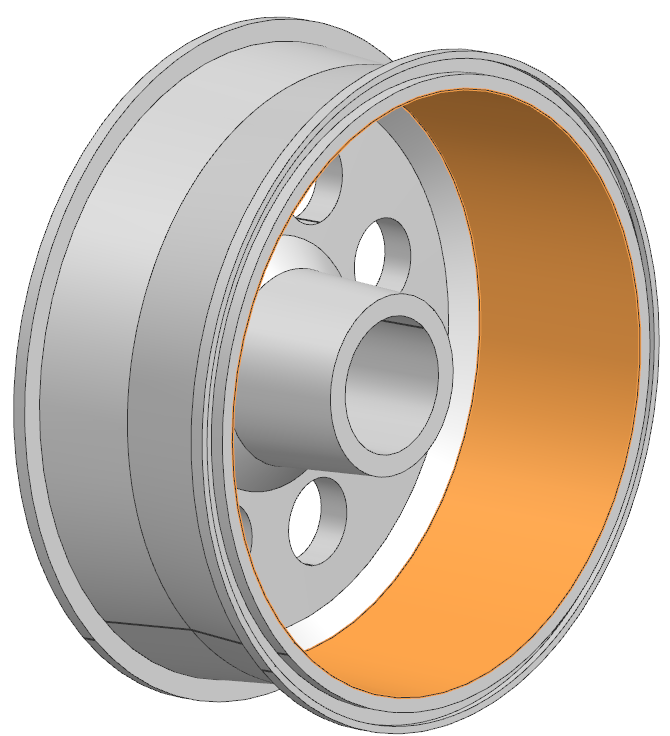
-
In the Secondary Region group, click
Select Object
.
-
Select the displayed outer surface of the brake pad that is in contact with
the wheel.
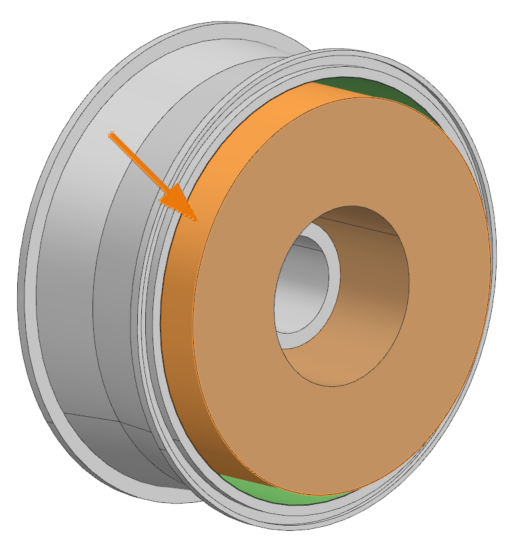
Notice that there is a gap between the brake pad and the wheel. The thermal coupling boundary condition couples the two bodies without the need to create the medium.
Create additional conductance between axle and wheel
Define thermal coupling between axle and wheel with specified heat transfer coefficient.
- In the Simulation Navigator, hide Simulation Object Container.
- In the Name box, type Axle_wheel_TC
- In the Simulation Navigator, under Polygon Geometry, hide wheel and brake pad, show axle.
-
Select two polygon faces on axle.
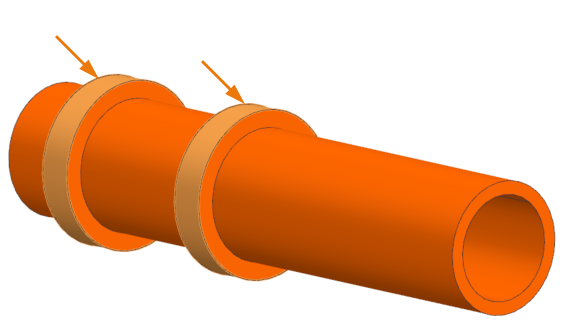
- In Secondary Region, click Select Object
- In the Simulation Navigator, hide axle and show wheel.
-
Select the wheel surface.
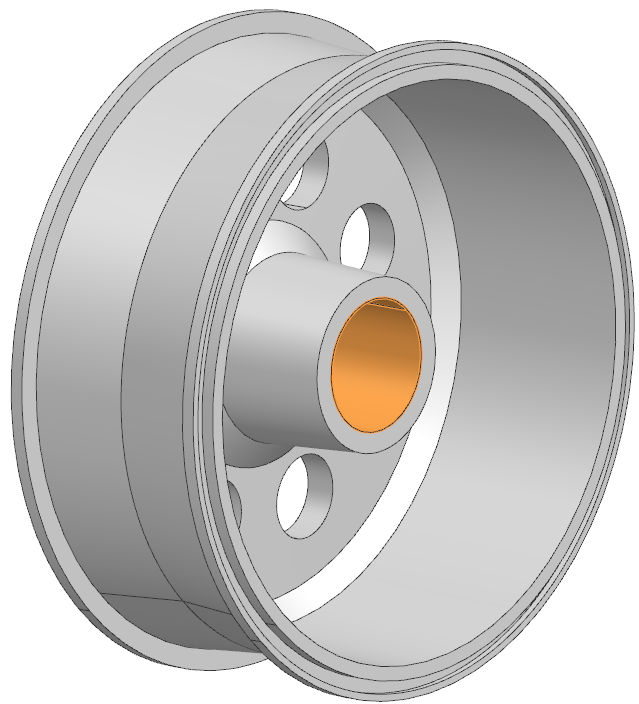
- From the Type list, select Heat Transfer Coefficient
- Set Coefficient to 20000 W/(m^2-°C).
- Click OK.
Request thermal output result sets
Set output requests to verify thermal connections during post-processing.
Solve the model
Solve the thermal model and monitor solution progress.
- Right-click Solution 1 in Simulation Navigator and choose Solve.
- Click OK.
- Wait for Complete status in Analysis Job Monitor.
- In the Review Results dialog, click No.
- Close the Information window.
- Click Cancel in the Analysis Job Monitor dialog.
Review results
Visualize temperature and thermal connection results using post-processing tools.
-
Choose Results tab → Display
group → Cutting Plane Options
 .
.
-
In the Cut Direction group, from the
Axis list, select Y

-
Click OK.
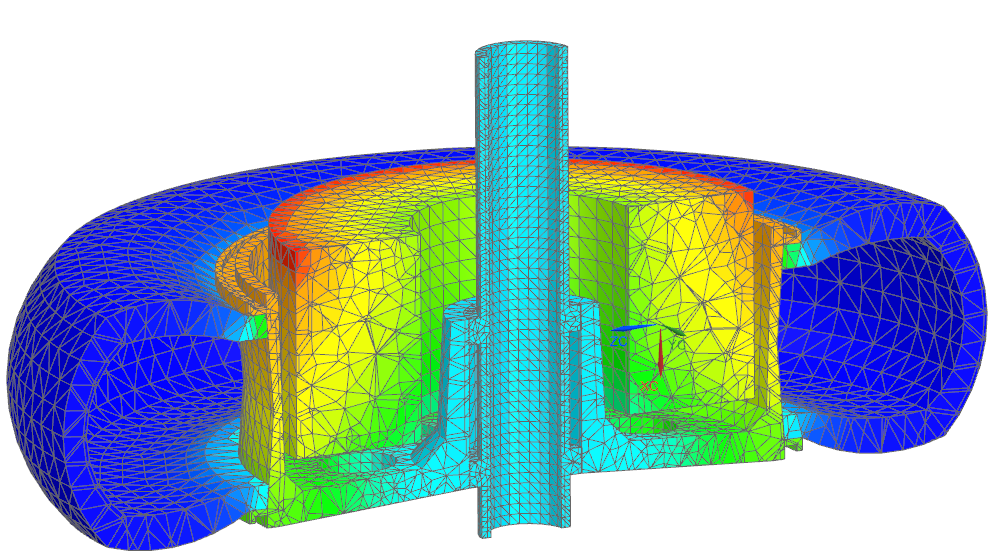
Notice that the area from the brake pad, which is not overlapped with the wheel, has the highest temperature. -
Choose Results tab→Display
group→Cutting Plane
 to turn off the cutting plane
display.
to turn off the cutting plane
display.
-
Choose the Results
tab→Display group→Feature
 .
.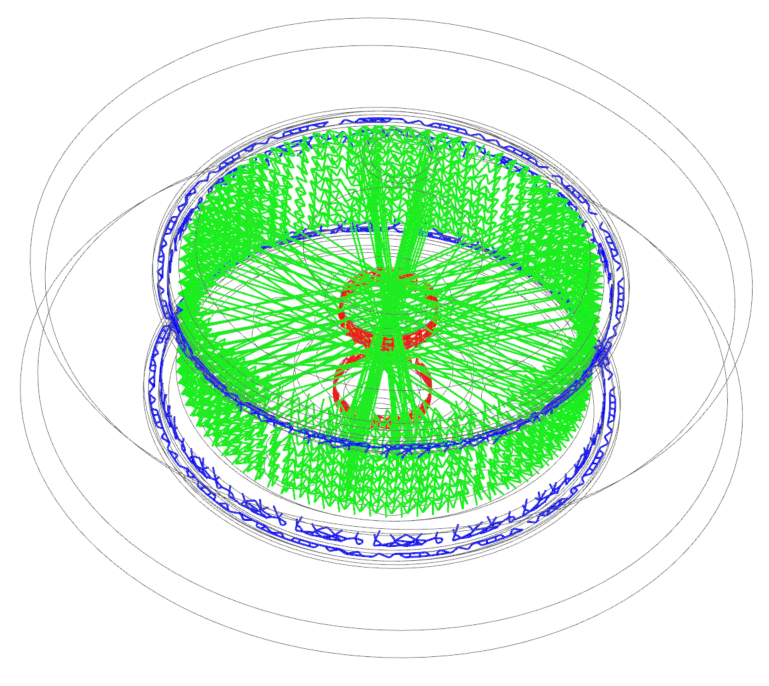
On the image, the blue color shows the connection between the wheel and the tire, the green color shows the connection between the wheel and the brake pad, the red color shows the connection between the axle and the wheel. Observe the extra connections that are created between the wheel and the brake pad. It could happen due to the gap between the selections as well as the circular geometry of the model.
Modify the thermal coupling between the wheel and brake pad
Adjust coupling settings to avoid extra connections by disabling the Only Connect Overlapping Elements option. If you do not select the Only Connect Overlapping Elements check box, then thermal conductances are formed based on proximity. Each primary sub-element is connected to the closest secondary element. The connection is created based only on the distance between the elements. This will allow you to avoid extra connections between the wheel and brake pad.
-
Choose Results tab → Context
group → Return to Model
 .
.
- In Simulation Navigator, expand Simulation Objects, right-click Brake_wheel_TC and select Edit.
- In the Additional Parameters group, clear the Only Connect Overlapping Elements check box.
- Click OK and solve the model again.
Review the thermal connections
Verify thermal connections and coupling ratios post-modification.
-
Choose Results tab → Display
group → Feature
to view connections.
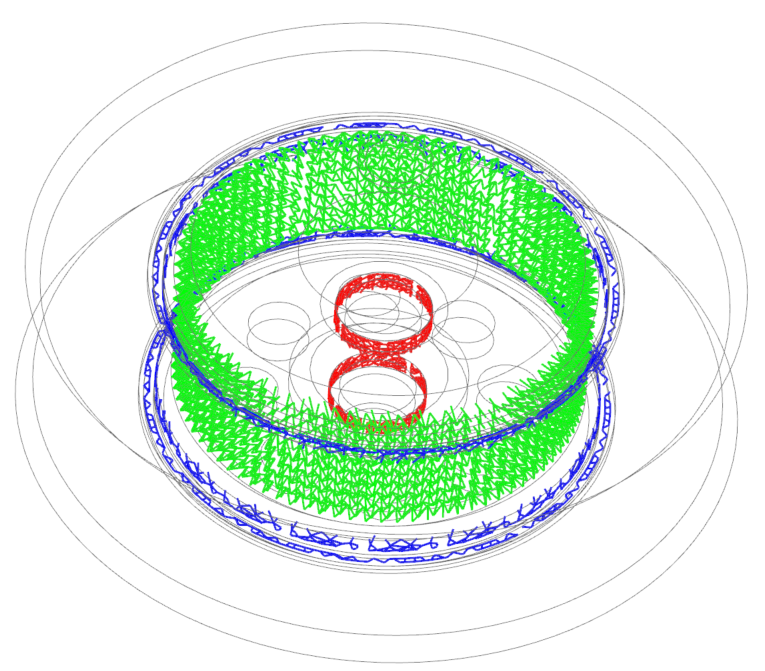
Notice that the connections are shown as expected.