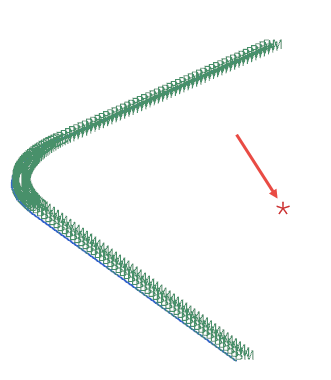
Create multiple mesh types
Practice to mesh a CPU cooler assembly using different mesh types, such as 3D solid, 2D, or 1D beam meshes.
 Download and extract the part files.
Open the FEM file
Open the FEM file and reset the dialog box settings.
- Choose File→Open and open cpu_cooler_esc/cpu_cooler_fem.fem.
- Choose File→Preferences→User Interface and on the Dialog and Precision page, reset the dialog box memory.
Mesh the copper plate using a 2D mesh
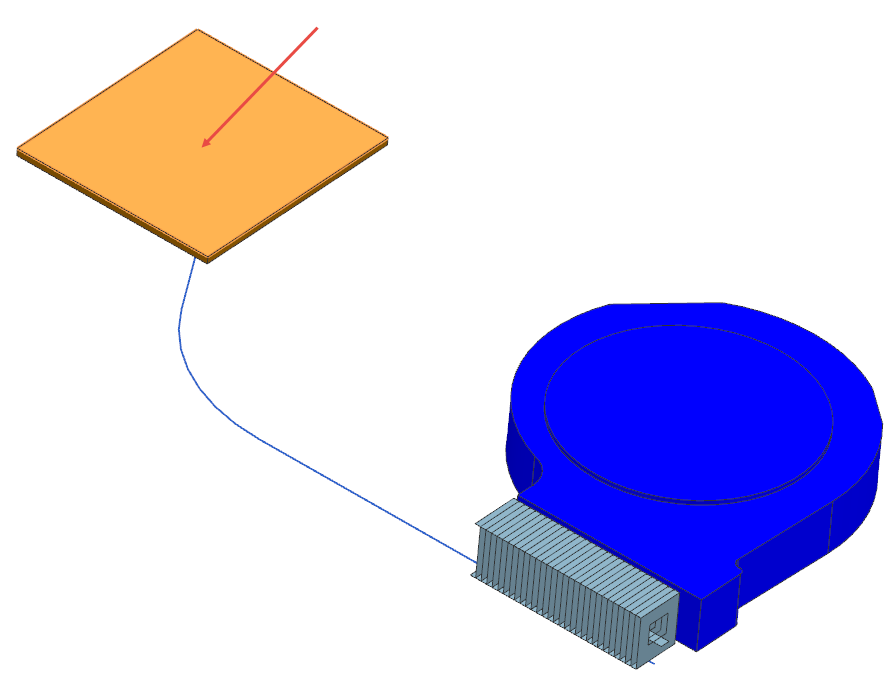
Mesh the copper plate using a 2D mesh.
-
Choose Home tab→Mesh
group→2D Mesh
 .
.
-
In the graphics window, select the top face of the cooler plate, as
shown.
Mesh the heat sink using a 2D mesh
Mesh the heat sink using a 2D mesh.
-
Rotate the model and press F8 to orient the work view to the nearest
orthographic view.

-
Choose Home tab→Mesh
group→2D Mesh
.
-
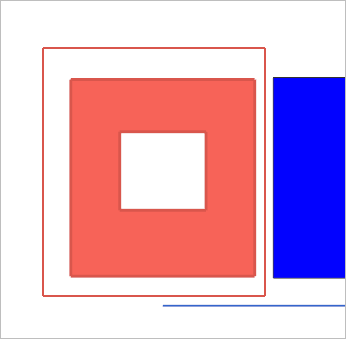
Select all 120 heatsink faces.
Mesh the air volume using a 3D mesh
Mesh the air volume using a 3D mesh.
-
Choose Home tab→Mesh
group→3D Tetrahedral Mesh
 .
.
-
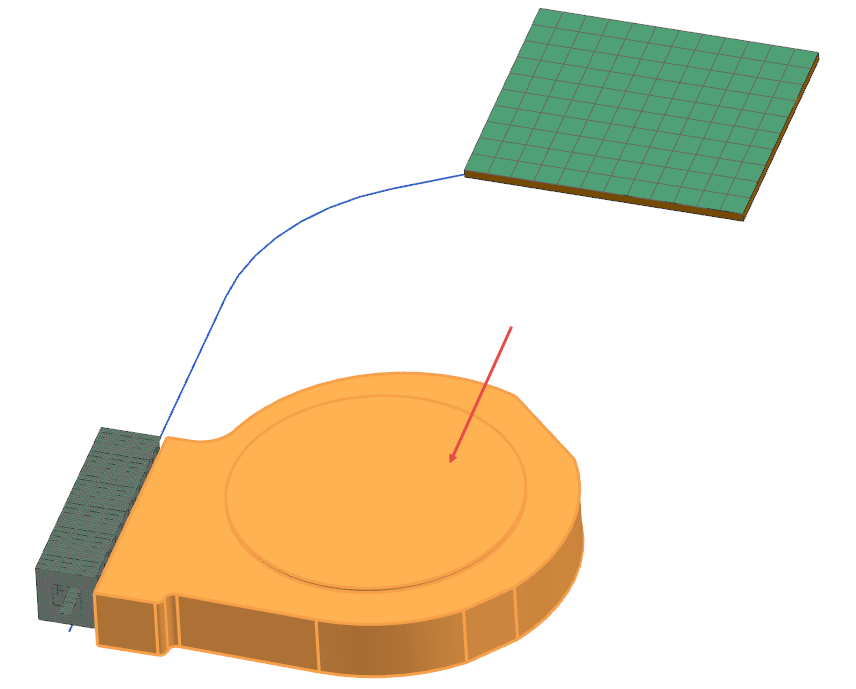
Select the polygon body as shown.
Mesh the heat pipe with beams
Mesh the heat pipe with beams.
-
Choose Home tab→Mesh
group→1D Mesh
 .
.
-
Select the three curves as shown.

Create a node
Create a node for a 0D mesh.
-
Choose Nodes and Elements
tab→Nodes group→Node
Create
 .
.
- In the Location group, in the Y box specify -50.
- Click OK.
Create a 0D mesh on the node
Create a 0D mesh, which you can use to specify concentrated mass for a thermal analysis.
-
Choose Nodes and Elements
tab→Elements group→Element
Create
 .
.
-
Select the created node as shown.