
Create duct boundary conditions in a thermal model
Practice defining duct boundary conditions in a thermal model. You will specify immersed ducts boundaries and solve a transient solution, using a mold cooling model.
 Download and extract the part files.
Open the Simulation file
Open the Simulation file and reset the dialog box settings.
- Choose File→Open and open mold_cooling\drone_mold_sim.sim.
- Choose File→Preferences→User Interface and on the Dialog and Precision page, reset the dialog box memory.
Define duct flow boundary conditions
Define inlet and outlet boundary conditions on the ducts.
-
Choose Home tab→Loads and
Conditions group→Simulation Object
Type list→Duct Flow Boundary
Conditions
 .
.
- On the Top Border bar, from the Type Filter list, select Element.
-
In the graphics window, select the displayed element.
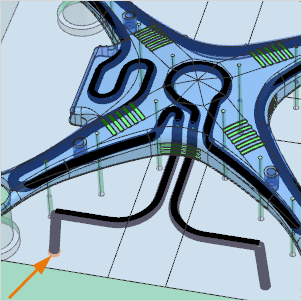
- In the Parameters group, from the Mode list, select Mass Flow.
- In the Mass Flow (per Element) box, type 0.01 kg/s.
- Click Apply.
- From the type list, select Duct Opening.
- On the Top Border bar, from the Type Filter list, select Node.
-
In the graphics window, select the displayed node at the bottom of the
duct.
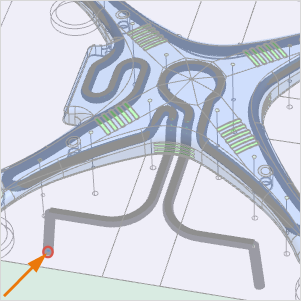
- In the External Conditions group, from the External Temperature list, select Specify.
- In the Temperature Value box, type 20 °C.
- Click Apply.
-
In the graphics window, select the displayed node on the other end of the
duct.
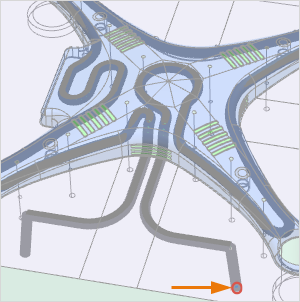
- Click OK.
Define immersed duct boundary condition
Define an immersed ducts boundary condition and specify an expression for the heat transfer coefficient.
-
Choose Home tab→Loads and
Conditions group→Simulation Object
Type list→Immersed Ducts
 .
.
-
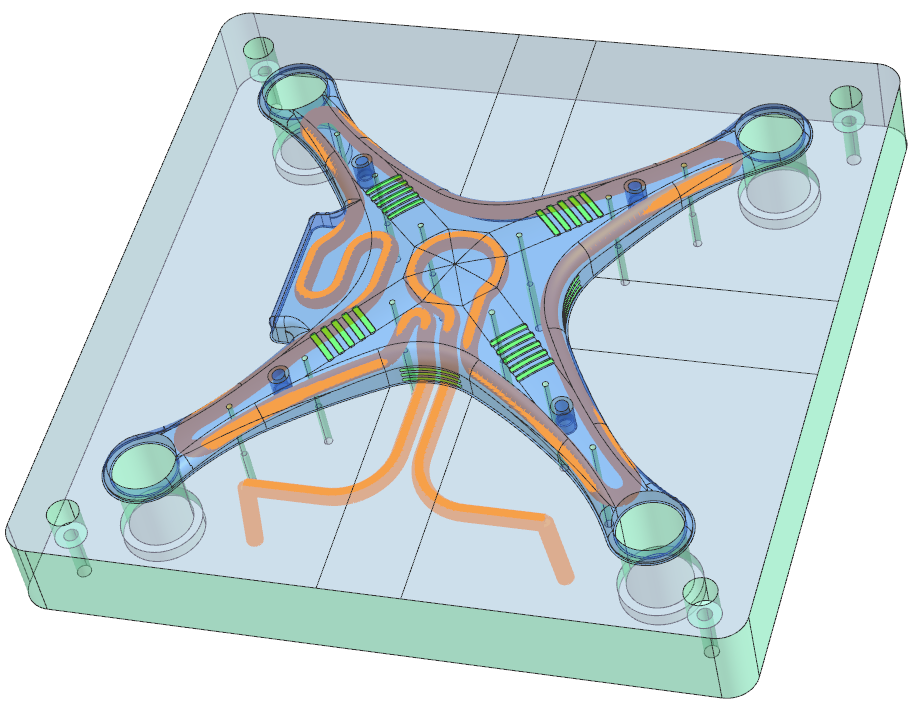
In the graphics window, select the three displayed meshes representing the
ducts.
Solve the model
- In the Simulation Navigator, right-click the Solution 1 node and choose Solve.
- Click OK.
- Wait for the solve to end, before proceeding.
- In the Review Results dialog box, click No.
- Close the Information window.
- In the Analysis Job Monitor dialog box, click Cancel.
Post process the results
-
In the Post Processing Navigator, expand the Thermal→Increment 11, 10.00s nodes, and double-click the Temperature - Elemental node.
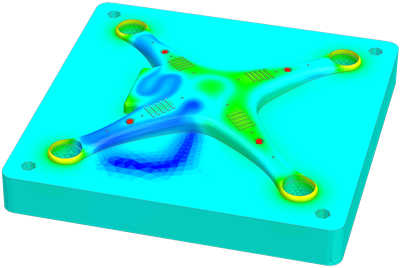
-
Choose Results tab→Animation
group→Animate
 .
.
-
Click Play
 to show how the temperature
varies during iterations, and click Stop
to show how the temperature
varies during iterations, and click Stop
 .
.