
Apply boundary conditions and solve a satellite model
This is an objective-based lab. Instead of being provided a list of instructions, you are simply provided a scenario and problem statement to solve. Please work to solve the scenario of each activity listed below.
 Download and extract the part files.
If you encounter difficulties while following the steps, refer to the Demo video: Applying boundary conditions and solving a satellite model.
Scenario: You are given a satellite assembly Simulation file, which contains predefined boundary conditions, such as thermal couplings, radiation requests, reports, and thermal heat loads on instruments. You are asked to add boundary conditions for solar panels where necessary. You will create a new Simulation file for the solar panel to define boundary conditions between its parts, import solar panel simulation entities to the satellite assembly Simulation file, define orbital heating and temperature reports, solve the thermal analysis, and post-process the results.
Questions: How to visualize transient temperature results on orbit?
Instructions:
-
Define a negative heat load of -150W on the bottom layer of solar panel that
represents the power draw.
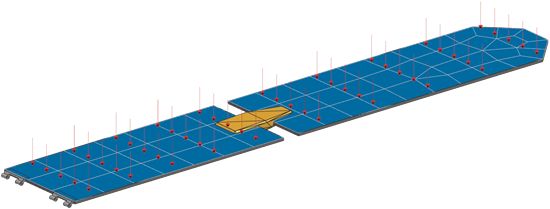
-
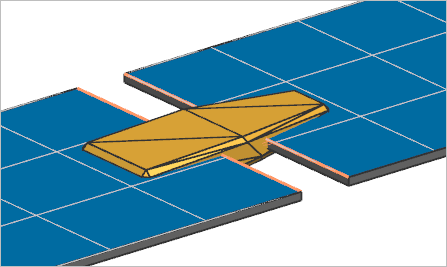
Define an edge contact thermal coupling between the two polygon edges with
conductance per length of 10 W/(m·°C) to represent the middle joint.
Tip: For easier selection, use the Polygon Edge filter type.
-
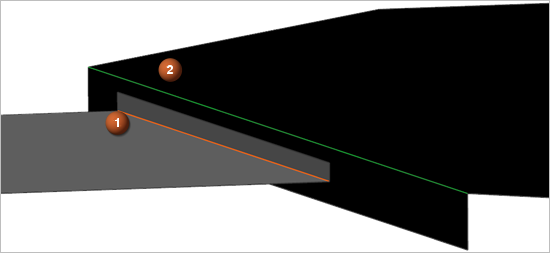
Add edge contact thermal couplings between each solar panel (1) and the main
deck (2) with conductance per length of 5 W/(m·°C).
Tip: For the main deck selection, use QuickPick and make sure that you selected Polygon Edge in FRAME_STRUCT_FEM1.
-
Define an orbital heating with the Illuminate Selected
Elements type with predefined Top External
Radiation group in the Top Side Illuminated
Region, bottom solar panels in the Bottom Side
Illuminated Region and the following classical Hessi orbit
modeling object:
- For spacecraft orientation, the first vector aims at Sun and the second
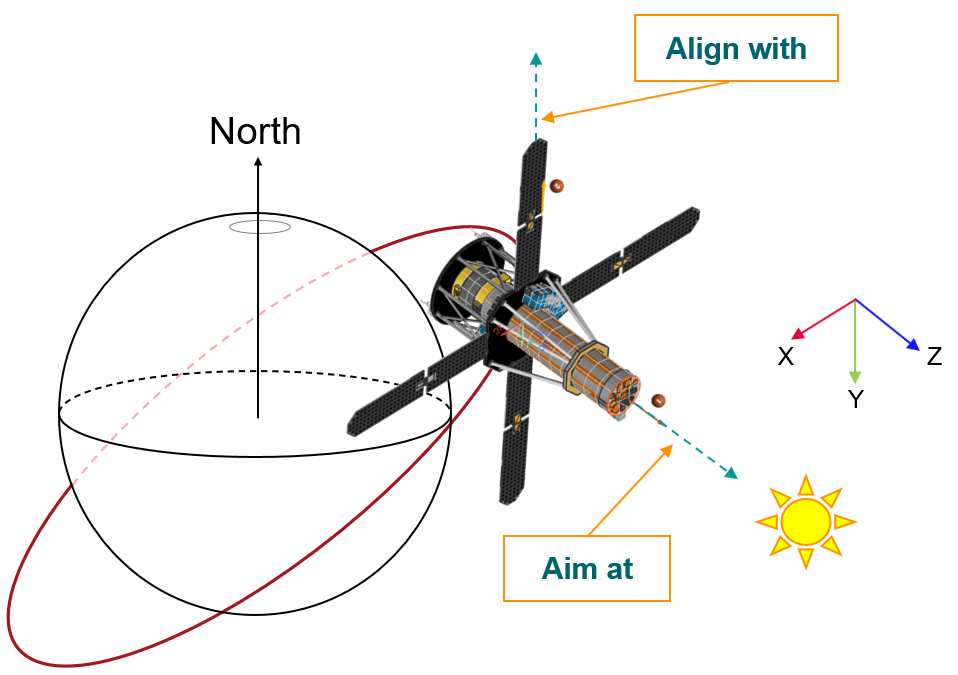
vector aligns with Earth's North as shown.
- For the Sun planet characteristics, compute the solar flux for June solstice Sun position.
- For the orbit parameters, specify:
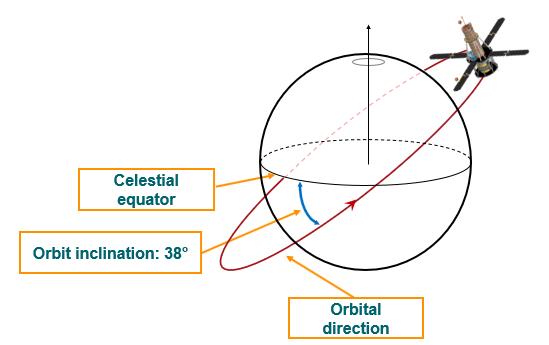
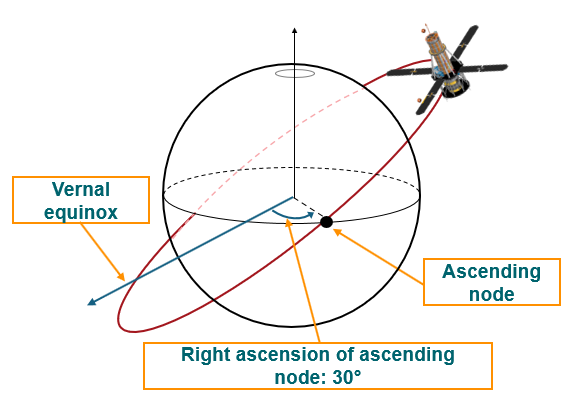
Minimum altitude: 600 km Orbit inclination: 38° Satellite position: 30° right ascension of ascending node 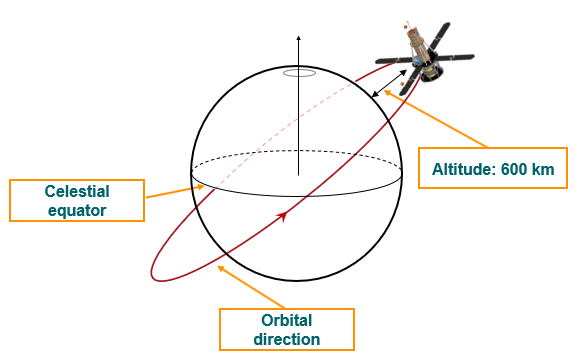
- Specify 26 intervals for the calculation of the satellite positions in the orbit. Greater this number, longer it takes to solve the solution.
- For spacecraft orientation, the first vector aims at Sun and the second
vector aligns with Earth's North as shown.