
Analyze diurnal heating of a rover
Practice to model the thermal effects of the sun on a rover during a day.
 Download and extract the part files.
Open the Simulation file
Open the model Simulation file and reset the dialog box settings.
- Choose File→Open and open mars_rover\mars_rover.sim.
- Choose File→Preferences→User Interface and on the Dialog and Precision page, reset the dialog box memory.
- Click OK.
Check the material properties
Check the material properties for all elements in the enclosure. To model diffuse radiation within the enclosure, all elements must have emissivity defined. For solar spectrum radiative heating, all elements must have solar absorptivity defined.
- In the Simulation Navigator, right-click the mars_rover_fem.fem node and choose Make Work Part.
- Expand the mars_rover_fem.fem → 2D Collectors nodes.
- Under the 2D Collectors node, right-click the Rover_structure node and choose Edit.
- In the Thermo-Optical Properties subgroup, click Edit.
- Verify that Emissivity and Absorptivity are defined.
- Click Cancel twice.
- Repeat the steps 3-6 for the rover_wheels, ground, antenna, and solar_panel_collector nodes.
Define solar heating
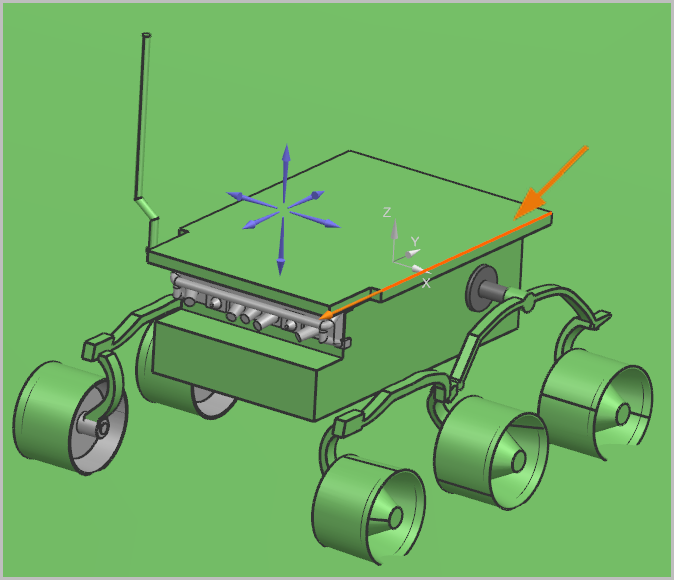
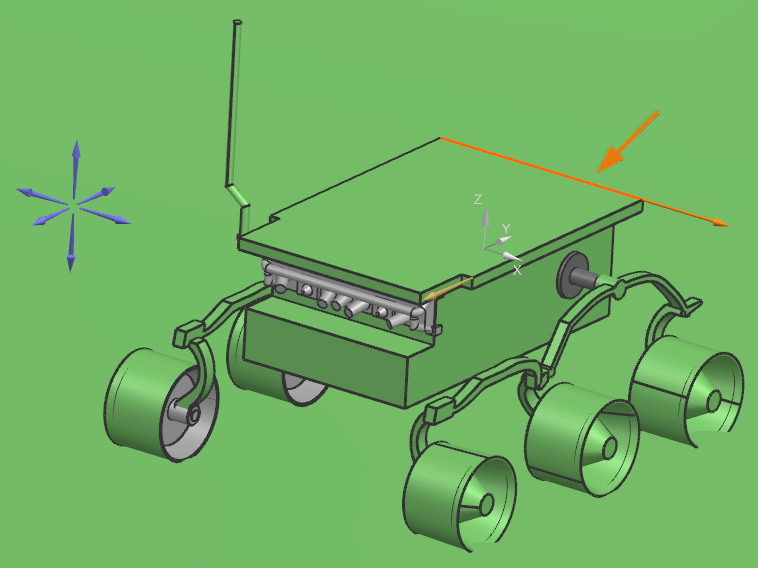
Use the Solar Heating Space simulation object to calculate solar view factors for extended periods of time. You will position the rover on the surface of Mars at latitude of 40º. You will align the rover front to face south, and the opposite side of the antenna to face east.
-
Choose Home tab→Loads and
Conditions group→Simulation Object
Type list→Solar Heating Space
 .
.
-
In the Top Side Illuminated Region group, click Region Illuminated on Top Side
 .
.
-
Select the edge as displayed.
-
Click Reverse Direction
 , if the direction is displayed
differently.
, if the direction is displayed
differently.
-
Select the edge as displayed.
-
Click Reverse Direction
, if the direction is displayed
differently.
Set the solar heating time frame
Set the number of points between sunrise and sunset at which the software calculates solar heating.
- In the Solar Heating Space dialog box, on the Model Orientation tab, in the Solar Vectors group, from the Day Segment list, select Partial Day.
- In the Start Angle from Midnight box, type 100 degrees.
- In the Final Angle from Midnight box, type 280 degrees.
- In the Number of Equal Angular Intervals box, type 20.
- On the Solar Flux tab, in the Sun Right Ascension box, type 30 degrees.
- Click OK.
- In the Simulation Navigator, expand the Simulation Object Container node, right-click the Solar Heating Space(1) node, and choose Edit Display.
- In the Symbols group, move the Scale slider to Tiny.
- Click OK.
Define a radiation enclosure for the rover
Consider the radiative heat exchanges between the rover, ground and ambient temperature by adding them to an enclosure.
-
Choose Home tab→Loads and
Conditions group→Simulation Object
Type list→Radiation
 .
.
Set the parameters for a transient solve
Diurnal heating is a transient phenomenon, you will consider the ambient temperature change between sunrise and sunset. The surface temperatures for the first three mission days that are obtained from sensors located on the metrological mast are provided on the following curves.
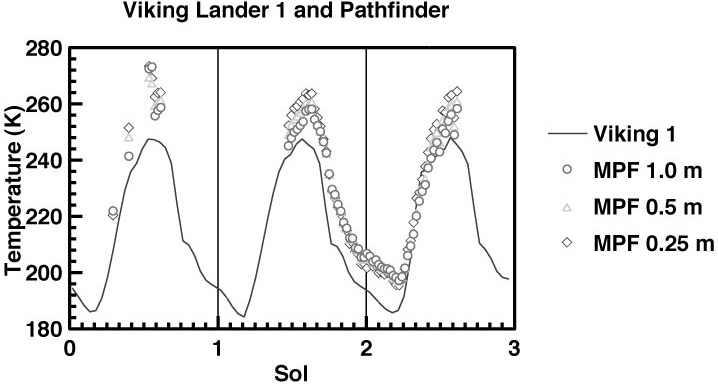
Source: http://mars.jpl.nasa.gov/MPF/ops/ss008.jpg
| Simulation time (Seconds) | Time of day (Sol in Seconds) | Ambient temperature (K) |
|---|---|---|
| - | 0 | 205 |
| 0 | 22192 | 190 |
| 7390 | 29590 | 220 |
| 14769 | 36988 | 240 |
| 22194 | 44386 | 252 |
| 29590 | 51782 | 265 |
| 36988 | 59180 | 240 |
| 44385 | 66577 | 232 |
| - | 73976 | 212 |
| - | 88770 | 205 |
- In the Simulation Navigator, right-click the Day 1 node, and choose Edit.
- On the Solution Details page, in the Solution Type group, from the Solution Type list, select Transient.
- On the Transient Setup page, make sure that the End list is set to At Specified Time.
- In the End Time box, type 44385 sec.
- In the Time Integration Control group, in the Number of Time Steps box, type 500.
-
On the Ambient Conditions page, in the Pressure and Temperature group, next to the Radiative Environment Temperature box, click
 and choose New Field→Table.
- On the Independent Domain page, from the Independent list, select Time.
-
On the Definition page, click Import from
Text File
 .
.
-
In the Table Data Import dialog box, click Browse
 and select Mars_ambient_temperature_data_CSV.csv.
- Click OK twice.
- To change the temperature units to Kelvin, in the Table Field dialog box, right-click the temperature (°C)* table column heading and choose Change Units for Variable→K.
- Click OK.
-
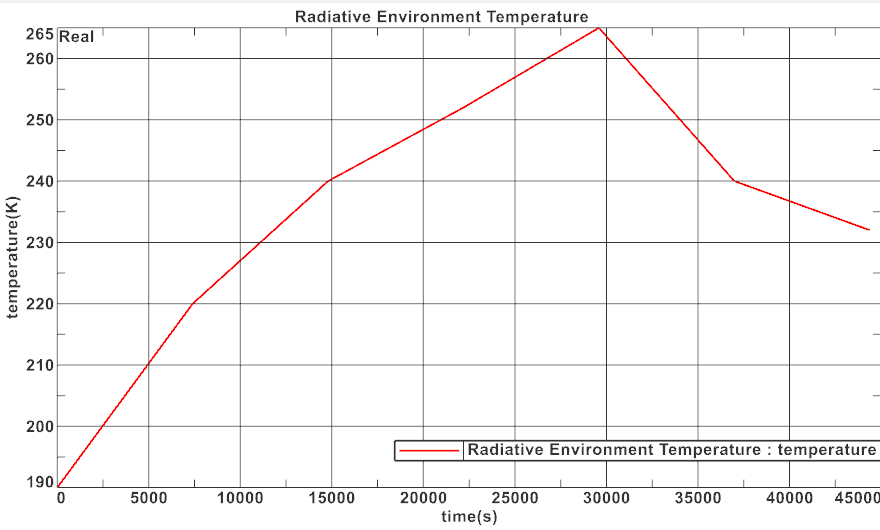
To display the radiative temperature graphic, next to the
Radiative Environment Temperature box, click
 and select Plot (XY)
 .
.
- Click OK.
-
Click on the graphics window.
- Click OK.
Solve the model
- In the Simulation Navigator, right-click the Day 1 node and choose Solve.
- Click OK.
- Wait for the solve to end, before proceeding.
- In the Review Results dialog box, click No.
- Close the Information window.
- In the Analysis Job Monitor dialog box, click Cancel.
Display temperatures and animate absorbed radiative flux
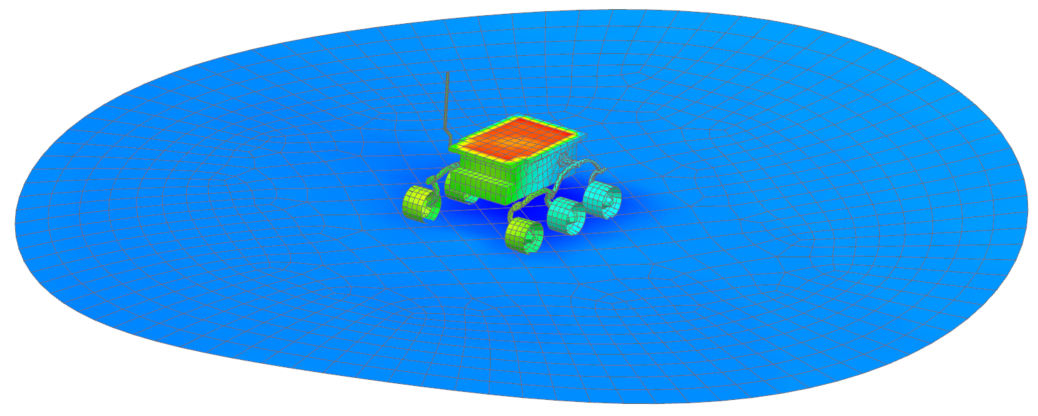
Visualize the temperature distribution on the rover during one day.
-
In the Post Processing Navigator, expand
Thermal → Increment 28,
2.959E+04s, and double-click Temperature -
Nodal.
-
Choose Results tab→Post View
group→Edit Post View
 .
.
-
Choose Results tab→Animation
group→Animate
 .
.