
Thermal modeling of PCB components with pads in an electronic device
Practice to thermally connect PCB components to the underlying pads and post process results.
 Download and extract the part files.
Open the simulation file
Open the Simulation file and reset the dialog box settings.
Enable part translucency
Enable the Translucency preference because some polygon bodies of the model are transparent.
- Choose File→Preferences→Visualization, expand Rendering, and choose Graphics.
- In the Graphics group, make sure the Translucency check box is selected.
- Click OK.
Define a PCB component with pads boundary condition
Create a thermal connection between a component and the underlying pads. Define underfill material properties.
-
Choose Home tab→Loads and
Conditions group→Simulation Object
Type list→PCB Component
 .
.
-
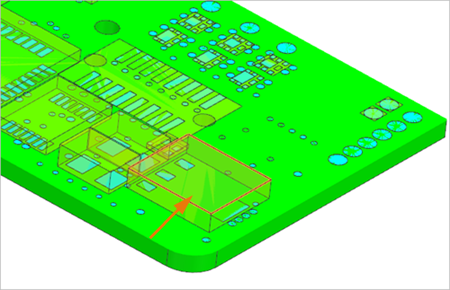
In the graphics window, select the top face of the component as
displayed.
-
In the Pad Region group, click Select
Object
 .
.
-
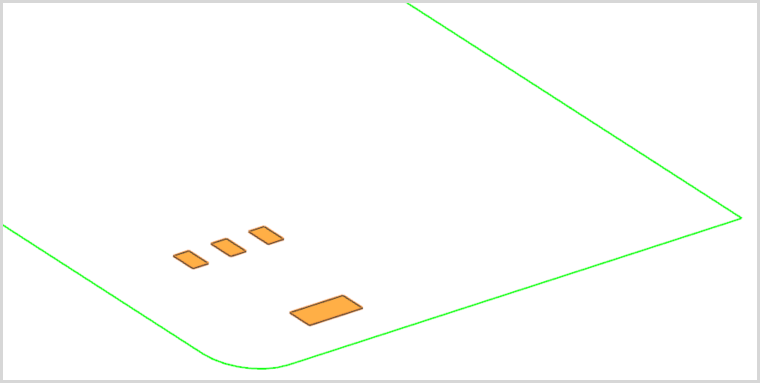
In the graphics window, select the 4 pads surfaces under the
component.
-
In the Underfill Model Parameters group, click
Choose material
 .
.
-
Click Create material
 .
.
Create a convection to environment constraint
- In the Simulation Navigator, expand the Simulation Object Container node and hide IC1 to hide the boundary condition in the graphics window.
- Under the PCB_with_pads_fem.fem, show Polygon Geometry to show the PCB component.
-
Choose Home tab→Loads and
Conditions group→Constraint Type
list→Convection to Environment
 .
.
- From the type list, make sure Convection to Environment is selected.
-
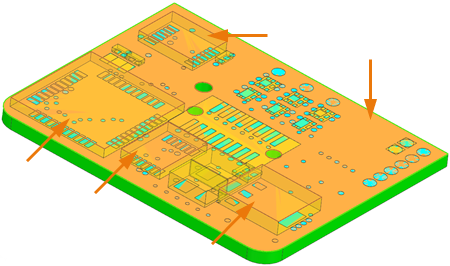
In the graphics window, select the top surface of the 4 displayed
components and the PCB board.
- In the Magnitude - Top group, in the Convection Coefficient box, type 10 W/(m2·°C).
- In the Environment group, from the Temperature list, select Specify.
- In the Temperature Value box, type 20 °C.
- Click OK.
Generate the temperature report
Generate selected thermal solution data for a specified region of your model.
- In the Simulation Navigator, hide Constraint Container.
- In the Simulation Navigator, under the PCB_with_pads_fem.fem node, hide Polygon Geometry and show Pads.
-
Choose Home tab→Loads and
Conditions group→Simulation Object
Type list→Report
 .
.
-
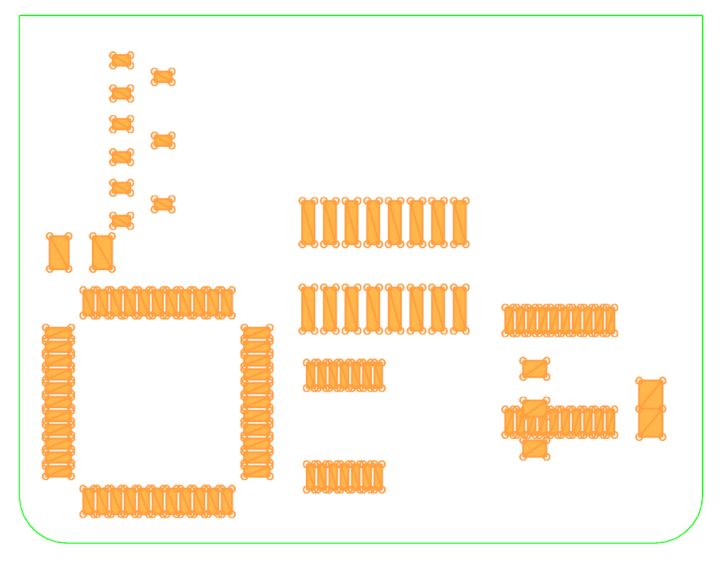
In the Region group, select the shown faces.
- In the Thermal Data, select the Temperature check box.
- Click OK.
Solve the model
- In the Simulation Navigator, right-click the Solution 1 node and choose Solve.
- Click OK.
- Wait for the solve to end, before proceeding.
- In the Review Results dialog box, click No.
- In the Analysis Job Monitor dialog box, click Cancel.
- Close the Information window.
Display results
-
Expand the Post View 1 → Mesh
Collectors → PCB_with_pads_fem.fem →
2D Elements nodes and hide 0D
Elements and 2D Elements except
Pads.
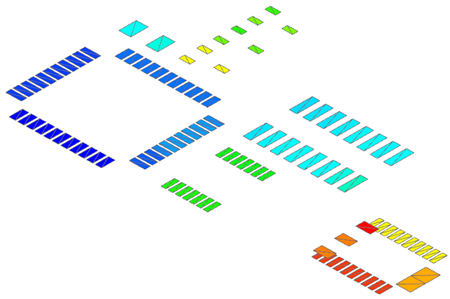
Results show the temperature distribution on pads elements.
Review the HTML report
Explore the HTML file in your analysis directory.