
Model orbital maneuvers of a communication satellite
Practice modeling the orbital maneuvers of a communication satellite to prevent the camera from facing the Sun to avoid overheating and to ensure it turns towards the Earth during eclipses to capture images. You will visualize the defined orbits using the Orbital Visualizer. You will learn how to model orbital heating to simulate the thermal response of a satellite in orbit around Earth.
 Download and extract the part files.
Open the Simulation file
Open the Simulation file and reset the dialog box settings.
Model the full orbit maneuver
Set all parameters that define a full orbit using the Orbit modeling object.
-
Choose Home tab→Properties
group→Modeling Objects
 .
.
-
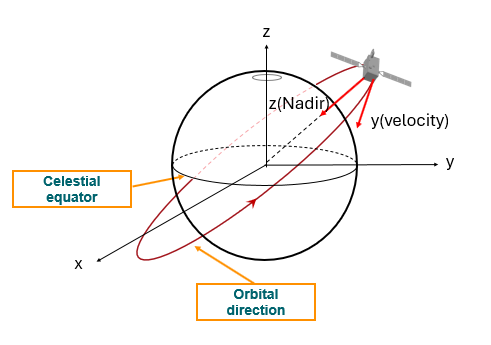
On the Spacecraft Attitude page, in the
Orientation Options group, from the first
Specify Vector list, select the
ZC-axis that aims at Nadir and from the second
Specify Vector list, select the
YC-axis that aligns with the Velocity
Vector as shown.
-
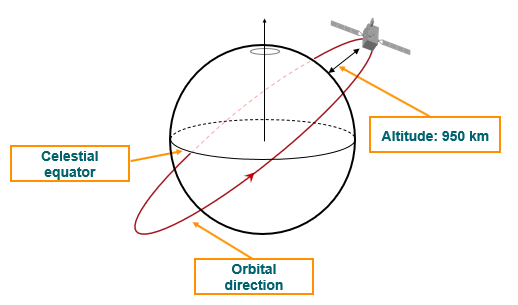
On the Orbit Parameters page, in the
Minimum Altitude box, type 950
km to specify the minimum distance of the orbit from the
Earth's surface.
-
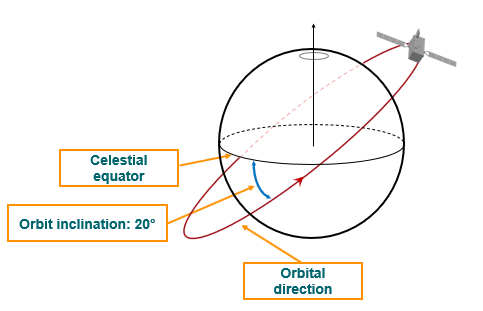
In the Orbit Inclination box, type
20 to specify the orbit inclination angle. This
is the angle between the orbit plane and the equatorial plane, equivalent to
the angle between the planet's axis and the orbit's normal.
Define the orbital heating for the full orbital maneuver
Create the Orbital Heating simulation object and use the Orbit Visualizer to display the full orbit to define the start and end time of eclipse.
-
Choose Home tab→Loads and
Conditions group→Simulation Object
Type→Orbital Heating
 .
.
-
Choose Home tab→Space
group→Orbit Visualizer
to visualize the full orbit
maneuver.
-
In the File Operation, click
Options
 .
.
-
In Animation, click to display the position of the
orbit at which eclipse starts.
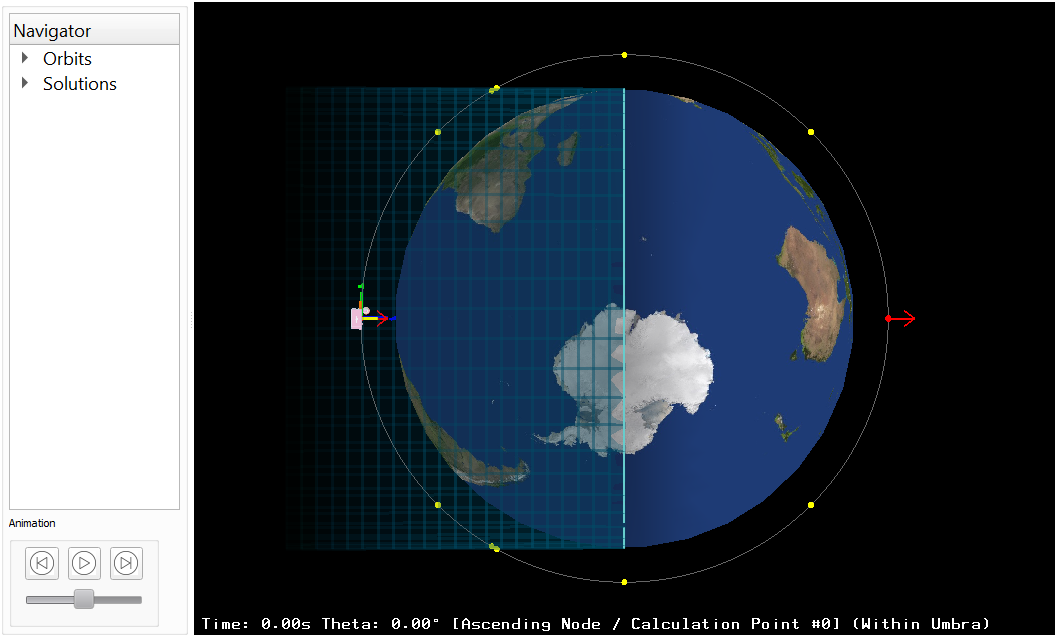
Observe the time and angle of the calculation point. -
In the File Operation, click Orbit
Info
 to list the eclipse and sun
angles information.
to list the eclipse and sun
angles information.
-
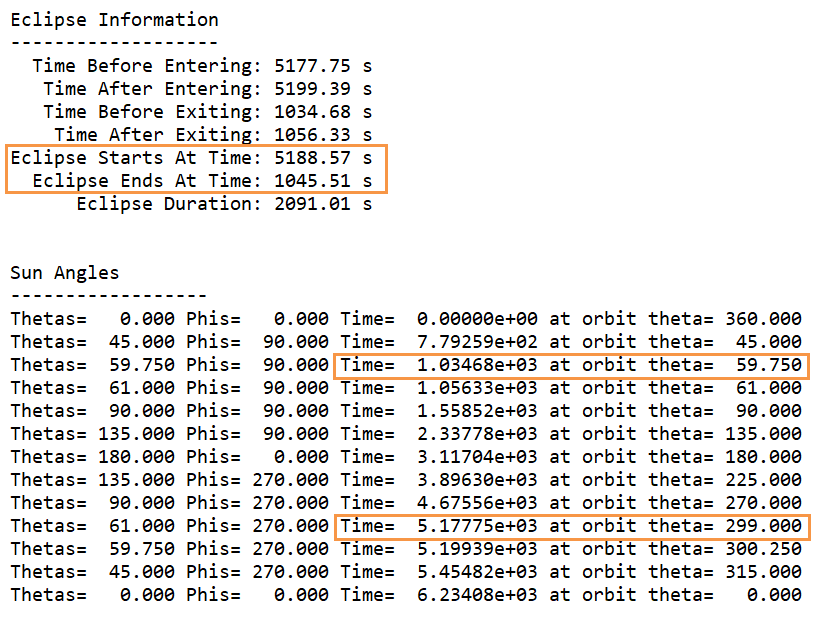
In the Sun Angles, you can find the angles that
correspond to start and end times, which are 299 and 59.75
respectively.
Model the parent orbit maneuver
Define the partial orbit maneuver of the satellite that will start from the end position of the eclipse. In the previous step, we found the start and end angles of the eclipse. Since the maneuver does not start right away, to simplify calculation, we will use 295° and 60° angles.
- In the Simulation Navigator, under the Modeling Objects node, right-click Full Orbit and select Clone.
- In the Name box, type Orbit-Sun.
- On the Sun Planet Characteristics page, in the Planet Data group, in the Prime Meridian Initial Position Referenced from list, select Ascending Node.
- On the Calculation Positions page, in the Orbit Segment group, from the Segment Type list, select Partial Orbit.
- In the Start Angle box, type 60°.
- In the End Angle box, type 295°.
- Click OK.
Model the child orbit maneuver
Define the child orbit maneuver of the satellite that will start from the end position of the Orbit-Sun orbit.
Define the orbital heating for the complete orbital maneuver
Create two Orbital Heating simulation objects to model the thermal response of the satellite during the complete orbital scenario.
- In the Simulation Navigator, under the Simulation Object Container node, right-click the Orbital Heating (Full Orbit) node and select Clone.
- In the Name group, type Orbital Heating (Orbit-Sun).
- In the Orbit Selection group, from the Orbit and Attitude Parameters list, select Orbit-Sun.
- Click OK.
- In the Simulation Navigator, under the Simulation Object Container node, right-click the Orbital Heating (Orbit-Sun) node and select Clone.
- In the Name group, type Orbital Heating (Orbit-Eclipse).
- In the Orbit Selection group, from the Orbit and Attitude Parameters list, select Orbit-Eclipse.
- Click OK.
- In the Simulation Navigator, under the Simulation Object Container node, select Orbital Heating (Orbit-Sun) and Orbital Heating (Orbit-Eclipse), right-click and select Add to active solution or step.
- In the Simulation Navigator, under the Solution 1 node, right-click Orbital Heating (Full Orbit) and select Remove.
-
Choose Home tab→Space
group→Orbit Visualizer
.
- In the Navigator, expand Solutions and select Solution 1.
-
In the Animation, click Play
 .
.
- Close the Orbit Visualizer.
Define the transient parameters
- In the Simulation Navigator, right-click the Solution 1 node and choose Edit.
- On the Transient Setup page, from the End list, select Based on Cyclic Criterion to specify the solution end time.
- In the Maximum Number of Cycles box, type 15.
- In the End Solve if Temperature Change Between Cycles less than box, type 0.1.
- In the Specify Cycle Period box, type 8640.
- In the Time Integration Control group, from the Time Step Option list, select Constant.
- In the Time Step box, type 120 s.
- Click OK.
Solve the model
- In the Simulation Navigator, right-click the Solution 1 node and choose Solve.
- Click OK.
- Wait for the solve to end, before proceeding. The solve takes around 10 minutes to complete.
- In the Review Results dialog box, click No.
- Close the Information window.
- In the Analysis Job Monitor dialog box, click Cancel.
Review and animate the results
Display the temperature results and animate the results.
- In the Simulation Navigator, double-click the Results node.
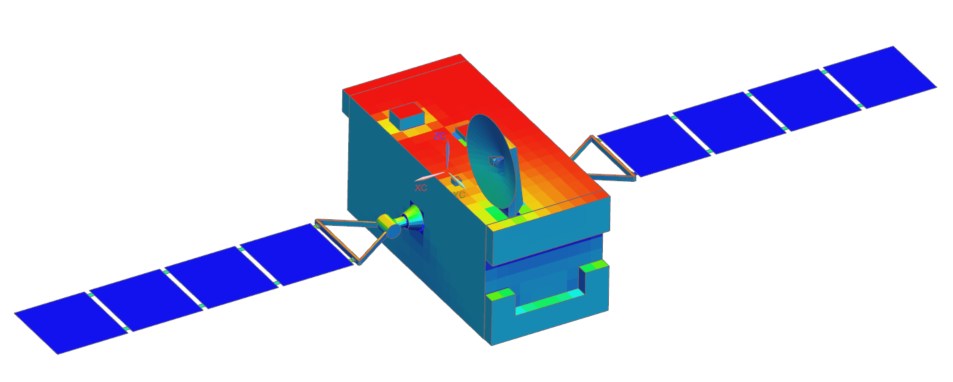
- In the Post-Processing Navigator, expand the Thermal → Increment 10, 4.069E+03s nodes, and double-click the Earth View Factor - Elemental node.
-
Choose Results tab→Display
group→Edge Style
list→Features
 .
.
-
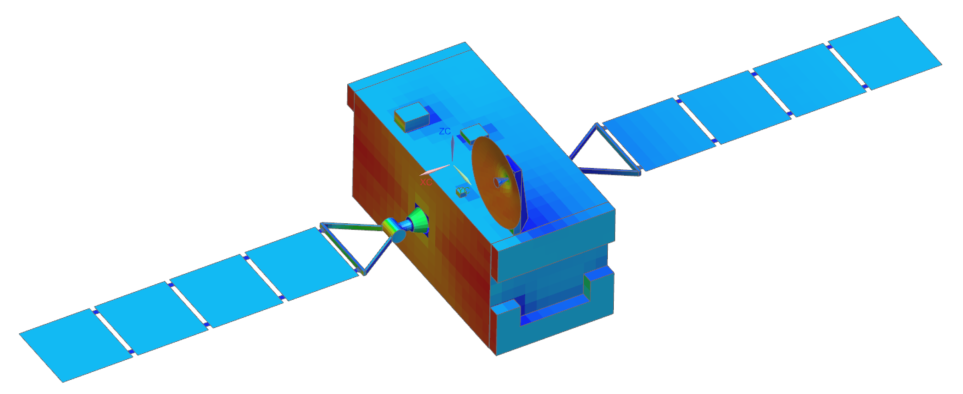
In the Post-Processing Navigator, expand the
Thermal → Increment 11,
4.139E+03s nodes, and double-click the Earth View
Factor - Elemental node.
Visualize the results using the Orbit Visualizer
Use the Orbit Visualizer to display the results at every calculation position during the last orbit maneuver. You will visualize the effect of the satellite trajectory on the solar and earth view factors.
-
Choose Results tab→Context
group→Return to Home
 .
.
-
Choose Home tab→Space
group→Orbit Visualizer
.
-
Click Results
 to specify the results BUN file
and the result type used to display the results on the spacecraft orbiting
the planet in the graphics window.
to specify the results BUN file
and the result type used to display the results on the spacecraft orbiting
the planet in the graphics window.
- Next to the Results File box, click Browse to load the communications_satellite_sim1.bun file that contains the results of the simulation.
- From the Select Results Type list, select Earth View Factor-Elemental.
- Click OK.
-
In the File Operation, click
Options
.
- On the Size tab, move the Model Size slider completely to the right to increase the size of the satellite in the Orbit Visualizer graphics window.
- Click Dismiss.
-
In Animation, click Play
.
- Close the Orbit Visualizer.