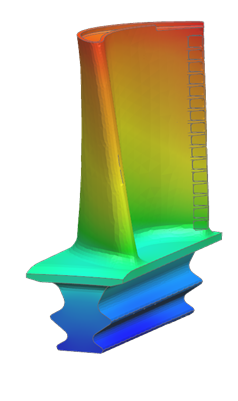
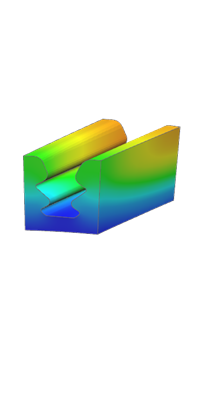
Model a thermal blade root
Model thermal behavior in turbine and compressor blade roots.
 Download and extract the part files.
Introduction
In this tutorial, you will:
- Create 2D/3D and 3D/3D thermal connections.
- Create edge and face streams.
- Define a duct inlet temperature and connect it to streams.
- Connect a duct to a surface using convection.
- Define cyclic symmetry on the blade and blade root.
Open and inspect the model
Inspect mesh types, ducts, glue connections, and structural constraints.
-
In the Simulation Navigator, under the
Face_Glue folder, edit one of the
Surface-to-Surface Gluing boundary condition and
inspect the settings.
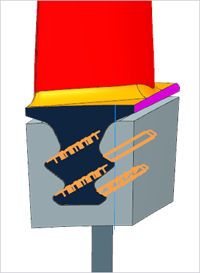
The model uses Surface-to-Surface Gluing with thermal coupling activated. Use glue joints in thermal-mechanical WEM models unless detailed contact behavior at an interface is required. Using a Surface-to-Surface Contact type coupling will cause the structural solver to be much slower. This type of simulation object will model both the thermal and structural connection between the blade and blade root.
-
Right-click the Face_Glue folder and select
Show Only.
Apply convective zone and void to the blade
Model external flowpath convection and internal cooling.
-
Choose
 to apply the convective zone to
the hot flowpath side of the blade.
Use a convective zone because the mass flow in the flow path is generally very high, has very high heat capacity, and can be assumed constant. Use the tangent face selection method.
to apply the convective zone to
the hot flowpath side of the blade.
Use a convective zone because the mass flow in the flow path is generally very high, has very high heat capacity, and can be assumed constant. Use the tangent face selection method. -
Select the following 28 faces, using the Tangent
Faces selection method.
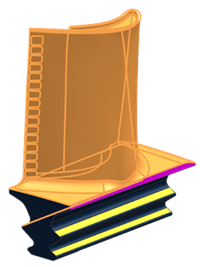
-
Choose
 to model internal cooling air on the
blade.
Modeling the internal cooling passages with a duct network or face streams would provide higher accuracy. However, for this example, a simplified approach is used to estimate blade temperatures. It is assumed that all surfaces for internal cooling convect to the same fluid temperature.
to model internal cooling air on the
blade.
Modeling the internal cooling passages with a duct network or face streams would provide higher accuracy. However, for this example, a simplified approach is used to estimate blade temperatures. It is assumed that all surfaces for internal cooling convect to the same fluid temperature. -
For the region, select the Tangent Faces selection
method and click the shown face.
716 faces are selected.
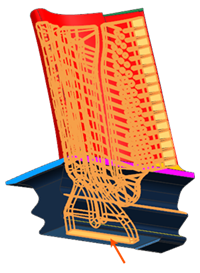
-
Show only the created void.
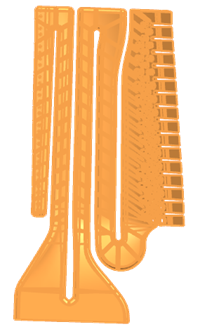
Apply Cyclic Symmetry to 3D components
Define cyclic symmetry on blade and blade root.
-
Choose
 to create a cyclic symmetry
object using the cut faces of the blade root.
to create a cyclic symmetry
object using the cut faces of the blade root.
-
Select the shown face as a source region.
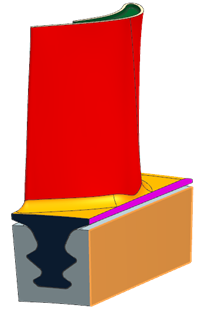
-
Select the opposite side as a target region.

-
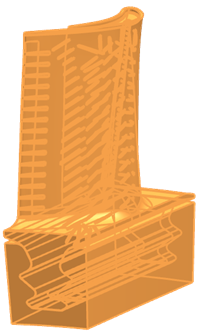
In the Stages group, select the shown bodies.
Apply thermal streams
Define radial and axial cooling air streams along the blade root.
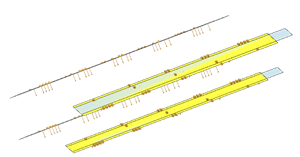
| Stream description | Stream illustration |
|---|---|
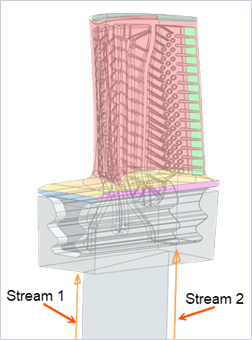
| Stream 1 and Stream 2 supply cooling air to the blade with mass flows of 2 kg/s and 0.3 kg/s, respectively. |
 |
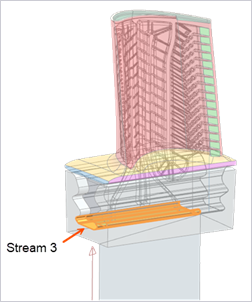
| Stream 3 carries 90% of the flow from Stream 1 into the blade. |
 |
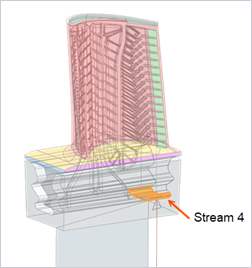
| Stream 4 represents leakage from the blade and carries 5% of the flow from Stream 3. |
 |
| Stream 5 represents a portion of the flow from Stream 1 that bypasses the main path. |
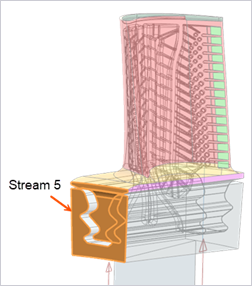 |
| Stream 6 and Stream 7 represent air flowing along the blade, supplied by Stream 5. |
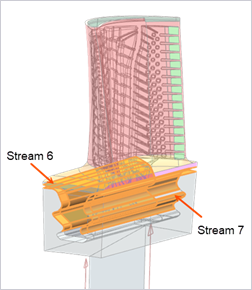 |
In the Name field, enter Stream%%ID to automatically insert the boundary condition ID into the stream name. This convention helps track stream IDs and verify references throughout the model.
-
Choose
 to apply a one-sided edge
stream.
The main flow feeds upward into the blade.
to apply a one-sided edge
stream.
The main flow feeds upward into the blade. -
Select the shown edge.

-
For the Region - Side A, select the shown 7
faces.
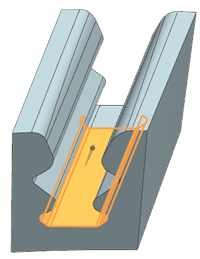
-
For the Region - Side B, select the shown 5
faces.
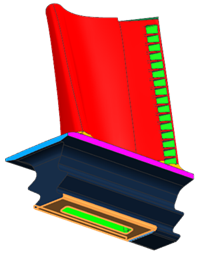
-
Specify the shown vector by selecting two points.
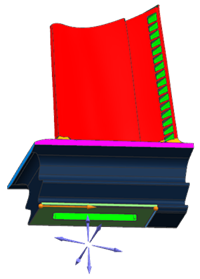
-
For the Region - Side A, select 7 faces.
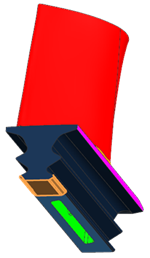
-
For the Region - Side B, select 7 faces.
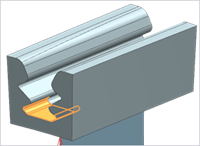
-
Set the vector as follows.
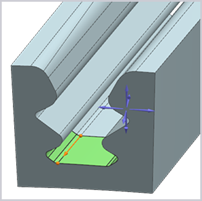
-
For the Region - Side A, select the shown
face.
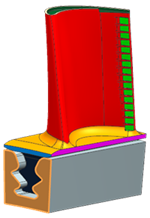
-
For the Region - Side B, select 4 faces.
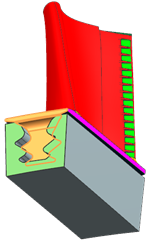
-
For the region A, select 8 faces.
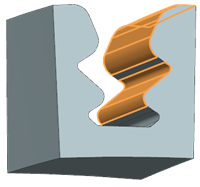
-
For the region B, select 7 faces.
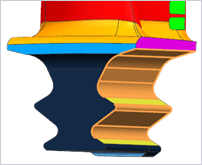
-
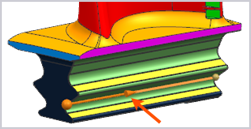
Set the vector, as follows:
Define duct boundary conditions
Define inlet temperature and mass flow for the duct and connect it to surfaces. Assume that the duct flows radially outward in the Y direction. Define the inlet temperature using a mix function that references the outlet temperatures and mass flows of all streams feeding into this location.
-
Choose
 to create a temperature constraint on the duct
fluid node at the inlet.
to create a temperature constraint on the duct
fluid node at the inlet.
-
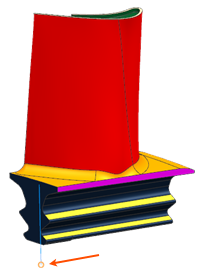
Set the Type Filter to Node
and select the following node.
-
Choose
 to apply mass flow to the duct using previously
defined stream mass flows.
to apply mass flow to the duct using previously
defined stream mass flows.
-
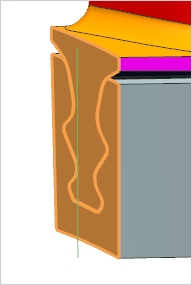
Select the following 2 faces as a Convecting
Region.
Modify thermal void and apply thermal coupling between disk and root
Update void region and connect disk to blade root thermally.
-
Choose
 to create a thermal coupling between the
axisymmetric disk and cyclic symmetric blade root.
to create a thermal coupling between the
axisymmetric disk and cyclic symmetric blade root.
-
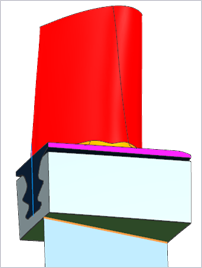
Select the shown edge as a primary region.
-
Select the shown face as a secondary region.
Solve the model and inspect results
Inspect thermal connections and metal temperatures.
-
Display metal temperatures for the last increment.
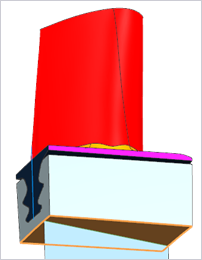
Observe that the blade reaches a higher temperature than the blade root. The metal temperature should remain continuous across the blade root–disk interface, as a very high HTC is defined at that connection.