
How to resolve Intel MPI performance issues on Windows with hybrid CPU architectures when running the thermal solver?
On machines with hybrid CPU architectures that combine Performance-cores (P-cores) and Efficiency-cores (E-cores), Intel MPI on Windows may experience degraded performance when running the thermal solver.
P-cores are designed for high-performance tasks, with strong single-threaded performance. E-cores are optimized for background or lighter workloads, with lower power consumption. Although this design allows Windows to balance performance and efficiency, Intel MPI currently relies on the Windows OS scheduler to assign tasks, and the thermal solver tends to run exclusively on E-cores. Since E-cores are not suited for heavy MPI workloads, this results in significantly longer solve times.
Some Intel CPUs support Hyper‑Threading, which allows each physical core to present multiple logical processors to the operating system. In some cases, this can conflict with application threading—SMP/DMP—and impact parallel runs. If you encounter issues, disable Hyper‑Threading in the BIOS.
Verify core usage
-
- Launch your thermal solution.
- Open the Task Manager → Performance tab.
- Monitor CPU utilization to identify whether the workload is using P-cores or E-cores.
If calculations are only on E-cores, the run will be disproportionately slow.
Fixing performance issues
To improve performance, use one of the following methods:
- Method 1: Adjusting Windows power options
-
- Open the Control Panel.
- Choose .
- Click Change plan settings.
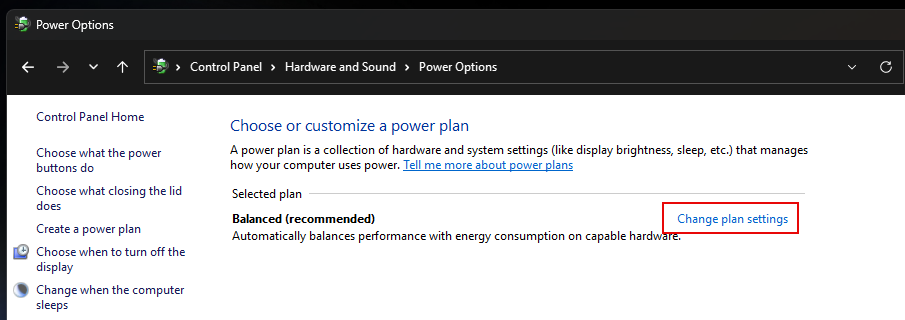
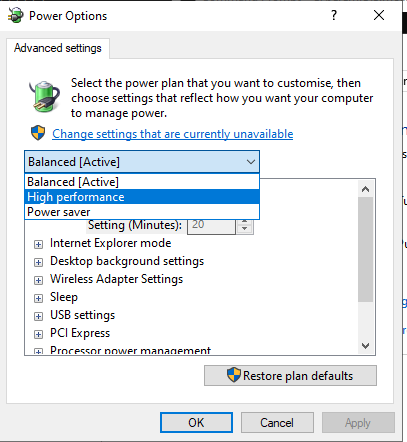
- Click Change advanced power settings.
- Change the setting to High performance.
-
Apply and save changes.
This forces Windows to prioritize P-cores over E-cores when assigning MPI tasks.
- Method 2: Using command line to set policies
-
You can configure scheduling directly via the command line by setting:
SCHEDPOLICYto 1, which allocates P-cores first.HETEROPOLICYto 3, which prioritizes P-cores over E-cores.
powercfg /SETACVALUEINDEX SCHEME_CURRENT SUB_PROCESSOR HETEROPOLICY 3

powercfg /SETACVALUEINDEX SCHEME_CURRENT SUB_PROCESSOR SCHEDPOLICY 1

powercfg /SETACTIVE SCHEME_CURRENT
This method applies the settings directly to your active power plan.